Set Up MFA Information with App (Google Authenticator)
This page explains how to register Google Authenticator on your mobile device as your MFA information.
*This procedure requires both a PC and a mobile device (such as a smartphone or tablet).
Instructions:
-
[PC] Access https://mysignins.microsoft.com/security-info on your PC.
-
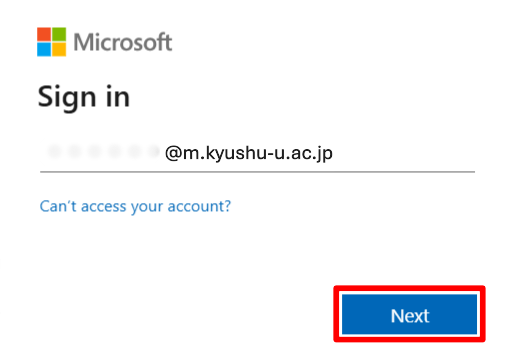
[PC] If the sign-in screen appears, enter your Kyushu University primary email address (…..@m.kyushu-u.ac.jp) and click “Next.”
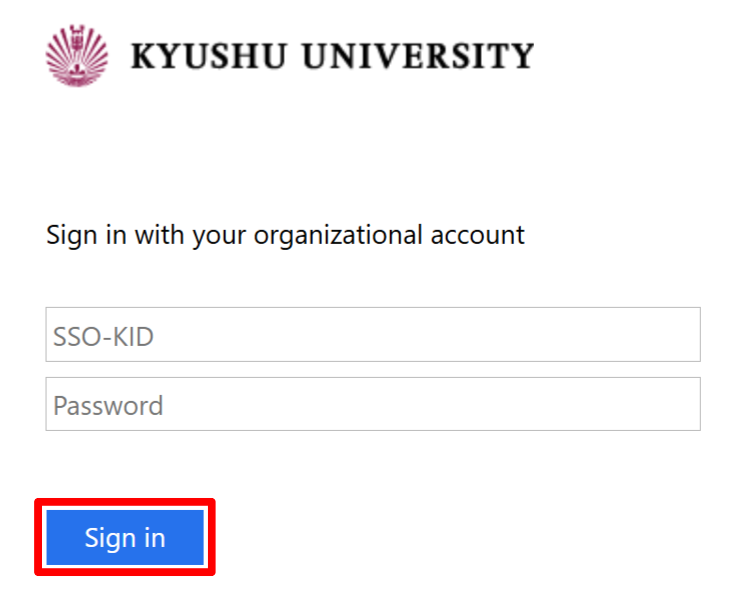
Then, enter your SSO-KID and password, and click “Sign in.”
-
[PC] The next steps depend on the screen displayed.
-
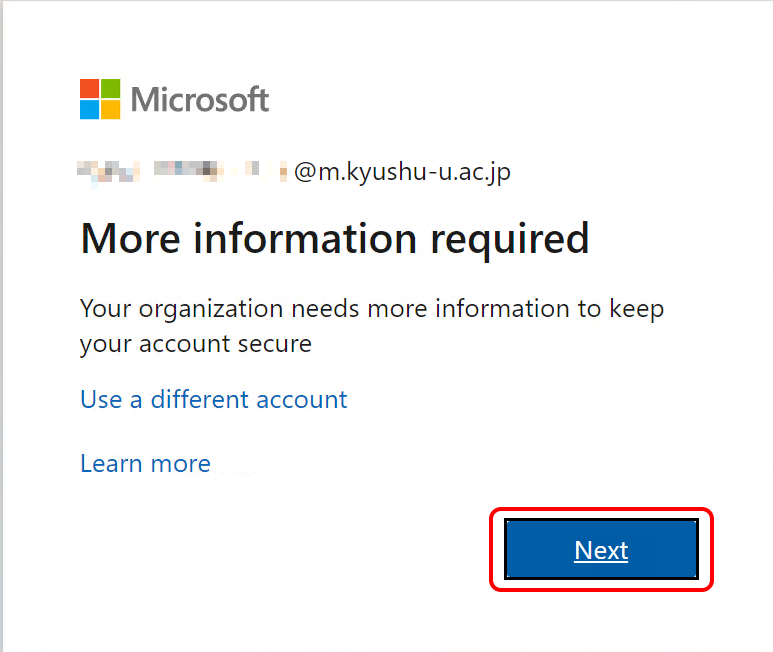
If the screen shows “Let’s keep your account secure”, Click “Next”.
-
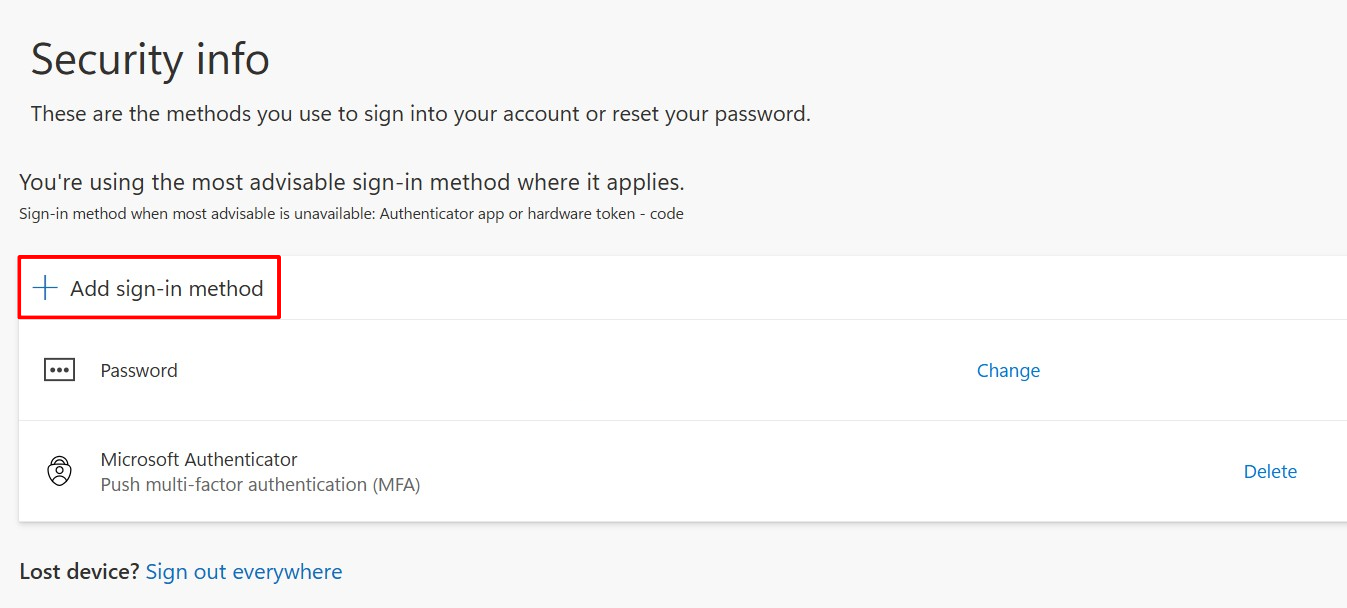
If the “Security info” screen appears, Click “Add sign-in method”, then choose “Microsoft Authenticator”.
-
-
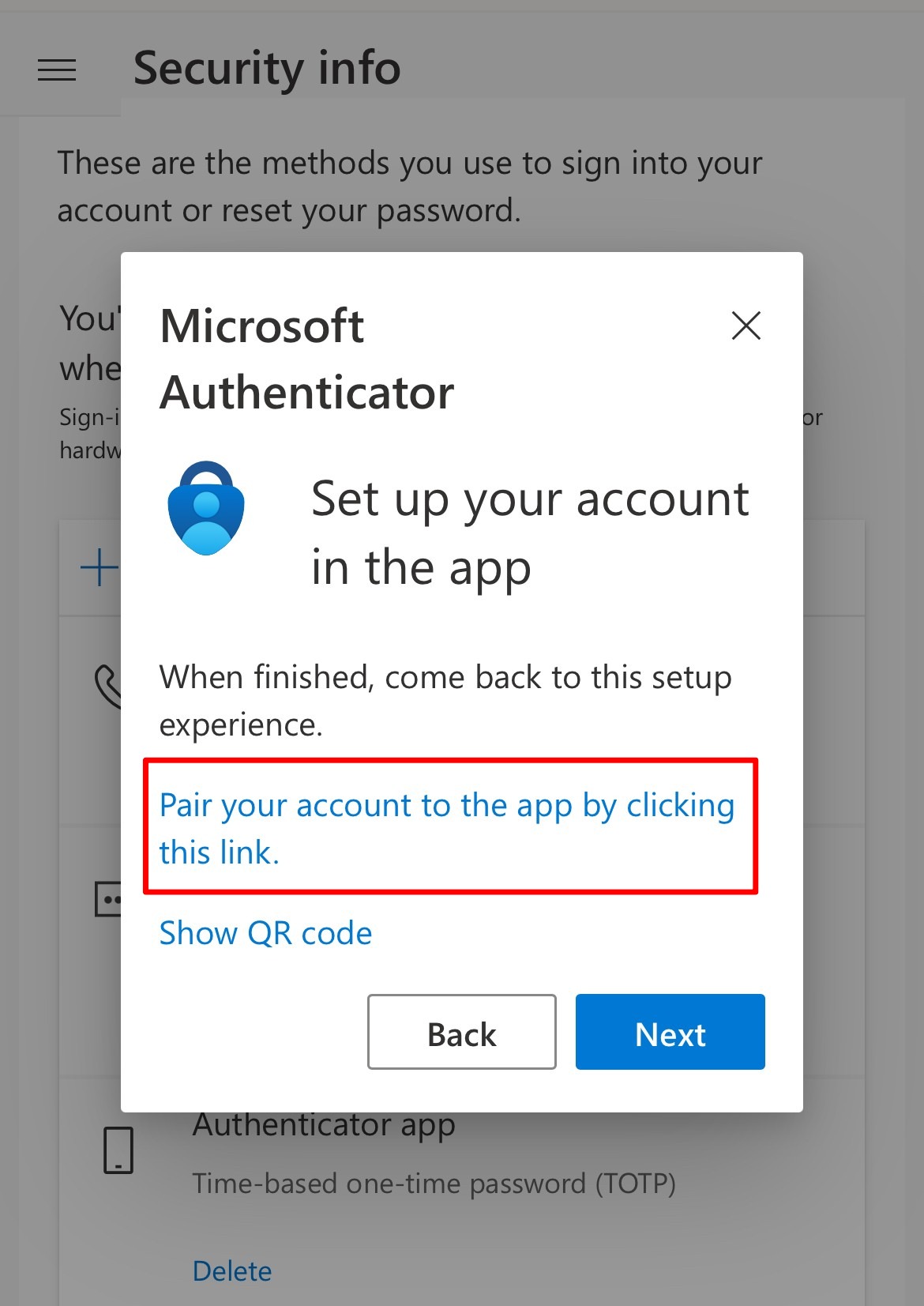
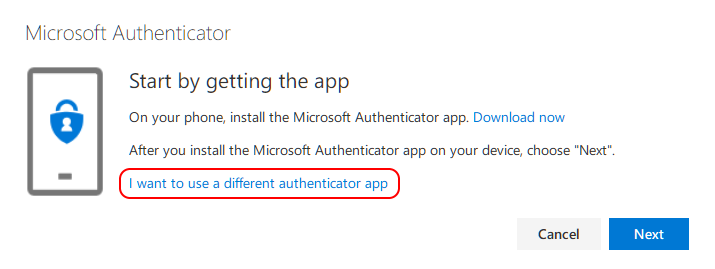
[PC] When the following screen appears, install the app on your mobile device.
-
For iPhone:
① [Mobile] Open the App Store.
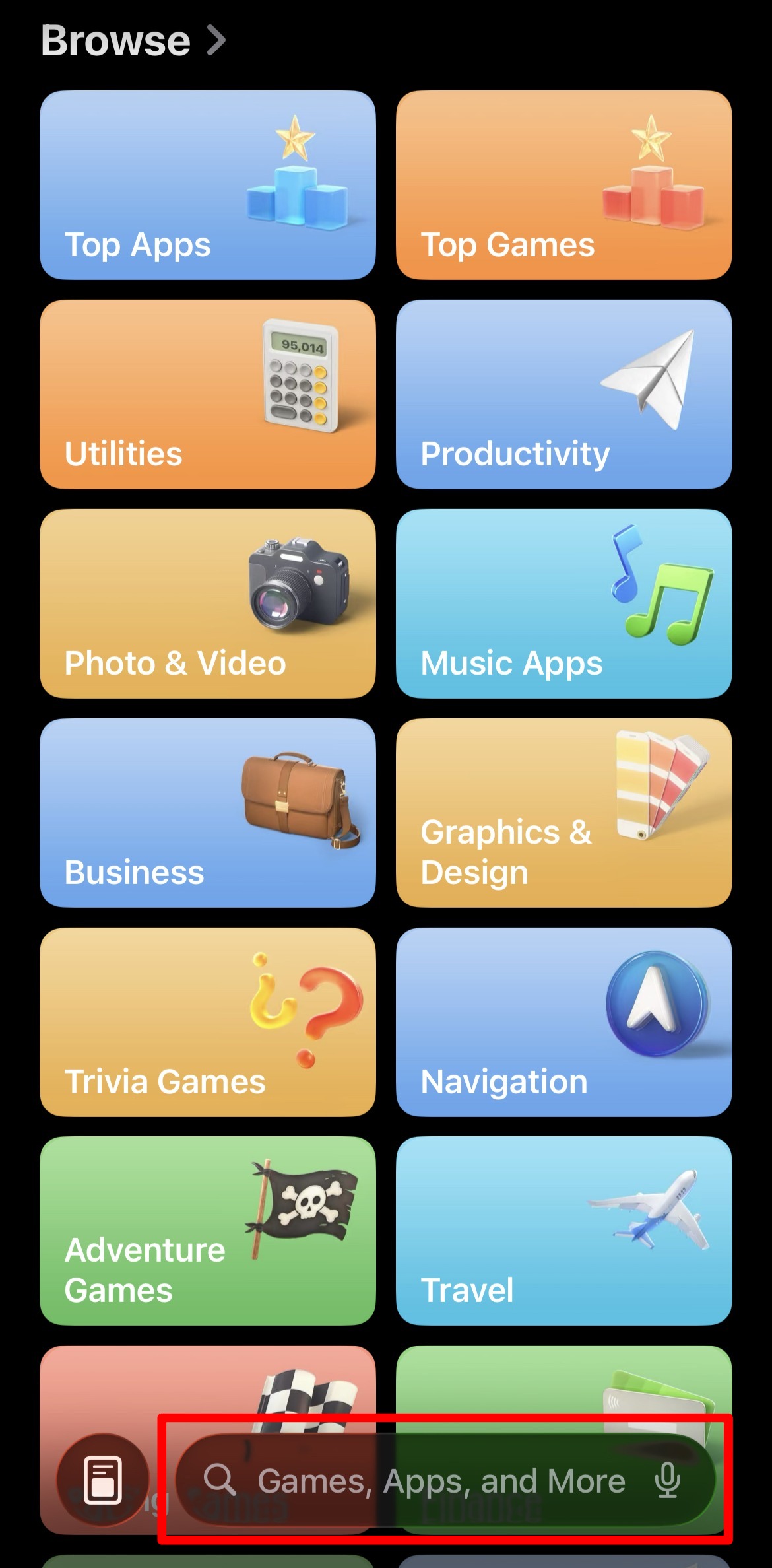
② [Mobile] Search “Authenticator”.
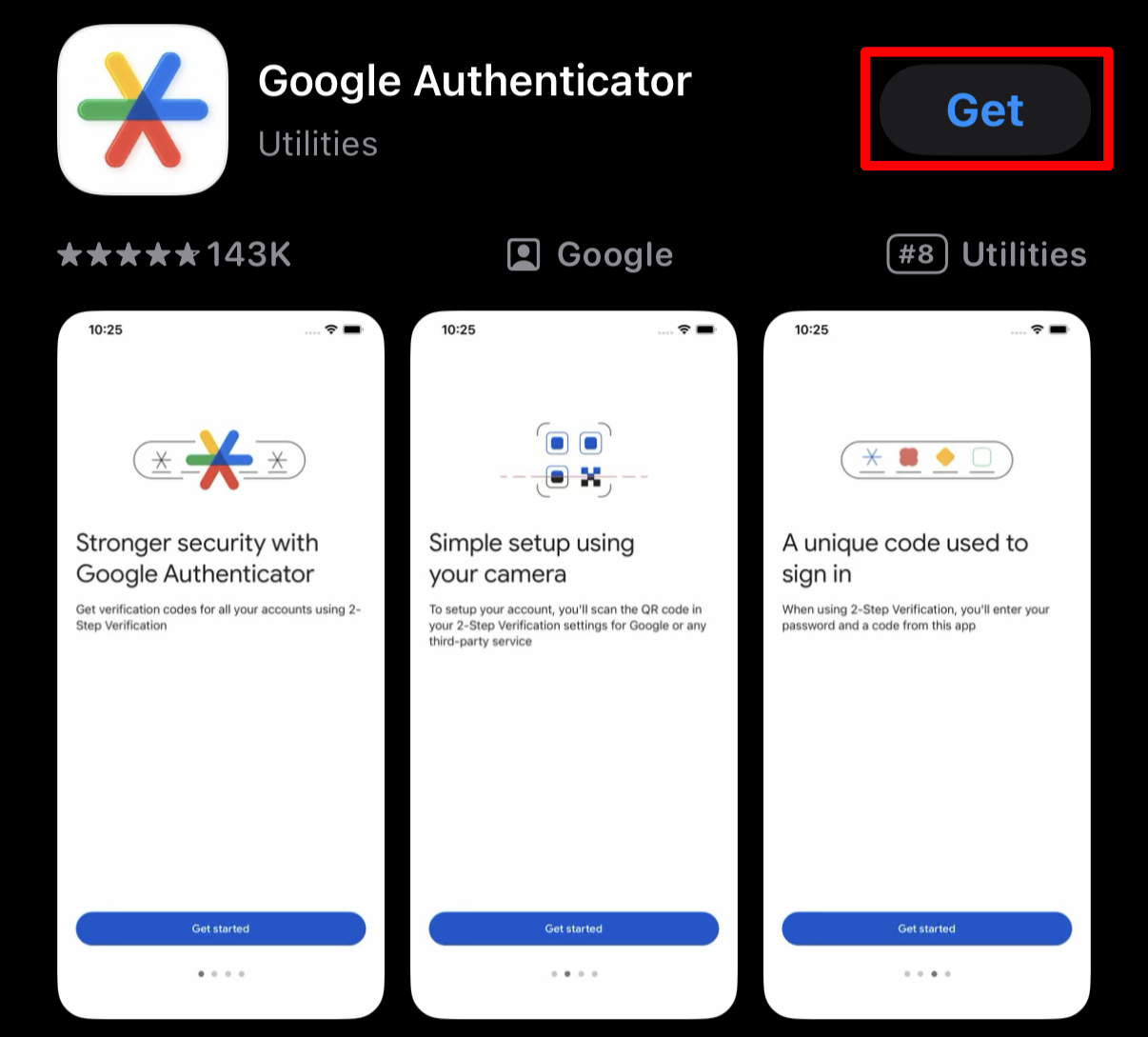
③ [Mobile] Tap “Get”.
④ [Mobile] Tap “Install.”
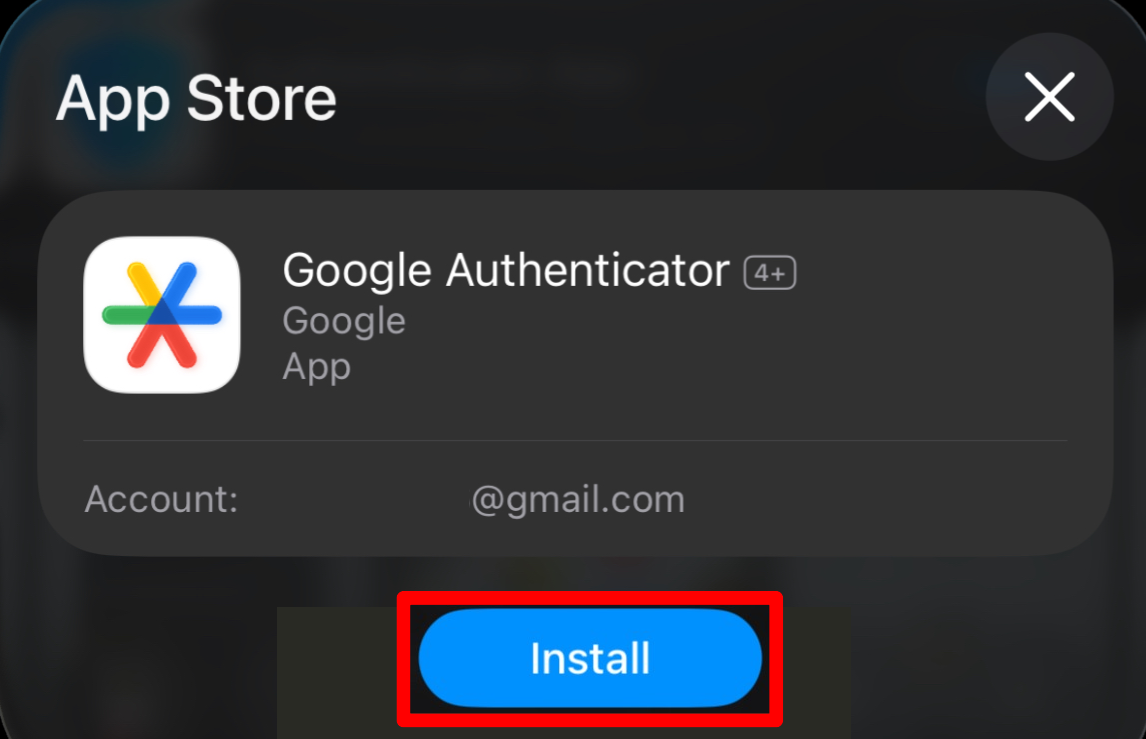
-
For Android:
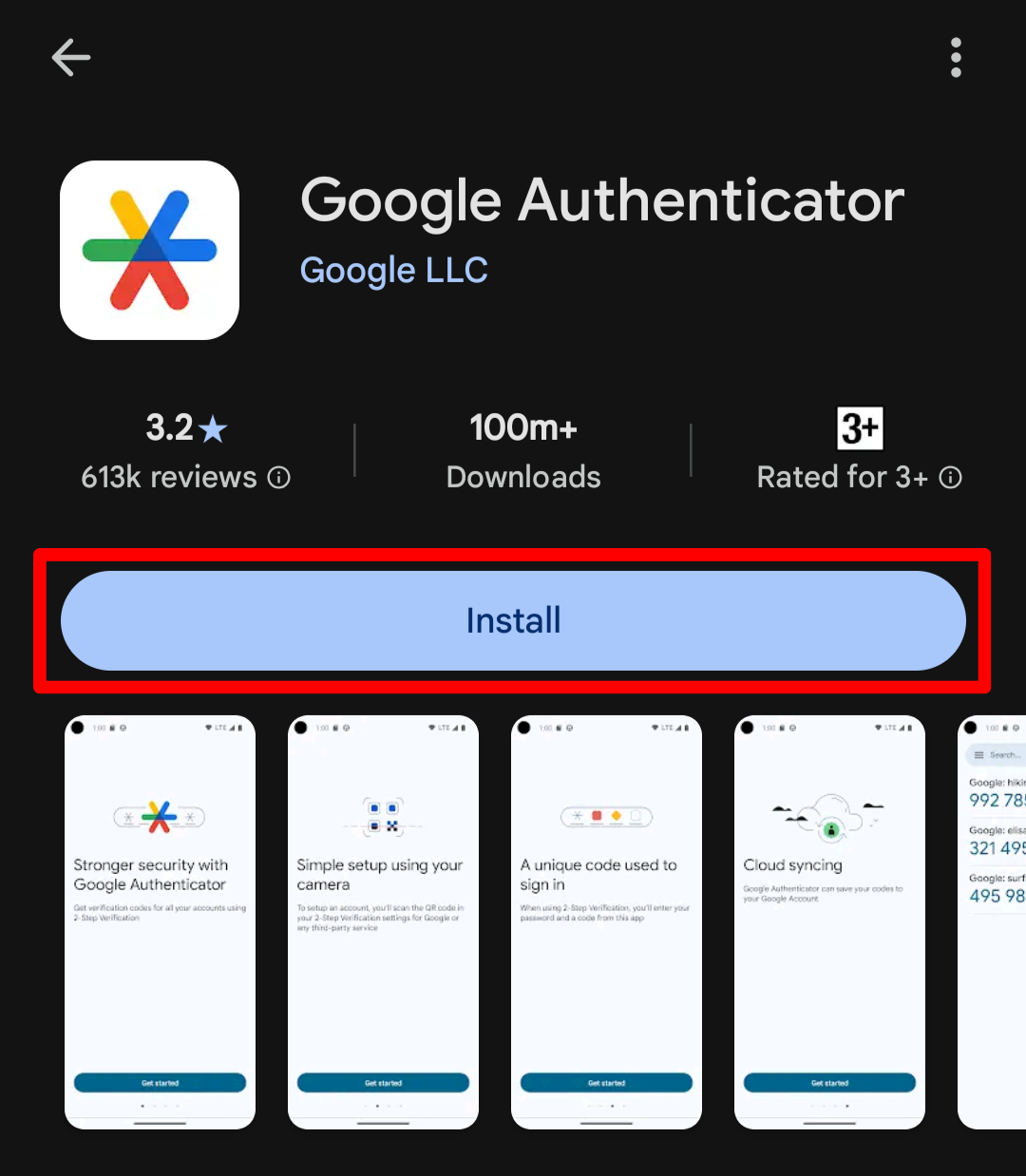
① [Mobile] Open the Play Store.

② [Mobile] Tap the search icon at the bottom and search for “Authenticator.”
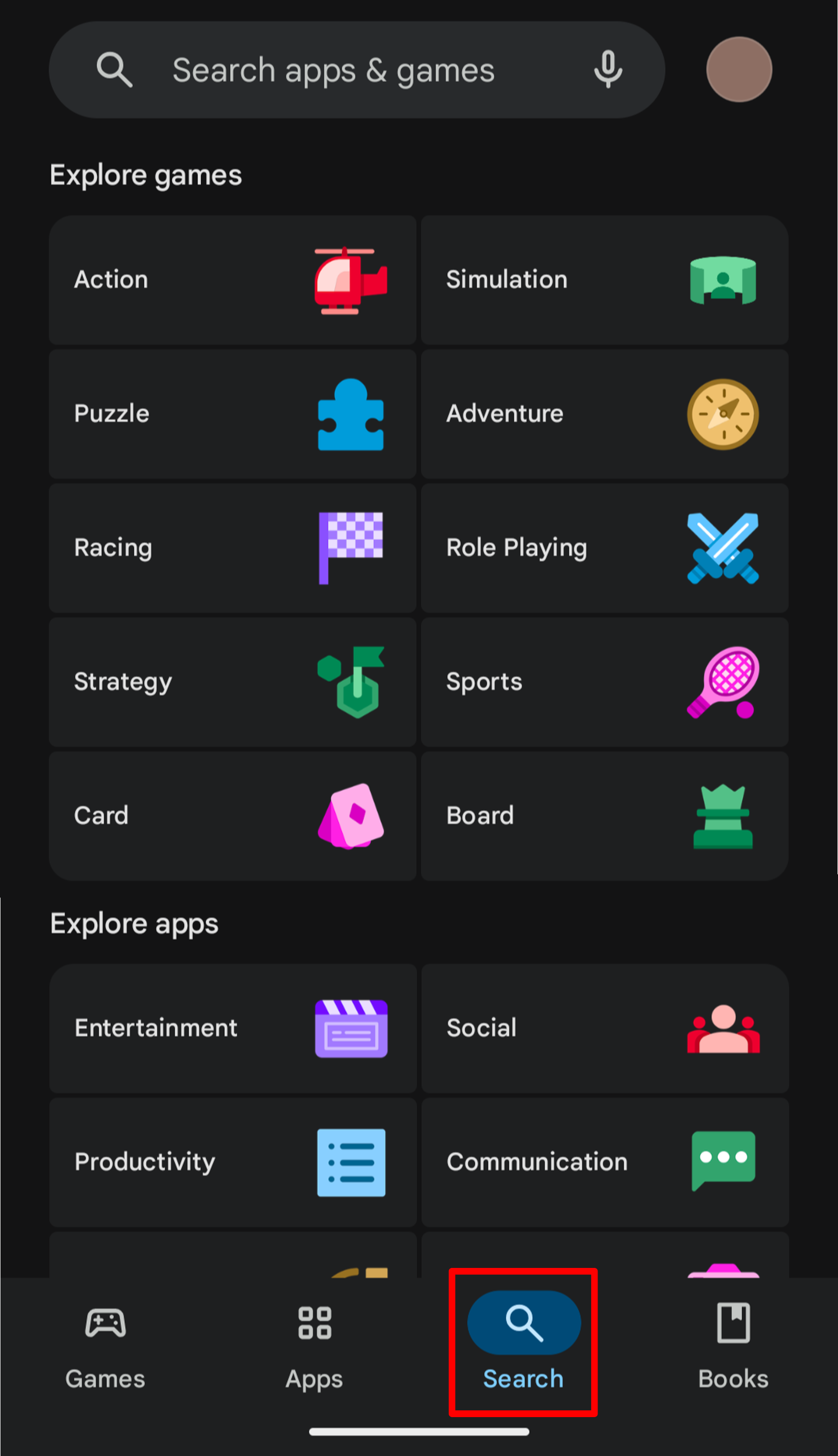
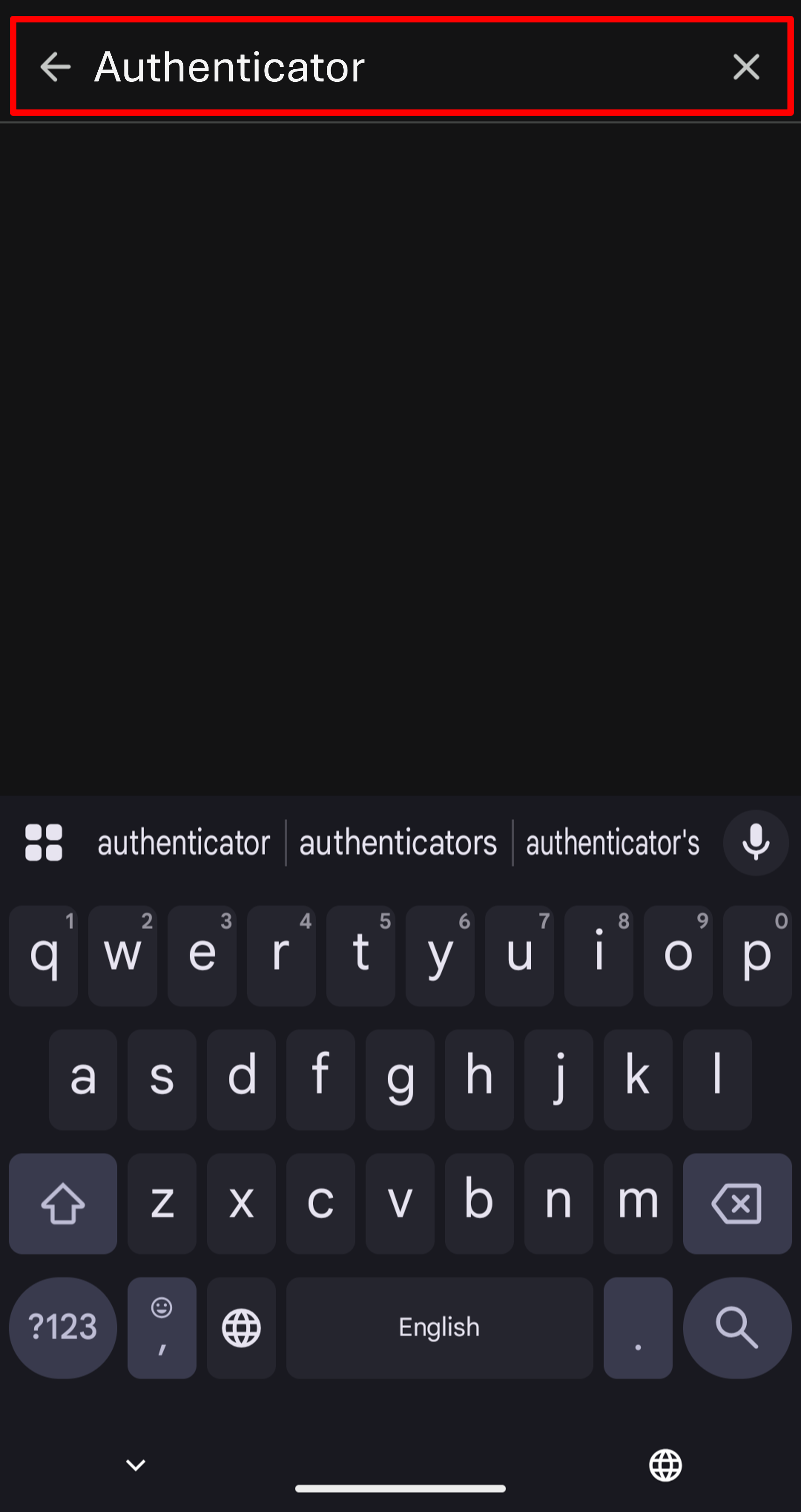
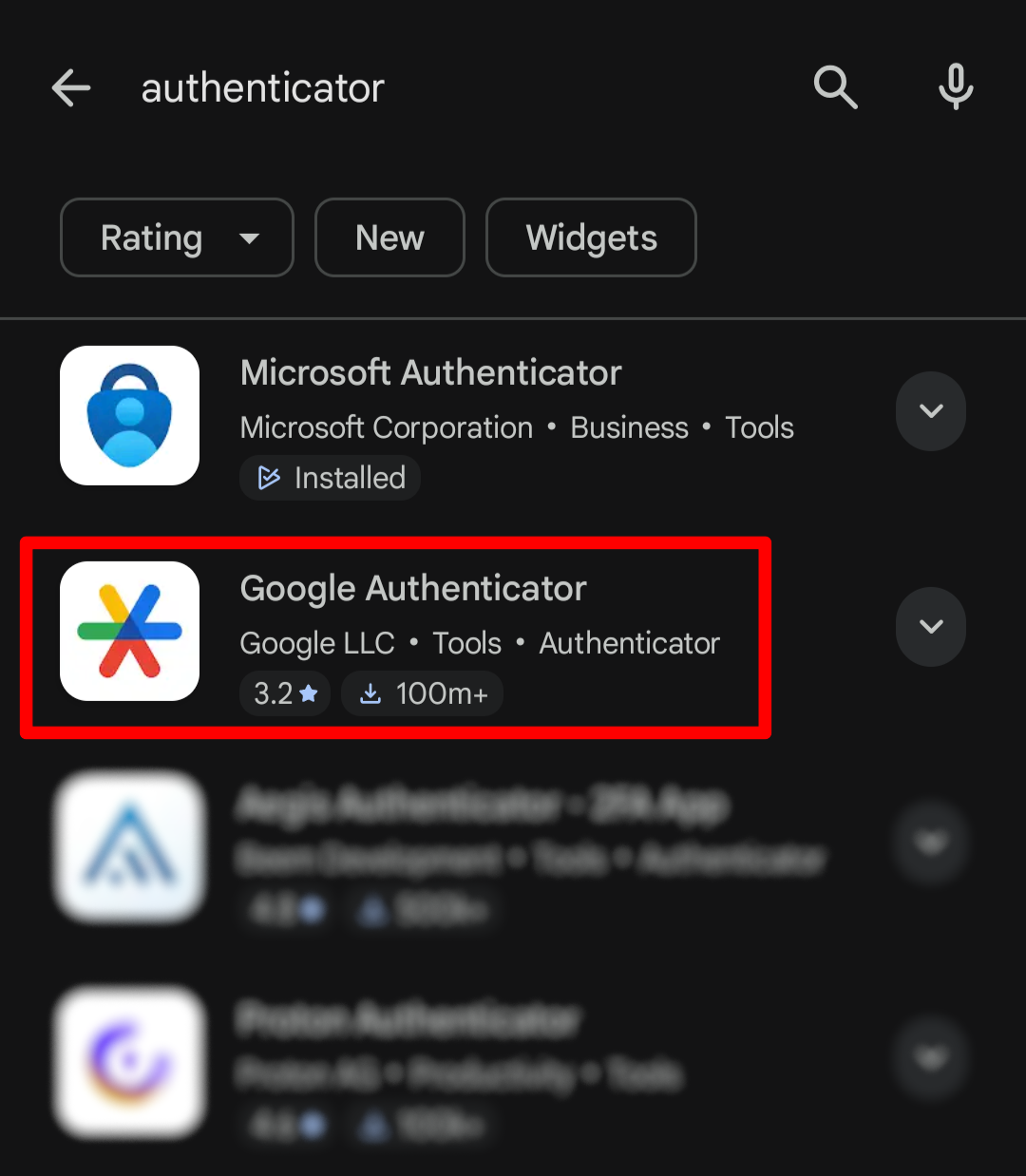
③ [Mobile] Tap “Google Authenticator” and then tap “Install."
-
-
[PC] After the app installation is complete, return to your PC and click “Set up a different authentication app."
-
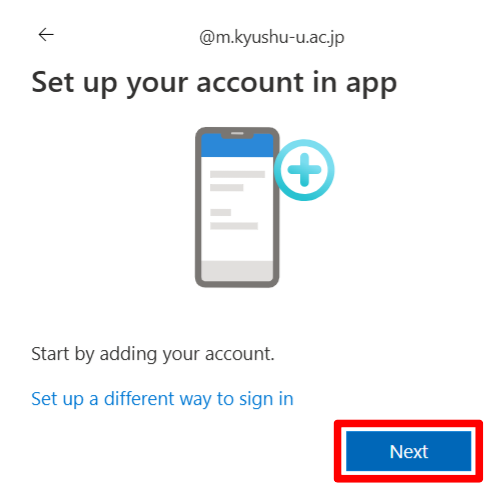
[PC] Click “Next."
-
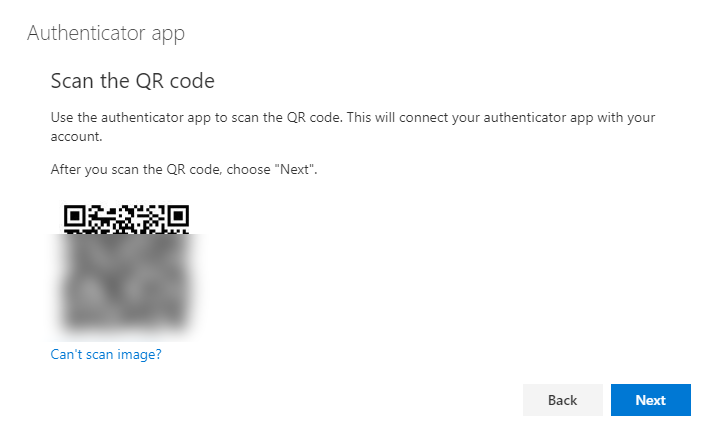
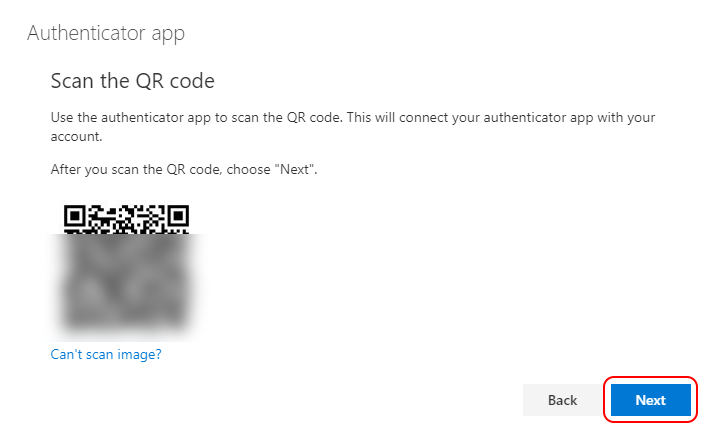
[PC] The QR code will be displayed.
-
[Mobile] Open the “Authenticator” app on your mobile device that you installed earlier.
-
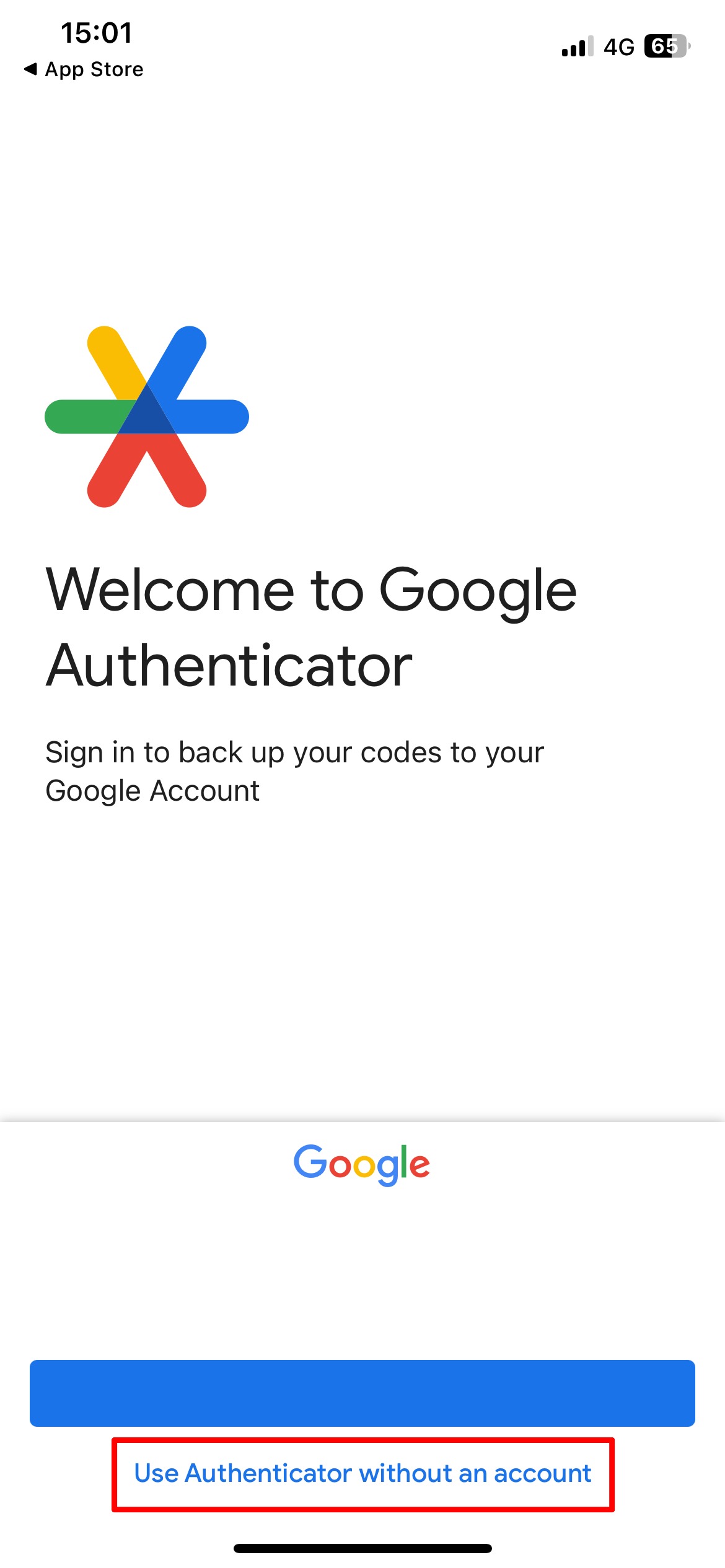
[Mobile] Tap “Get Started” and follow the steps shown in the image below. If prompted, allow access to your camera.



-
Scan the QR code displayed on your PC using your mobile device.
-
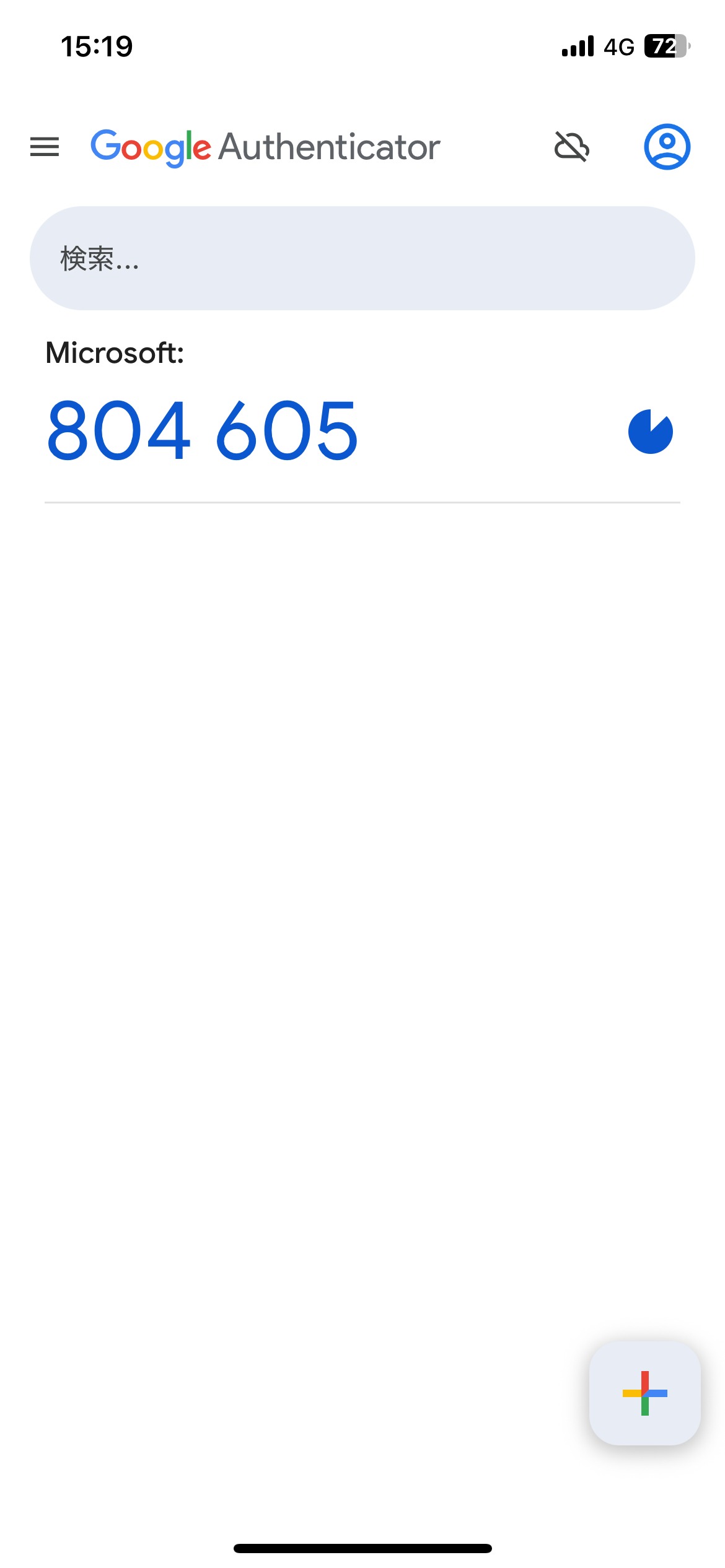
[Mobile] Your account will be registered and a 6-digit one-time password will be displayed.
-
[PC] Click “Next”.
-
Enter the 6-digit code displayed on your mobile device into the “Enter code” field in your browser, then click “Next”.

-
[PC] When the following screen appears, the registration is complete. Click “Done.”
