Set Up MFA Information with Authenticator App (Step Two)
This page explains how to register the Step Two desktop authenticator app for macOS as your MFA information.
Step 1: Preparation
-
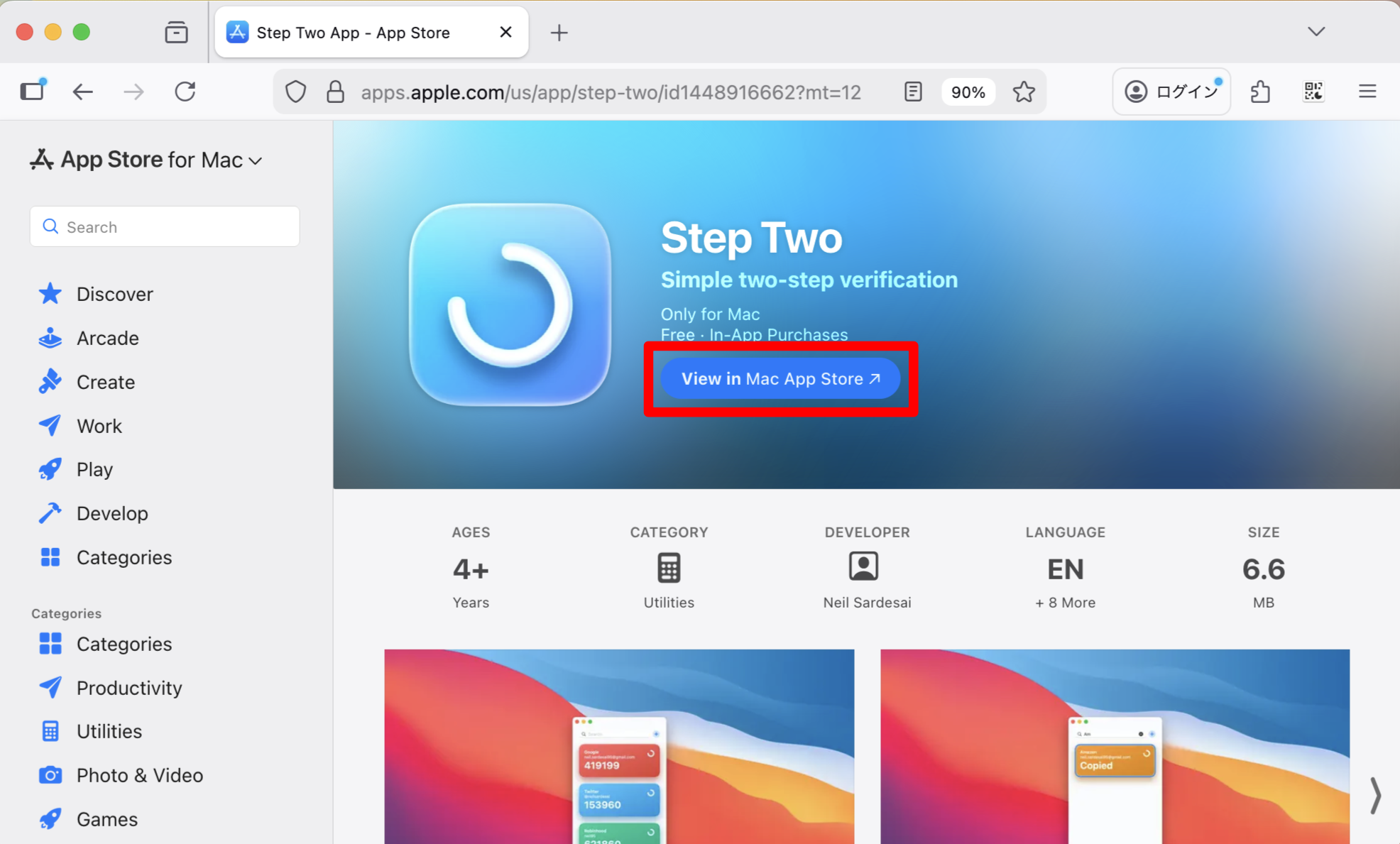
Access the following link on your Mac and click “View in Mac App Store."
https://apps.apple.com/us/app/step-two/id1448916662
-
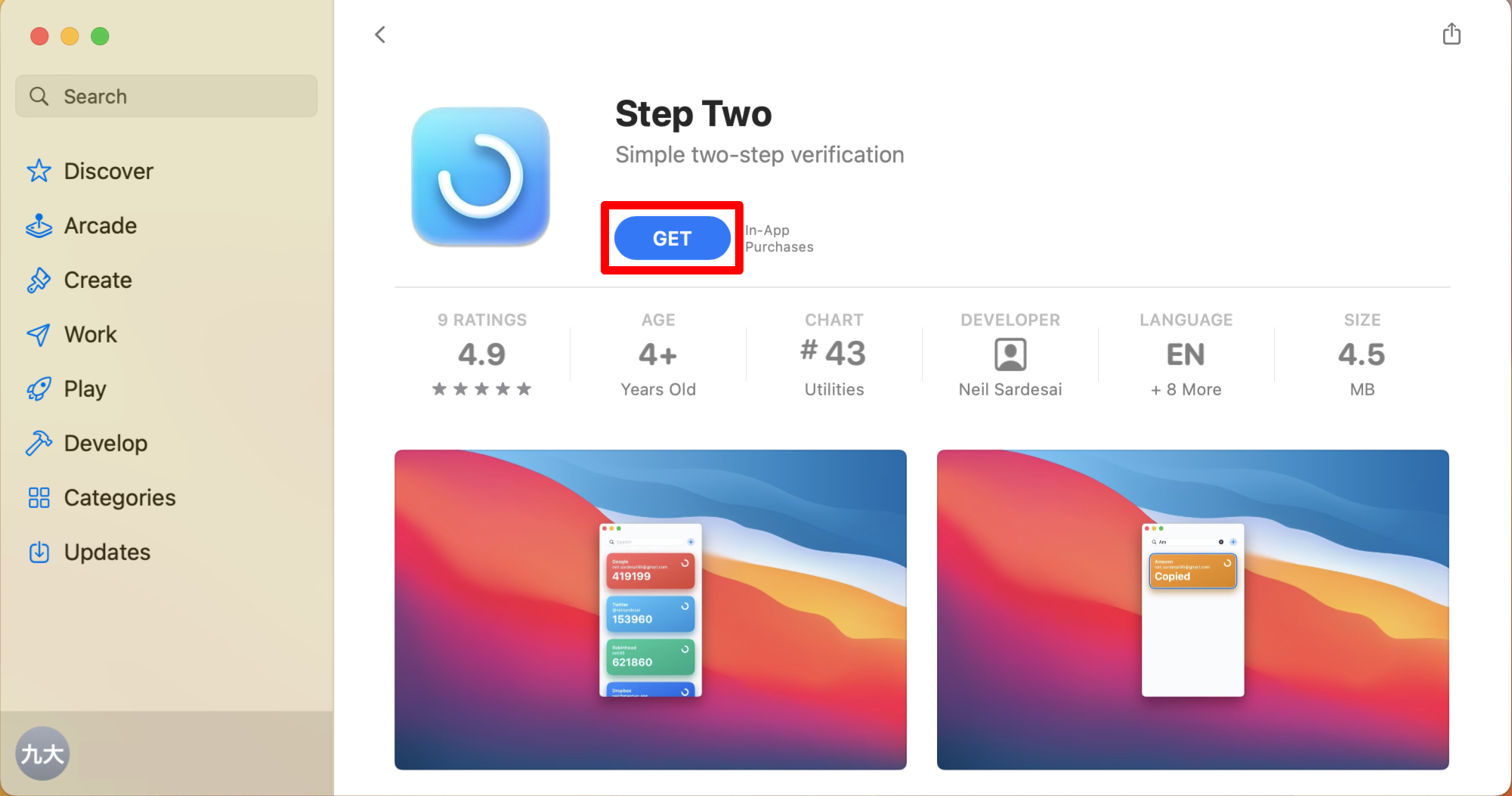
The App Store will launch. Click “Get”, then “INSTALL”.
-
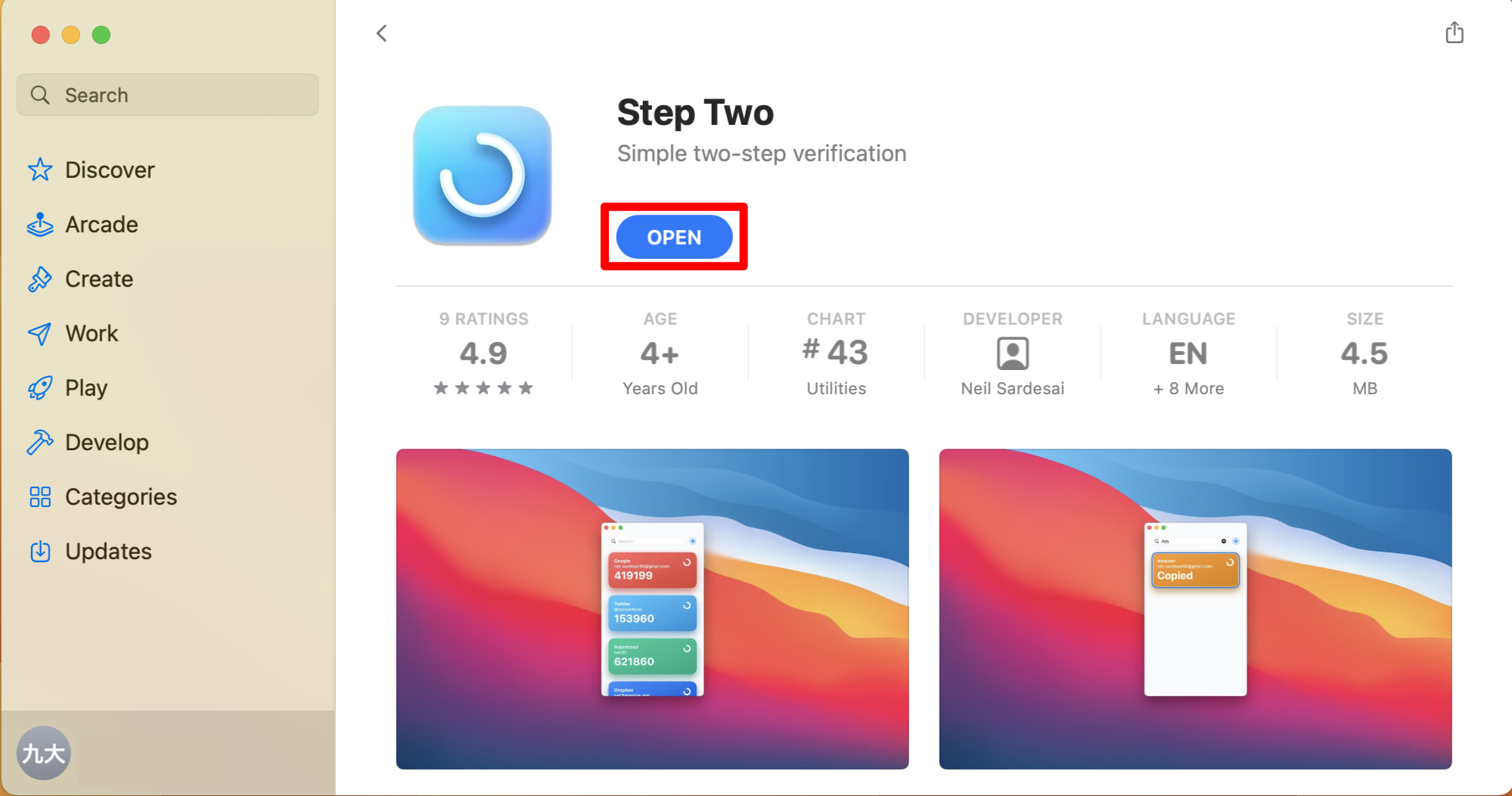
When the “OPEN” button appears, the installation is complete.
-
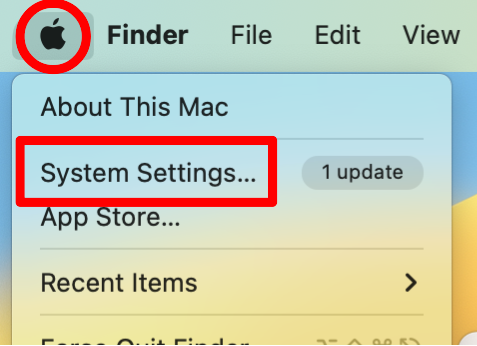
Click the Apple icon in the top-left corner of your screen and open “System Settings”.
-
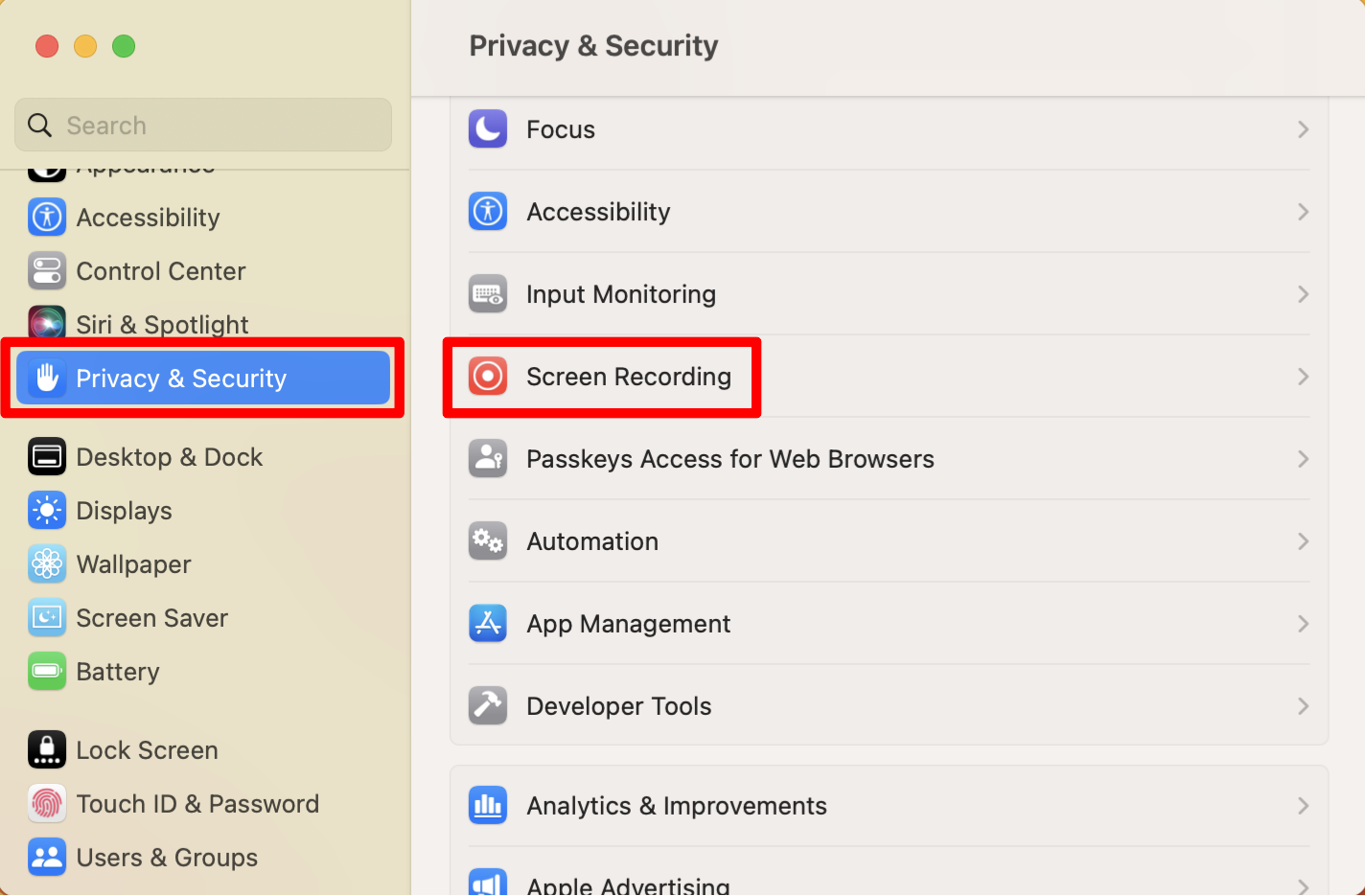
Go to “Privacy & Security” and select “Screen Recording”.
-
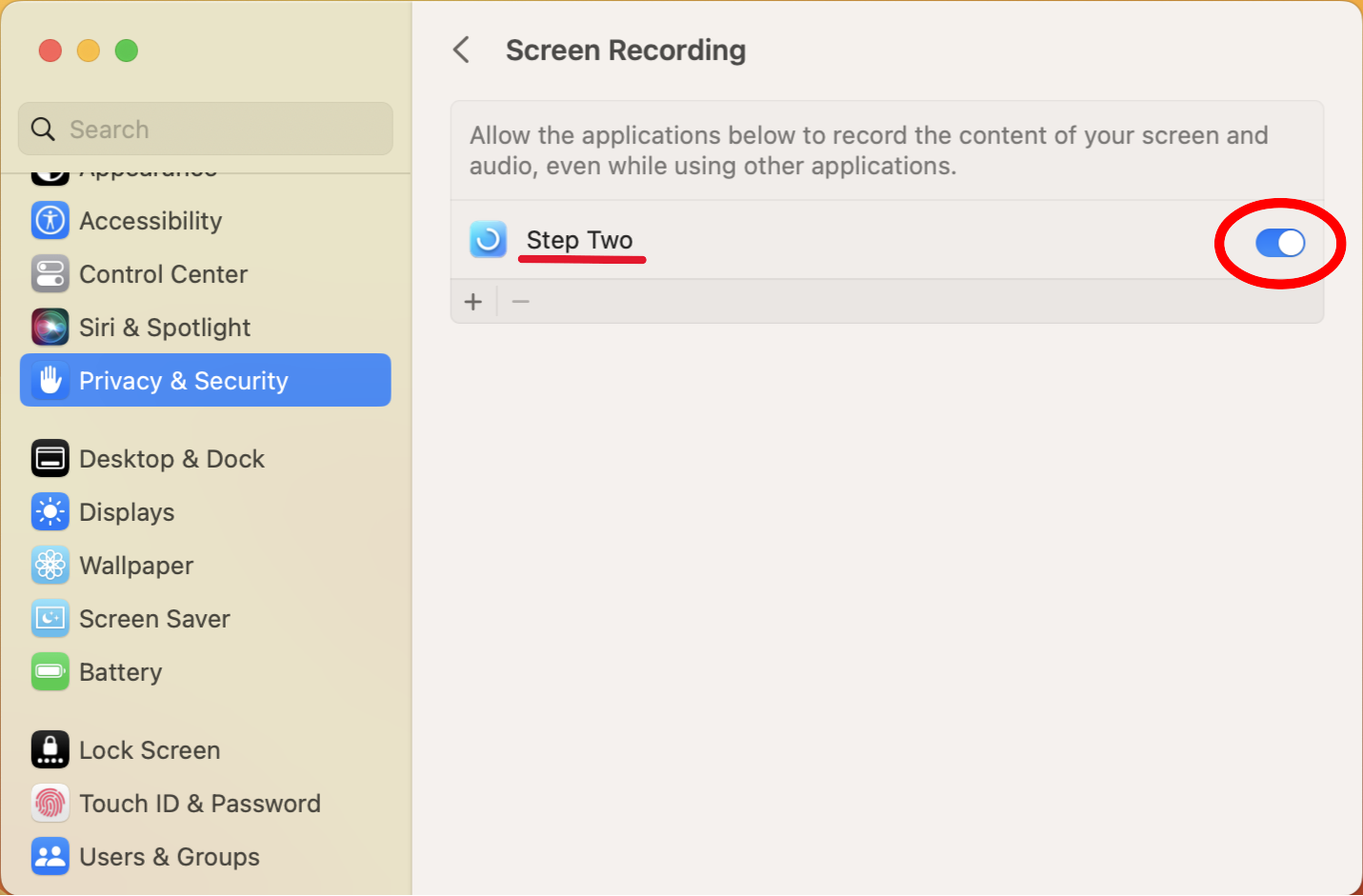
Allow screen recording for Step Two by toggling it ON. (This is required for scanning QR codes.)
-
The app is now ready. Proceed to the registration steps below.
Step 2: Registration
-
Access https://mysignins.microsoft.com/security-info on your PC.
-
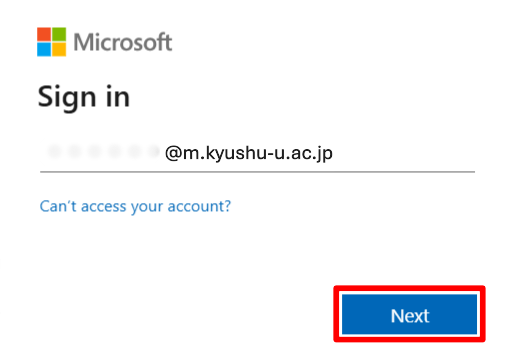
If the sign-in screen appears, enter your Kyushu University primary email address (…..@m.kyushu-u.ac.jp) and click “Next.”
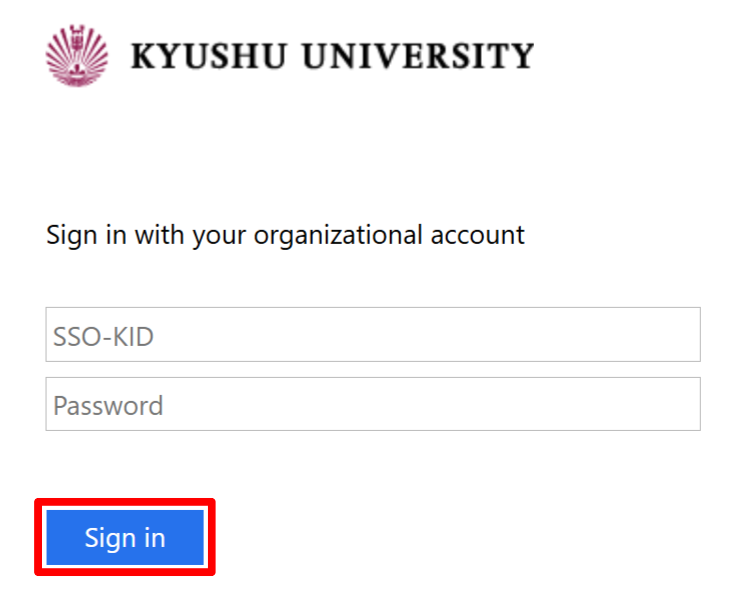
Then, enter your SSO-KID and password, and click “Sign in.”
-
The next steps depend on the screen displayed.
-
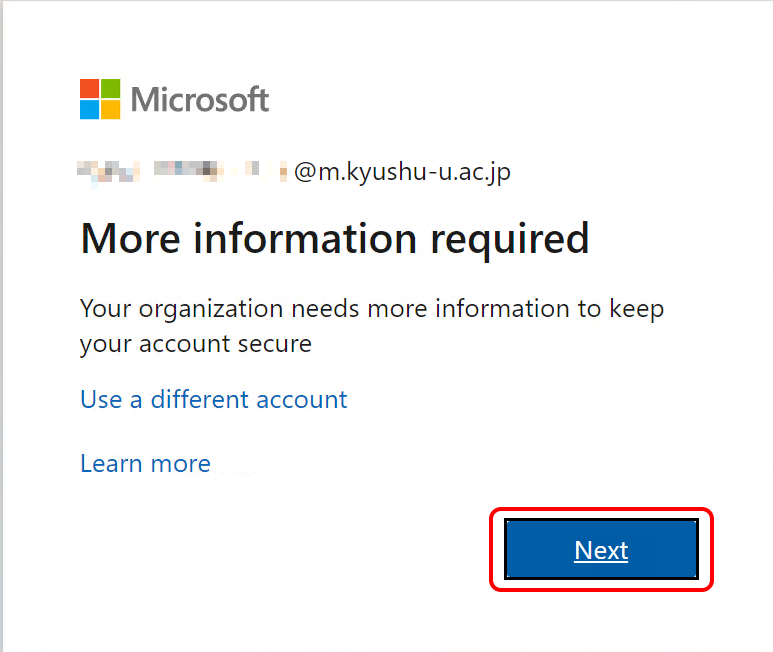
If the screen shows “Let’s keep your account secure”, Click “Next”.
-
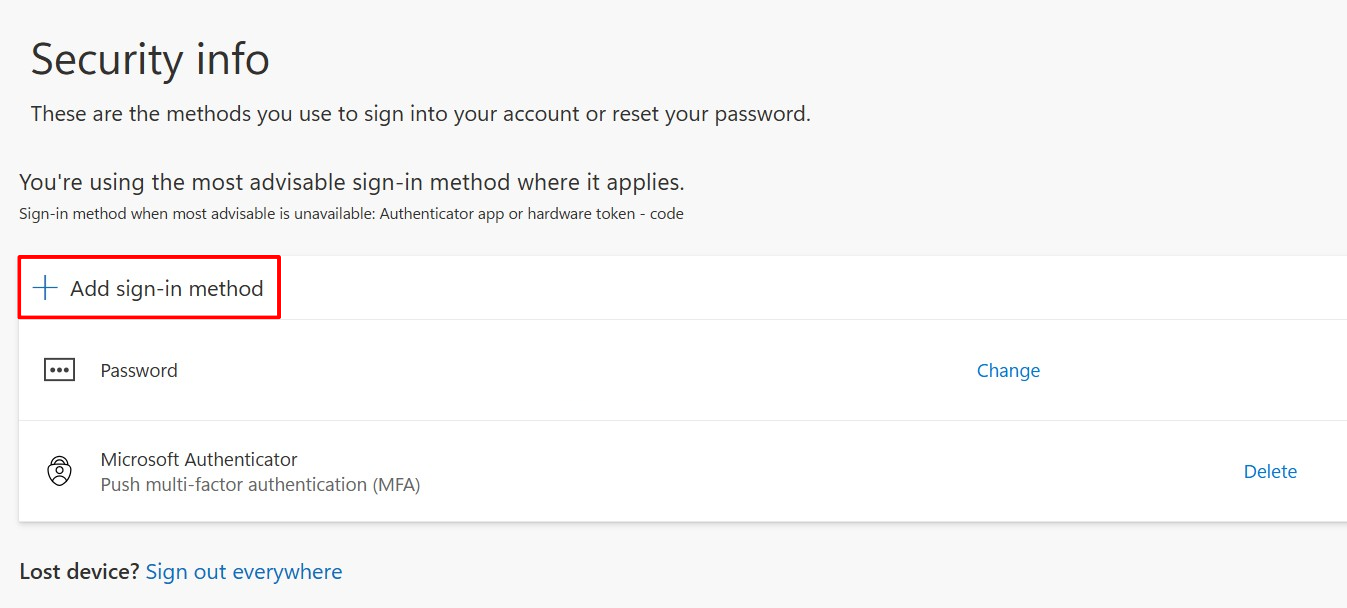
If the “Security info” screen appears, Click “Add sign-in method”, then choose “Microsoft Authenticator”.
-
-
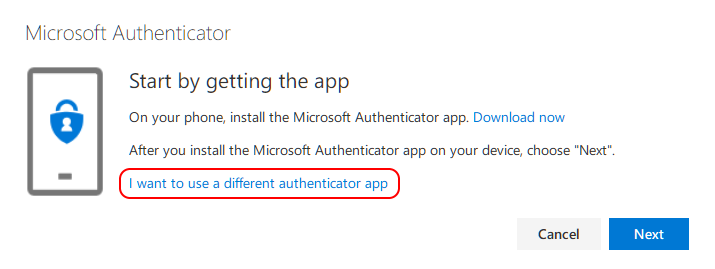
Click “Set up a different authentication app."
-
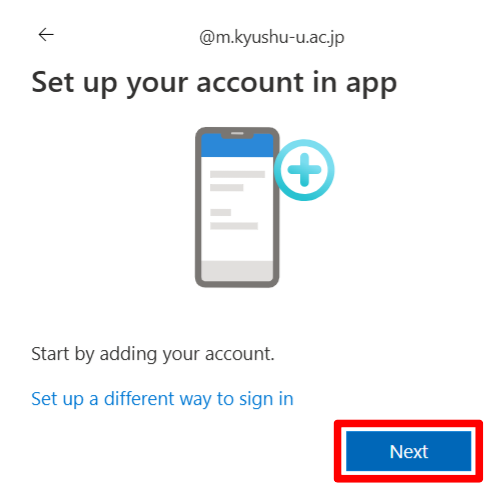
Click “Next."
-
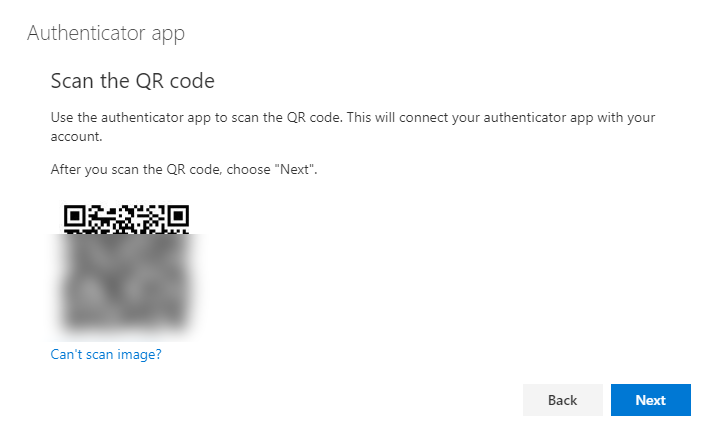
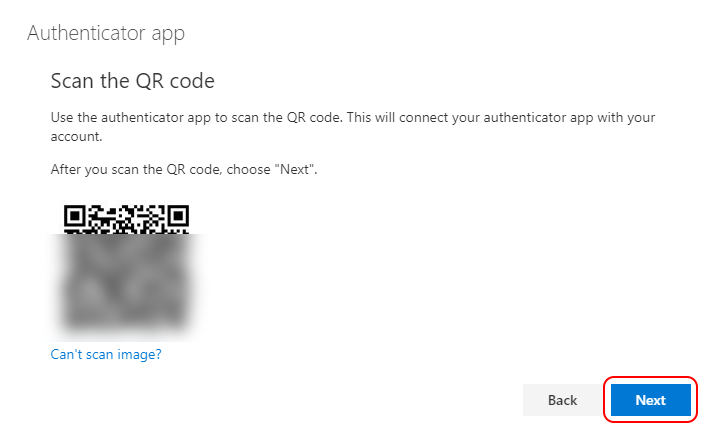
The QR code will be displayed.
-
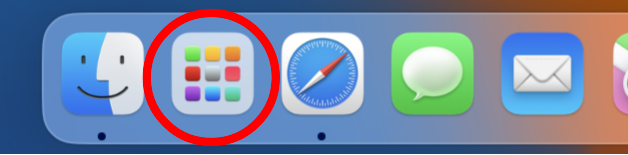
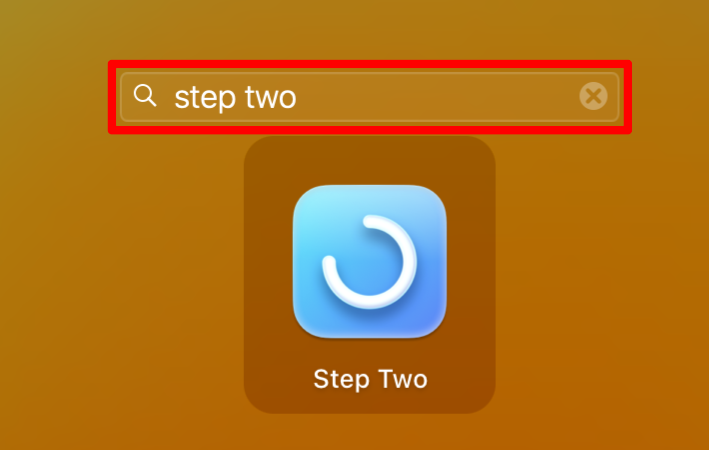
Open “Launchpad” and click “Step Two”.
-
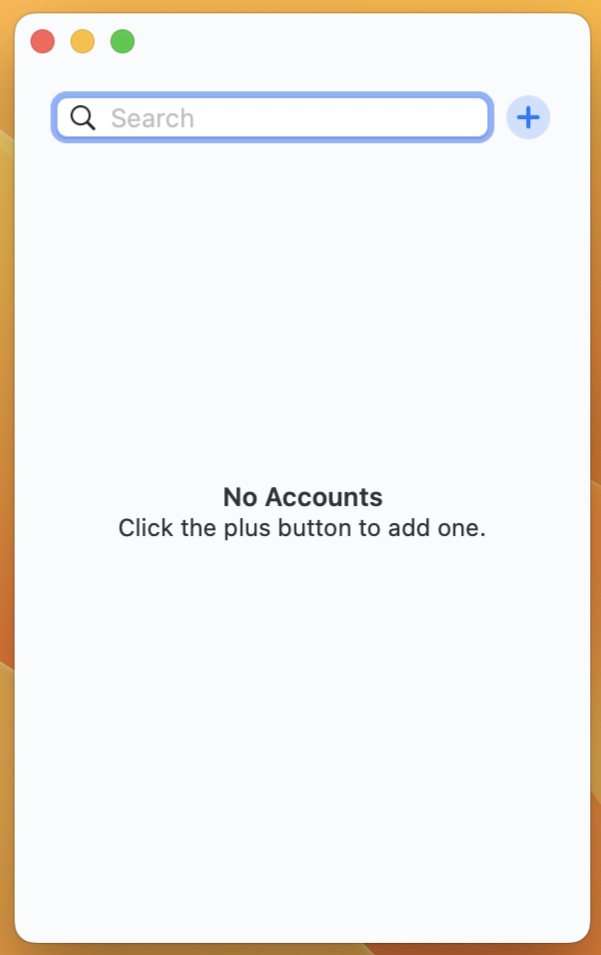
When Step Two launches, you’ll see a screen like this:
-
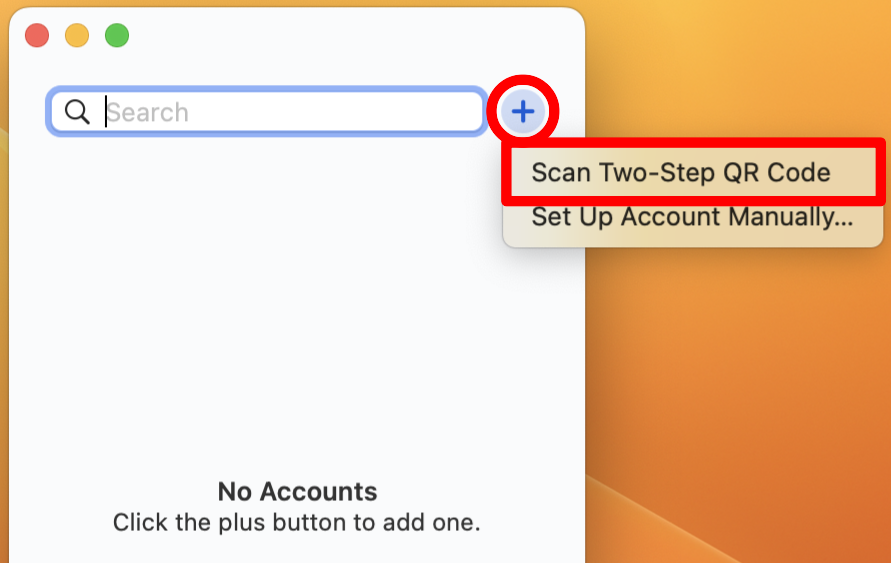
Click the “+” button and select “Scan Two-Step QR Code”.
-
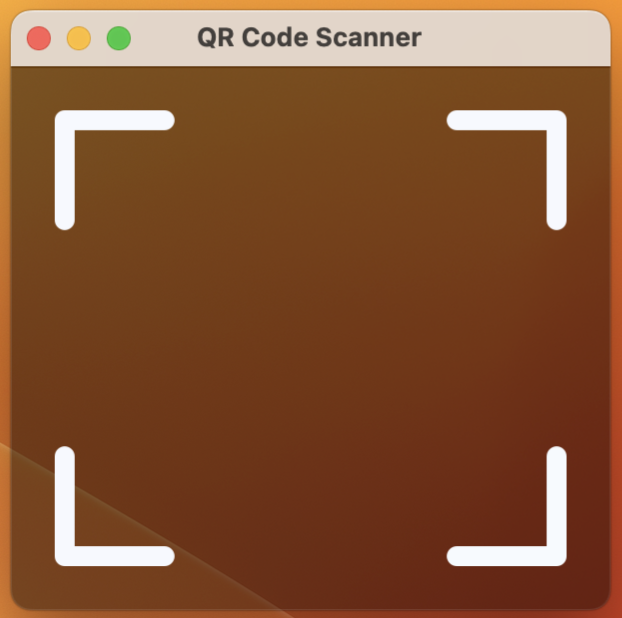
The QR Code Scanner will appear.
-
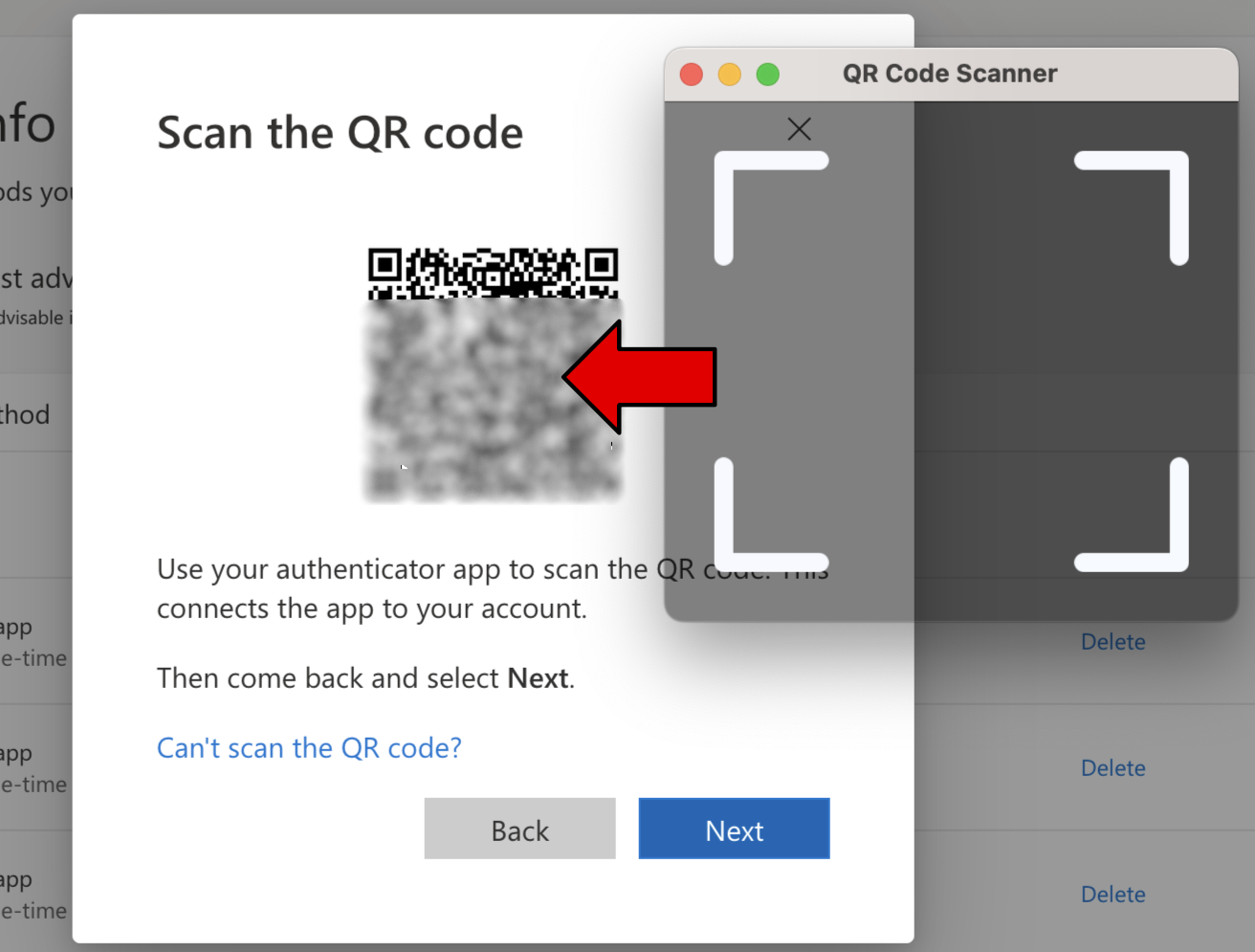
Position the scanner over the QR code displayed in your browser.
-
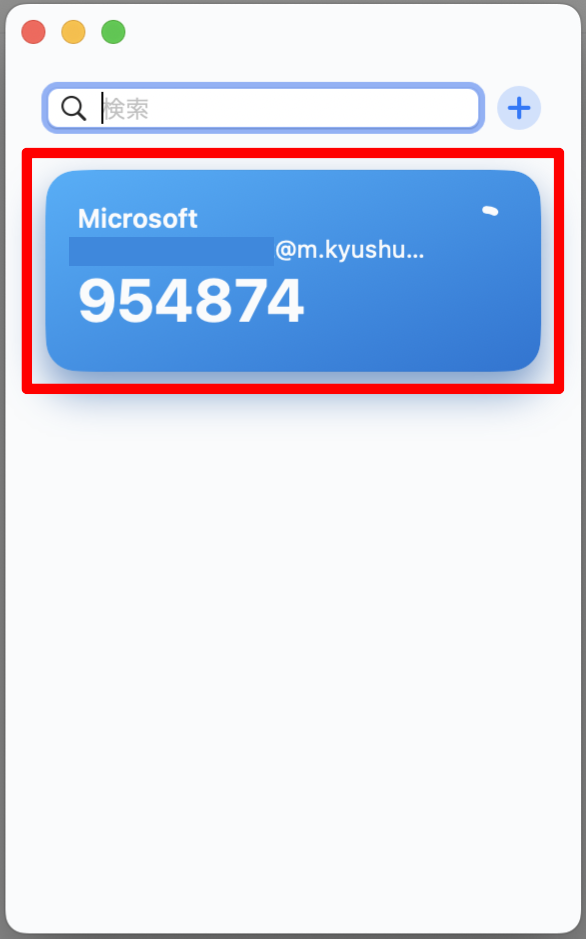
When your Kyushu University primary email address appears in Step Two, pairing is successful.
-
Click “Next."
-
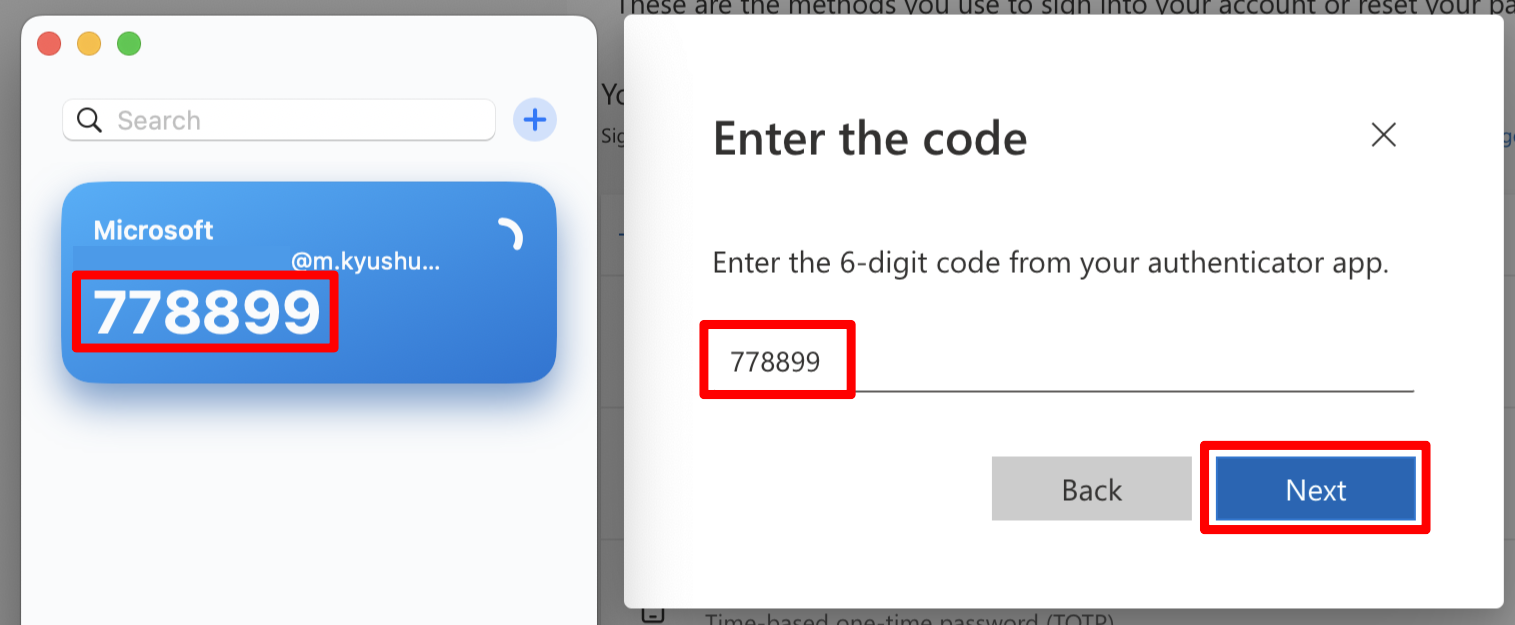
Enter the 6-digit one-time password shown in Step Two into the “Enter code” field, then click “Next”.
-
When the following screen appears, the registration is complete. Click “Done.”
