Outlook mobile
-
Please refer to “How to check your Primary Mail Address” and make a note of your Kyushu University Primary Mail Address in advance. There are many inquiries about error messages cause by mistakes such as forgetting to include “@m” or “@s” to your email address. Be sure to check your email address without relying on your memory.
-
Download Outlook mobile from your iPhone or Android device by scanning the following QR code or visiting the following URL.

https://www.microsoft.com/en-us/microsoft-365/outlook-mobile-for-android-and-ios
The following images are for iPhone, but the settings are the same for Android devices.
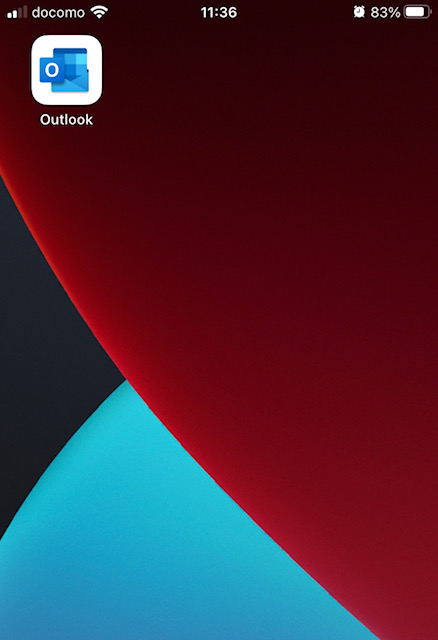
- After the download is complete, launch Outlook mobile.
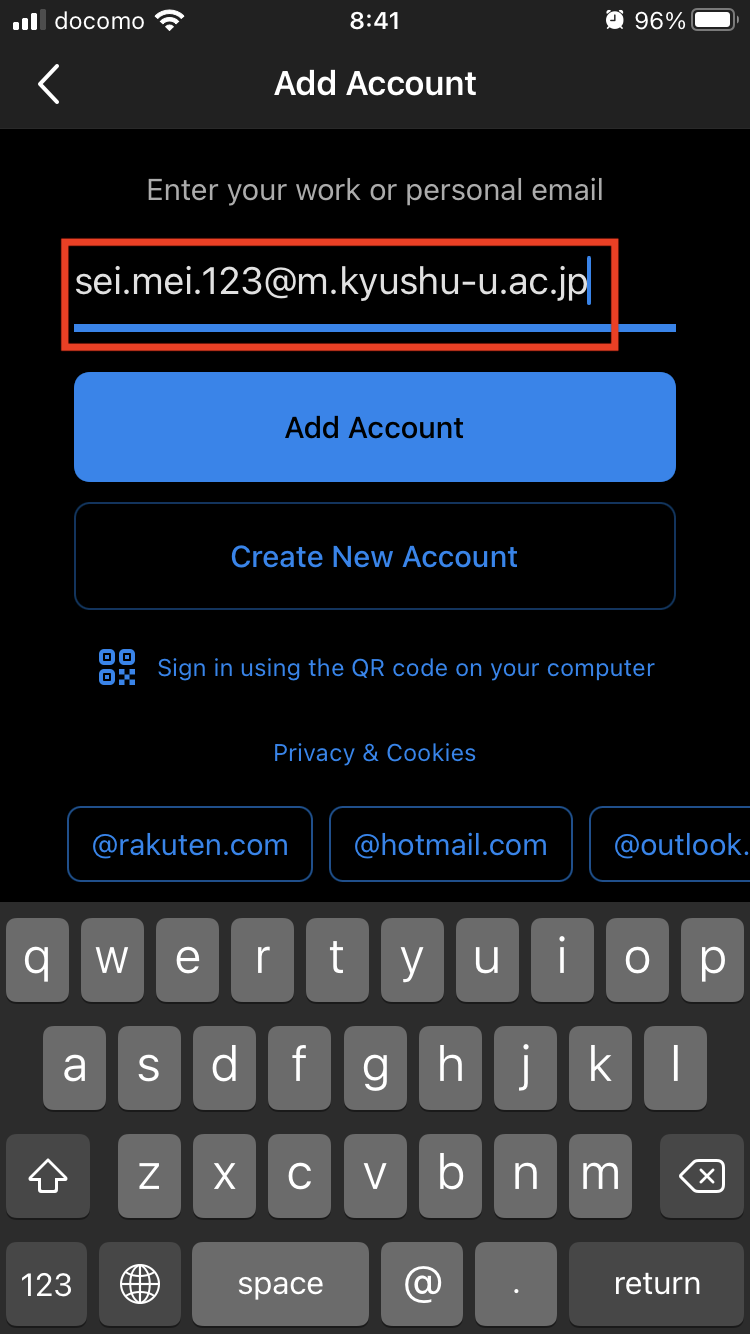
- Enter your Kyushu University Primary Mail address that you wrote down in Step 0 and tap “Add Account”.
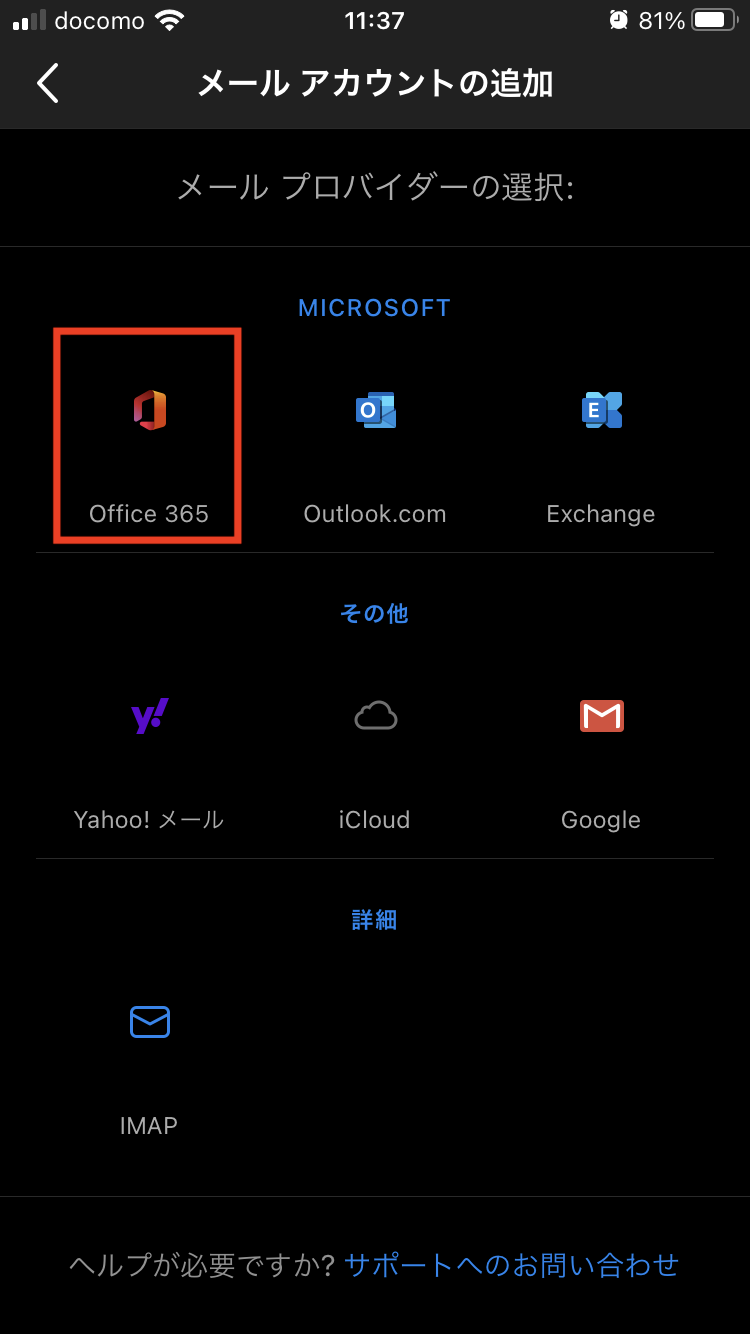
- Tap “Office 365” (or “Microsoft 365” in some environments).
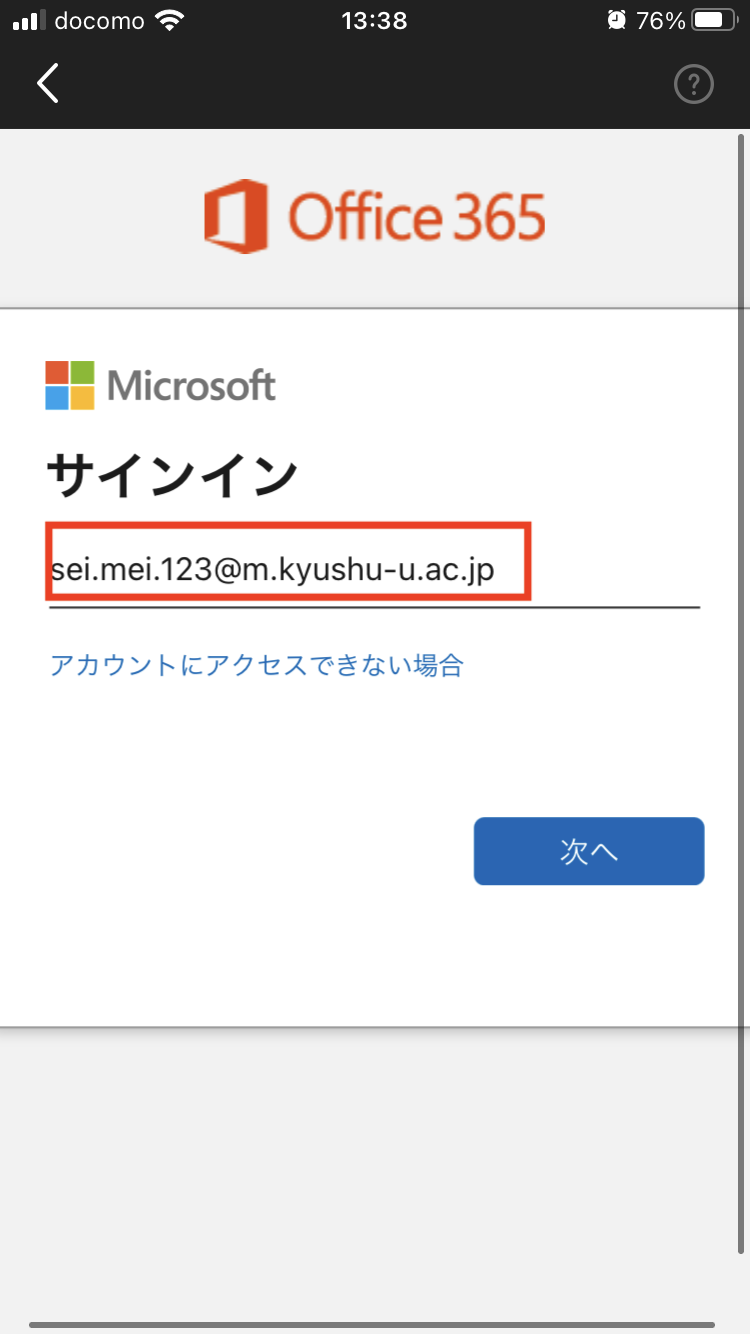
- Enter your Kyushu University Primary Mail address that you wrote down in Step 0 and tap “Next”.
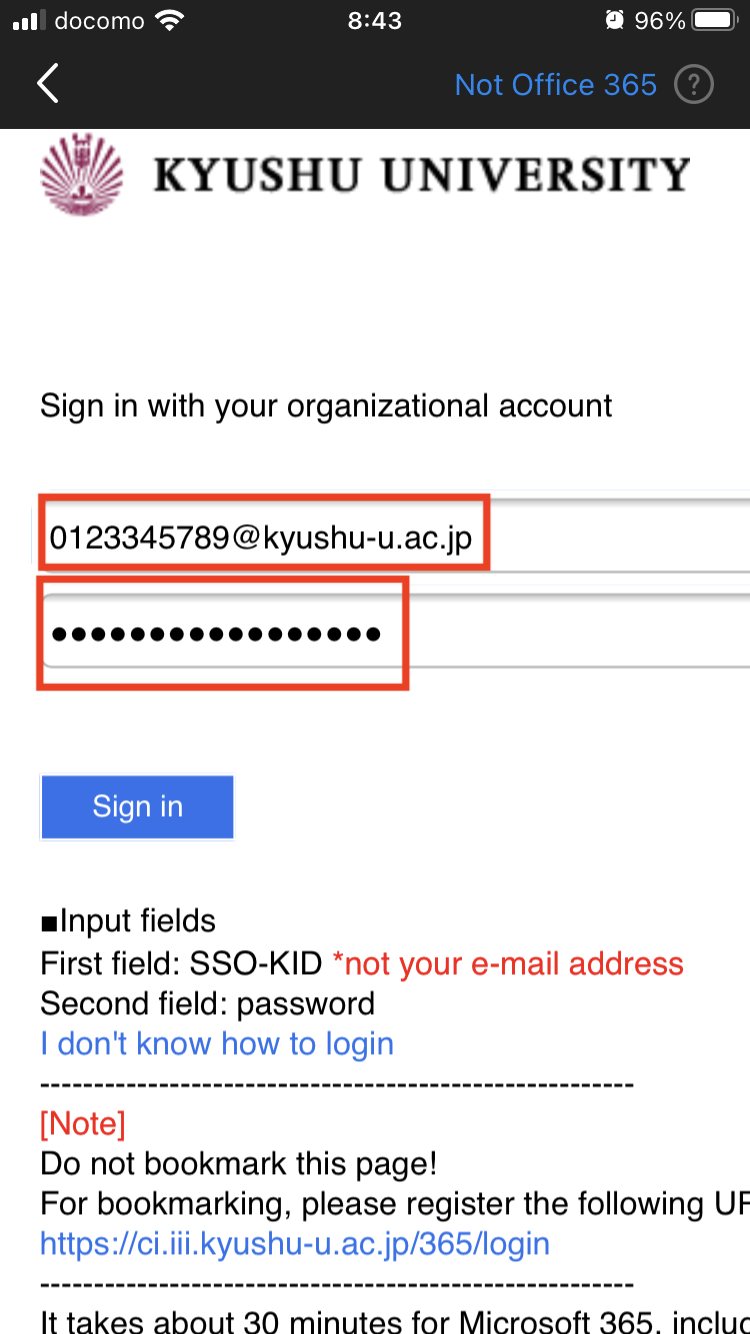
- Enter your SSO-KID password and tap “Sign in”.
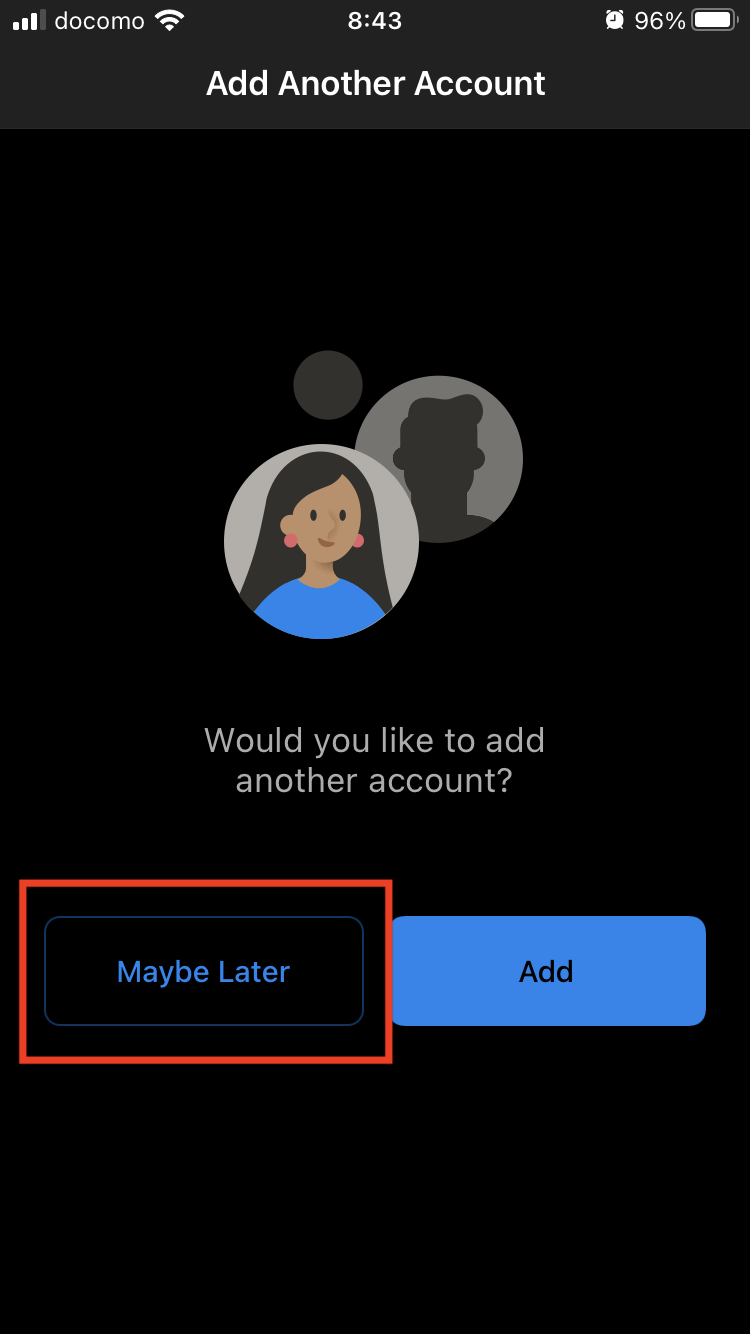
- Tap “Maybe Later”
- Your Inbox will appear.
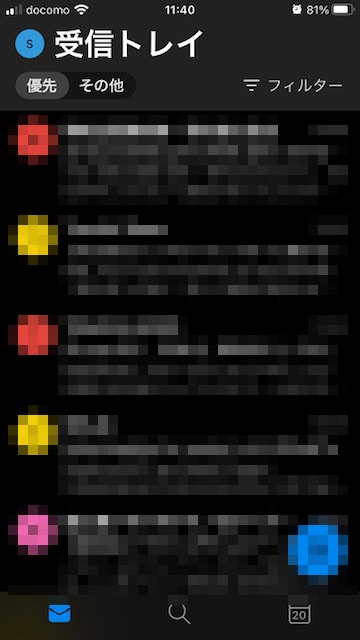
The configuration is now complete.