4. How to Check MFA Registration Status and Update Settings
This page explains how to check your current MFA registration status, update your MFA information, and change the setting for when MFA is prompted.
When you should update your MFA information:
・You’ve installed the authentication app on a new device and no longer use the old one.・Your phone number has changed.
・Other similar cases where your registered information is no longer current.
* If outdated information remains registered, sign-in verification may be sent to devices or phone numbers that should no longer in use, which could lead to security issues.
Check Your MFA Registration Status
-
Access https://mysignins.microsoft.com/security-info using your usual smartphone or PC.
-
The screen displayed will differ depending on whether you have already registered MFA information.
-
If you see a screen that says “Let’s keep your account secure” → MFA is not registered.
Please proceed to Step 1: Set Up First MFA Information.

-
If you see a screen titled “Security info” → MFA is already registered.
Your currently registered MFA information will be displayed.

Update or Remove Your MFA Information
-
On the browser of the PC you usually use, go to https://mysignins.microsoft.com/security-info.
* You can also register using a smartphone, but some steps may differ from the instructions. -
The Security Info page will appear.
* Please ignore the phrase “reset your password,” because you cannot change your University Microsoft 365 password here.
-
Click “Change” or “Delete” for the relevant item, and follow the on-screen instructions.
If an error appears:
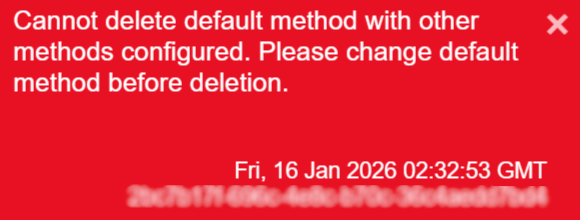
When you try to delete a method that is set as your default sign-in method, an error banner may appear in the top-right corner of the screen.
In this case, please change your default setting using the following steps before proceeding with the deletion.
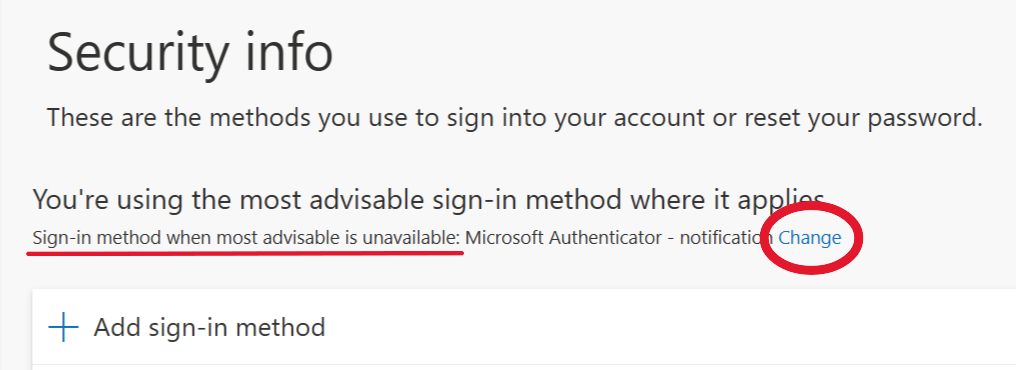
(1) Click “Change” next to “Sign-in method when most advisable is unavailable”, select another method, and click “Confirm”.
(2) A message confirming the update will appear in the top-right corner of the screen.

(3) Click “Delete” for the MFA information you want to remove.
Update the Setting for When MFA Is Prompted
You can update the setting for when MFA is prompted using the form below:
Microsoft 365 Multi-Factor Authentication(MFA) Configurator