3. How to Sign In After Registering MFA Information
After completing the Registering MFA Information, when you sign in using your SSO-KID and password, an additional screen will appear to verify your identity with MFA.
Follow the prompts to verify yourself by operating your authenticator app or phone.
- Authenticator App for Mobile(Microsoft Authenticator)
- Browser Extension for PC (Microsoft Edge)
- If You Can’t Use Your Regular Authentication Method
Authenticator App for Mobile (Microsoft Authenticator)
-
You will receive a notification asking for approval on the smartphone that has Microsoft Authenticator installed.
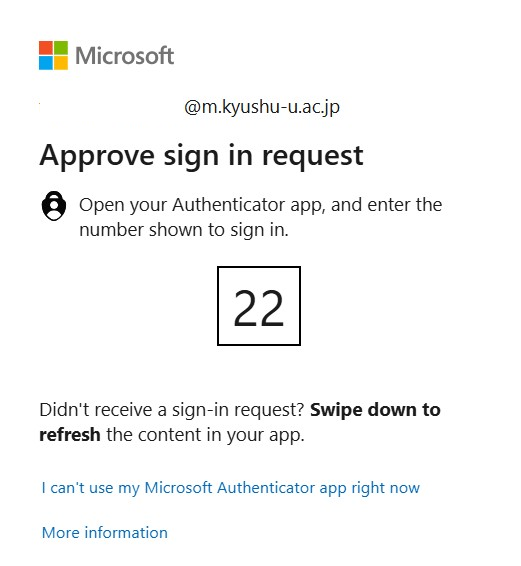
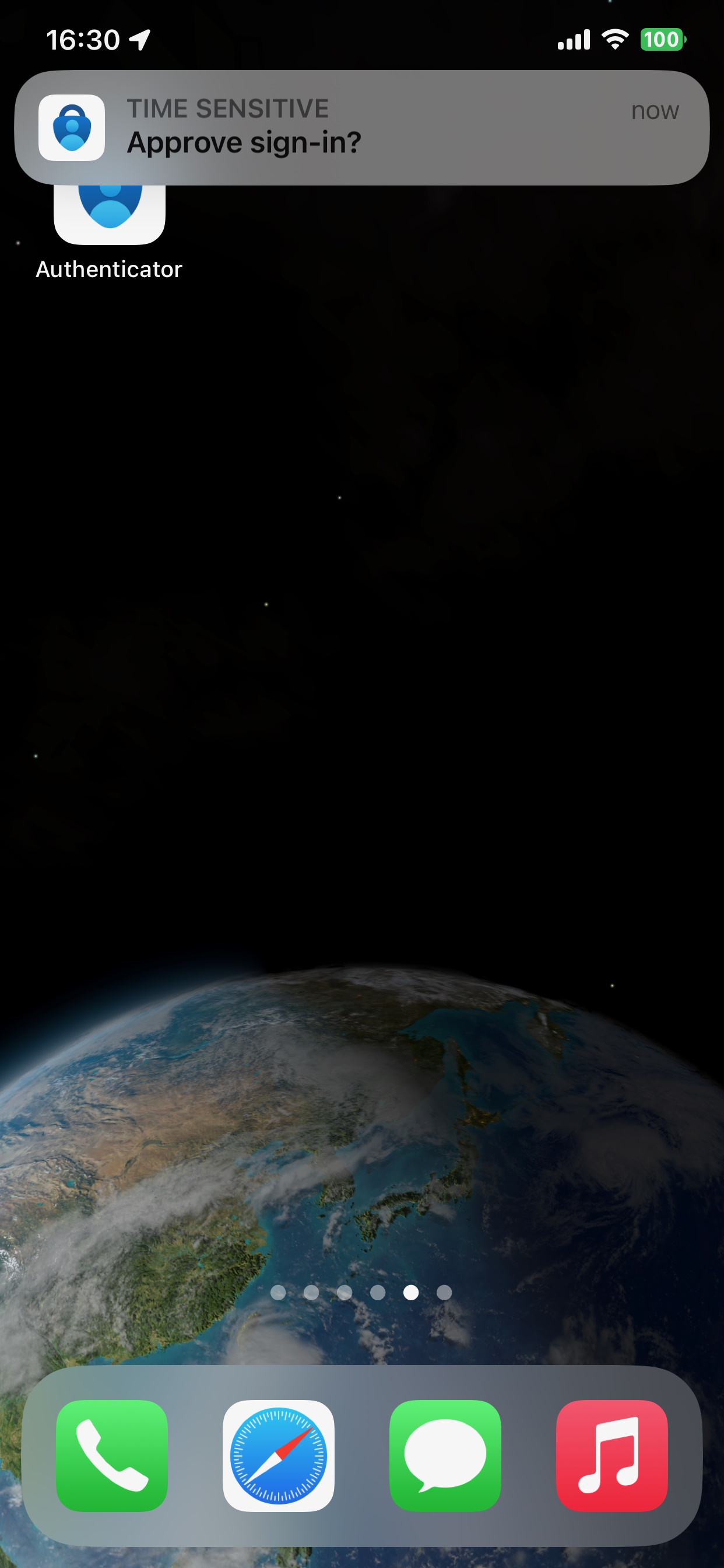
-
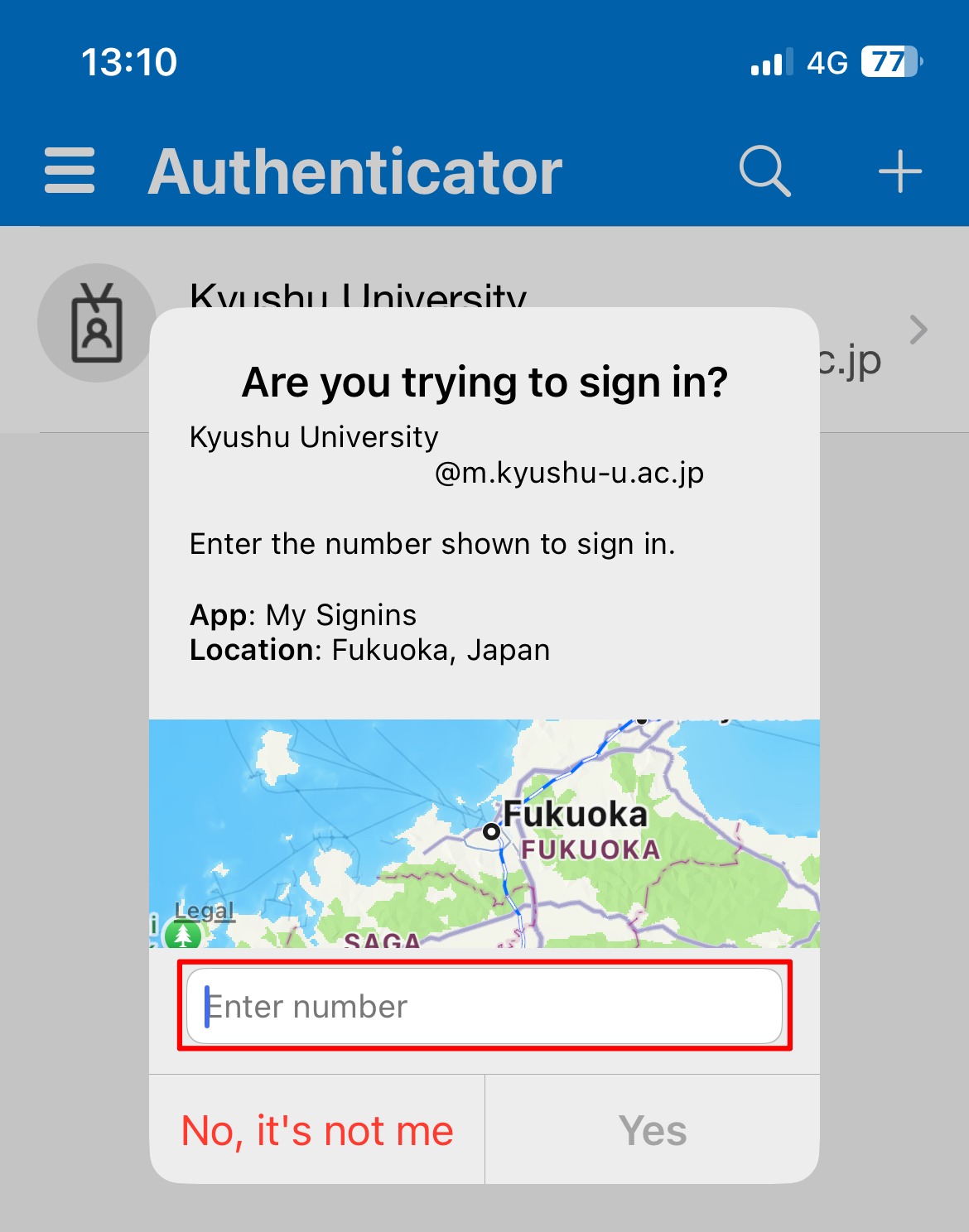
Open “Microsoft Authenticator”, enter the displayed number, and tap “Yes”. Depending on the app settings, you may be required to verify your identity using facial recognition, fingerprint authentication, etc. If you received a notification you don’t recognize, tap “No, it’s not me”. The “App” and “Location” are for reference, but the “Location” may be inaccurate depending on the status of the network used for the sign-in.
Note: When you have no Internet access
If your mobile device is not connected to the internet, you can still authenticate using a verification code.
* The verification code is generated based on your device’s internal clock. If the device time is incorrect, authentication may fail.
-
Click “I can’t use my Microsoft Authencicator app right now”.
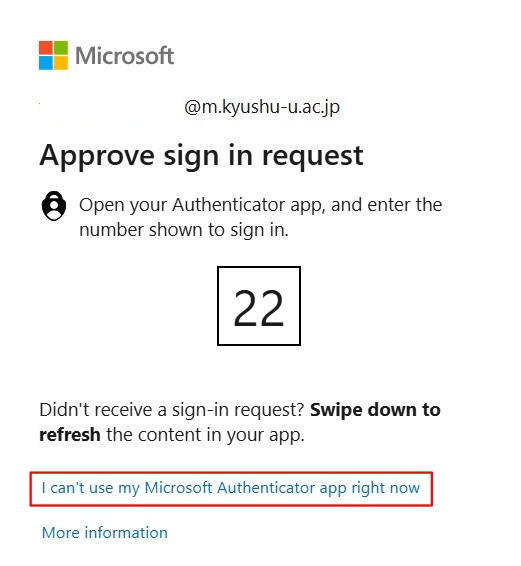
-
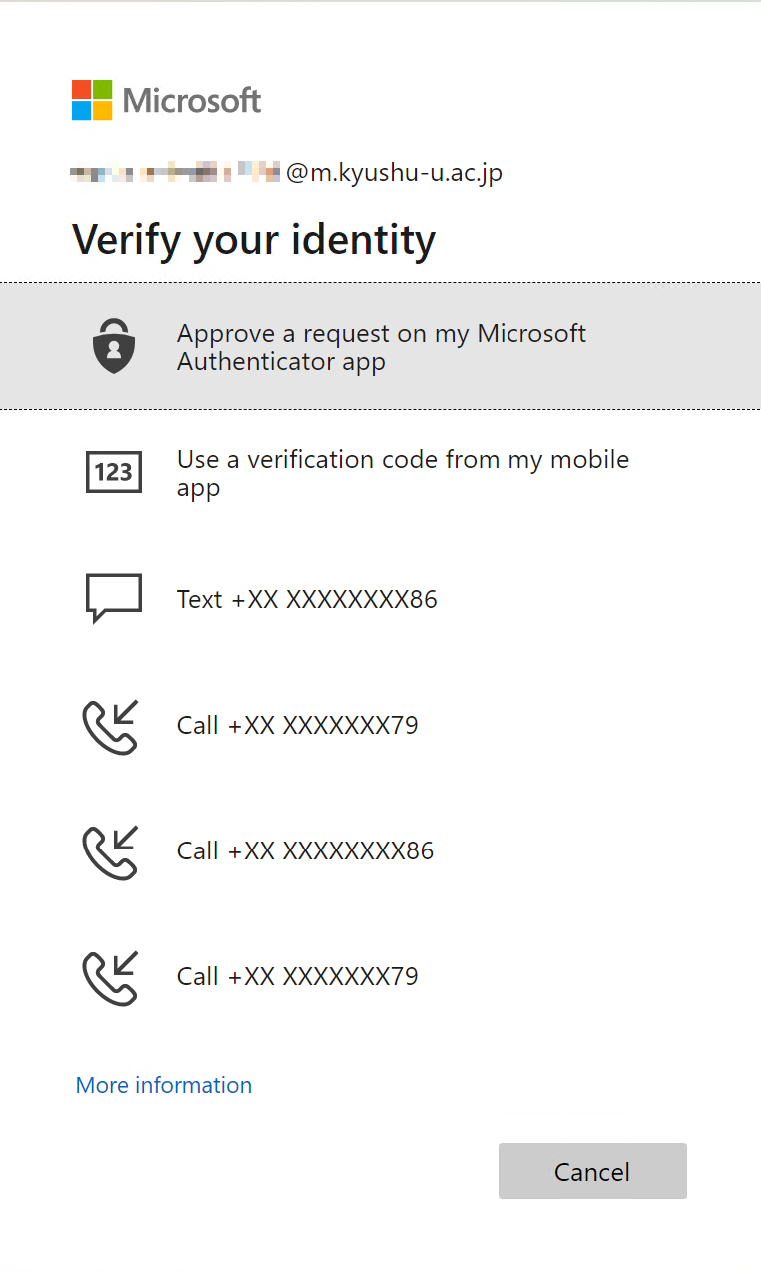
Click “Use a vertification code”.
-
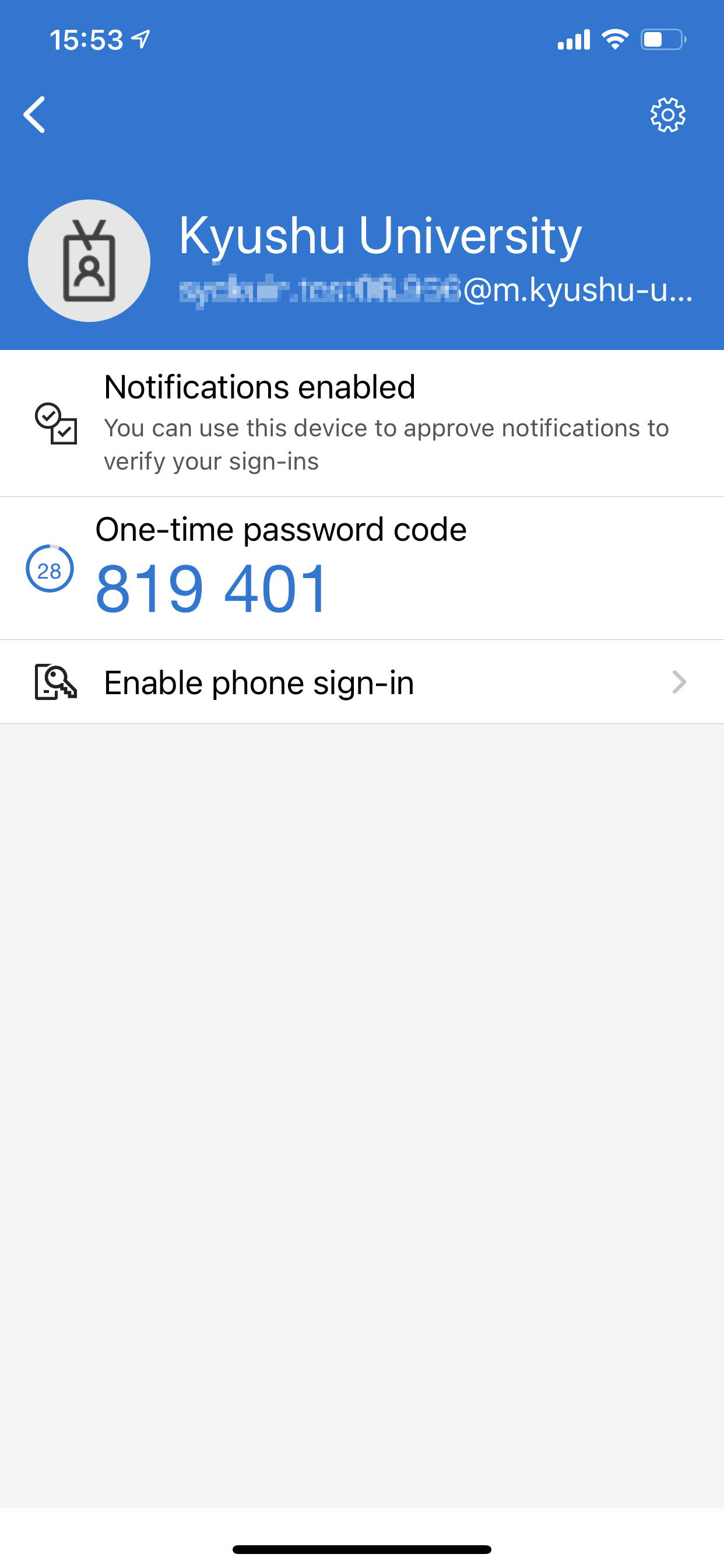
Open the Microsoft Authenticator app on your smartphone and tap the registered account. A 6-digit one-time password will be displayed.
* Please complete the operation within 30 seconds, as the code will expire after that.
-
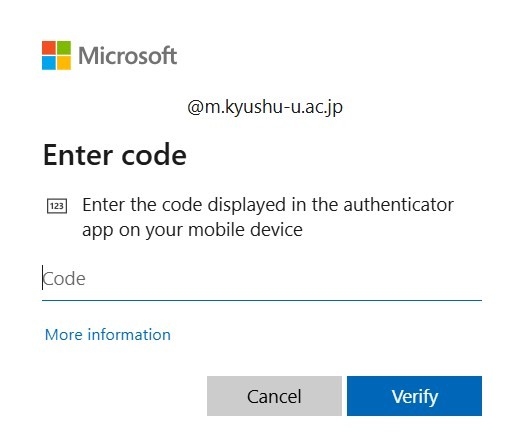
Enter the one-time password you obtained in Step 3, then click “Verify”.
Browser Extension for PC (Microsoft Edge)
-
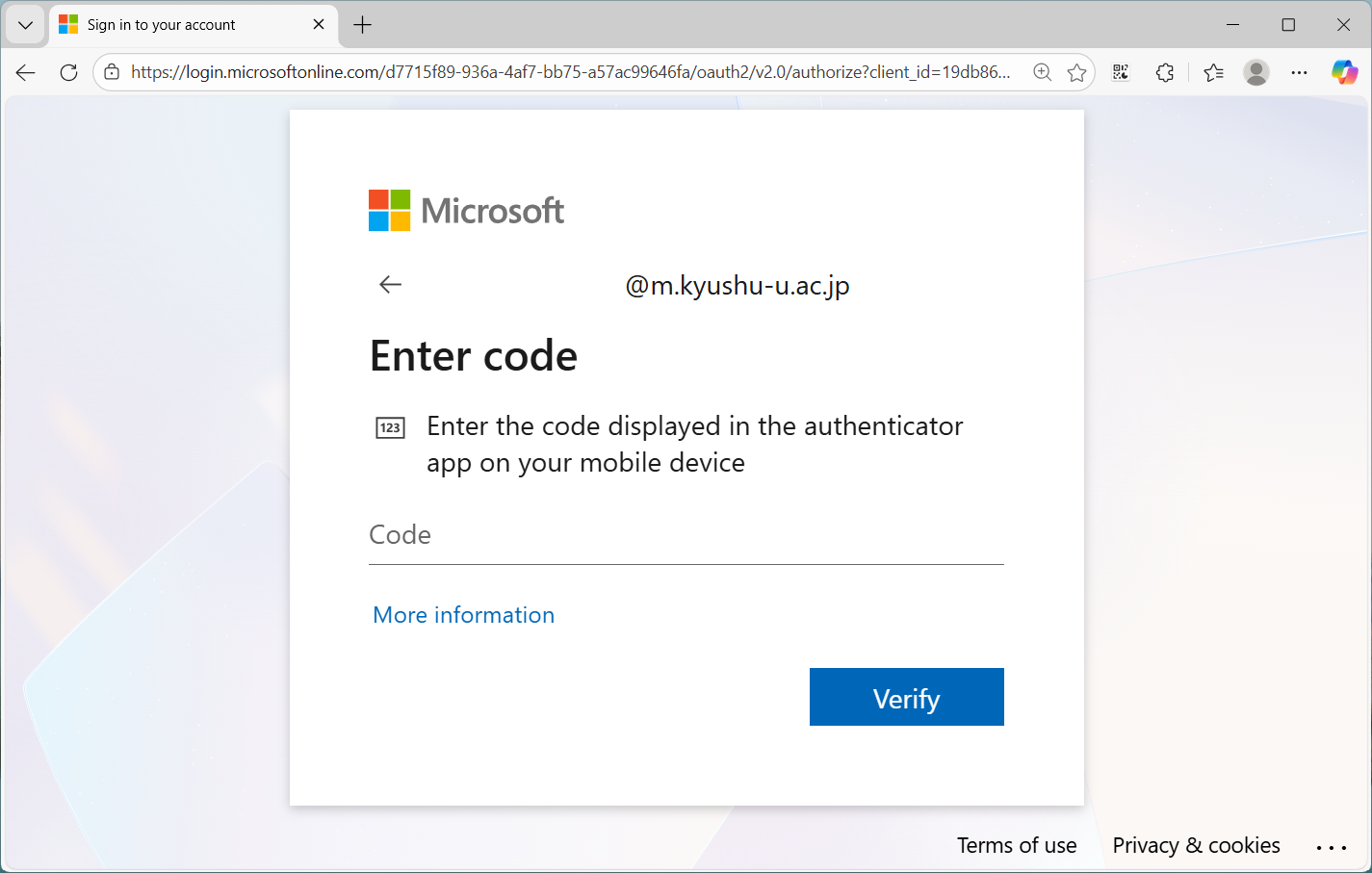
A screen will appear on the device you are trying to sign in to, asking you to enter a code.
-
Click the Authenticator icon in the upper-right corner of the browser where the extension is installed.
A 6-digit code will be displayed. Enter this code on the screen from step 1 and click Verify.
Note: The code is only valid for a short time, so please enter it promptly.

If You Can’t Use Your Regular Authentication Method
Microsoft automatically uses the most secure authentication method from those you’ve registered. If your usual method isn’t available, you can still sign in using another method—as long as it’s been registered in advance. We recommend registering multiple MFA information, such as setting up the authenticator app on both your mobile device and PC.
-
On the screen where you are prompted by MFA, click “I can’t use my Microsoft Authencicator app right now”.
-
Select the method and follow the on-screen instructions to operate your authenticator app or phone.