Thunderbird (Release ver.)
-
Before proceeding, please set up your Primary mail address and confirm that you can send and receive emails without any issues.
-
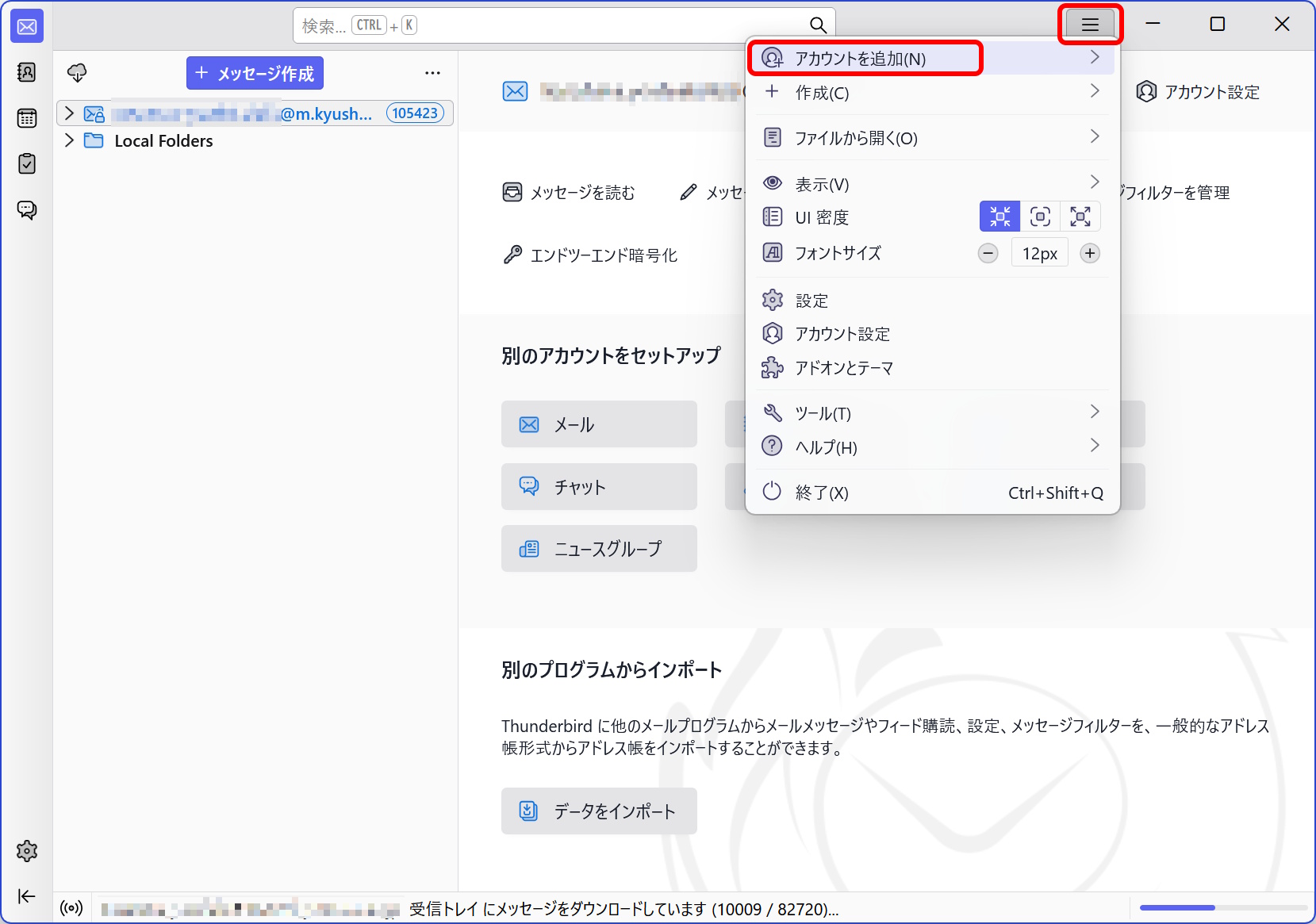
Click the three-line menu icon in the upper-right corner of the screen, then select “Add Account."
-
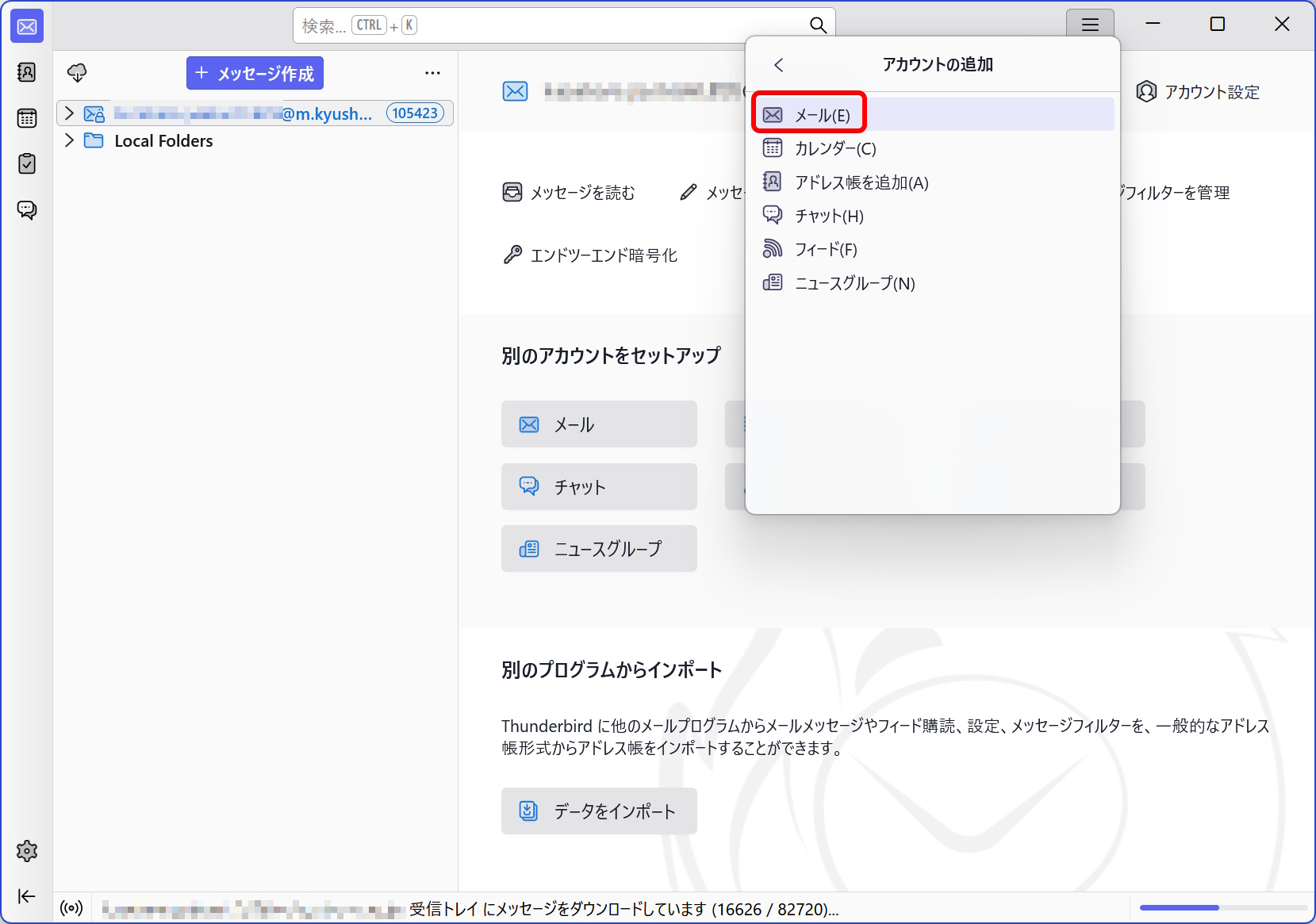
Click “Email."
-
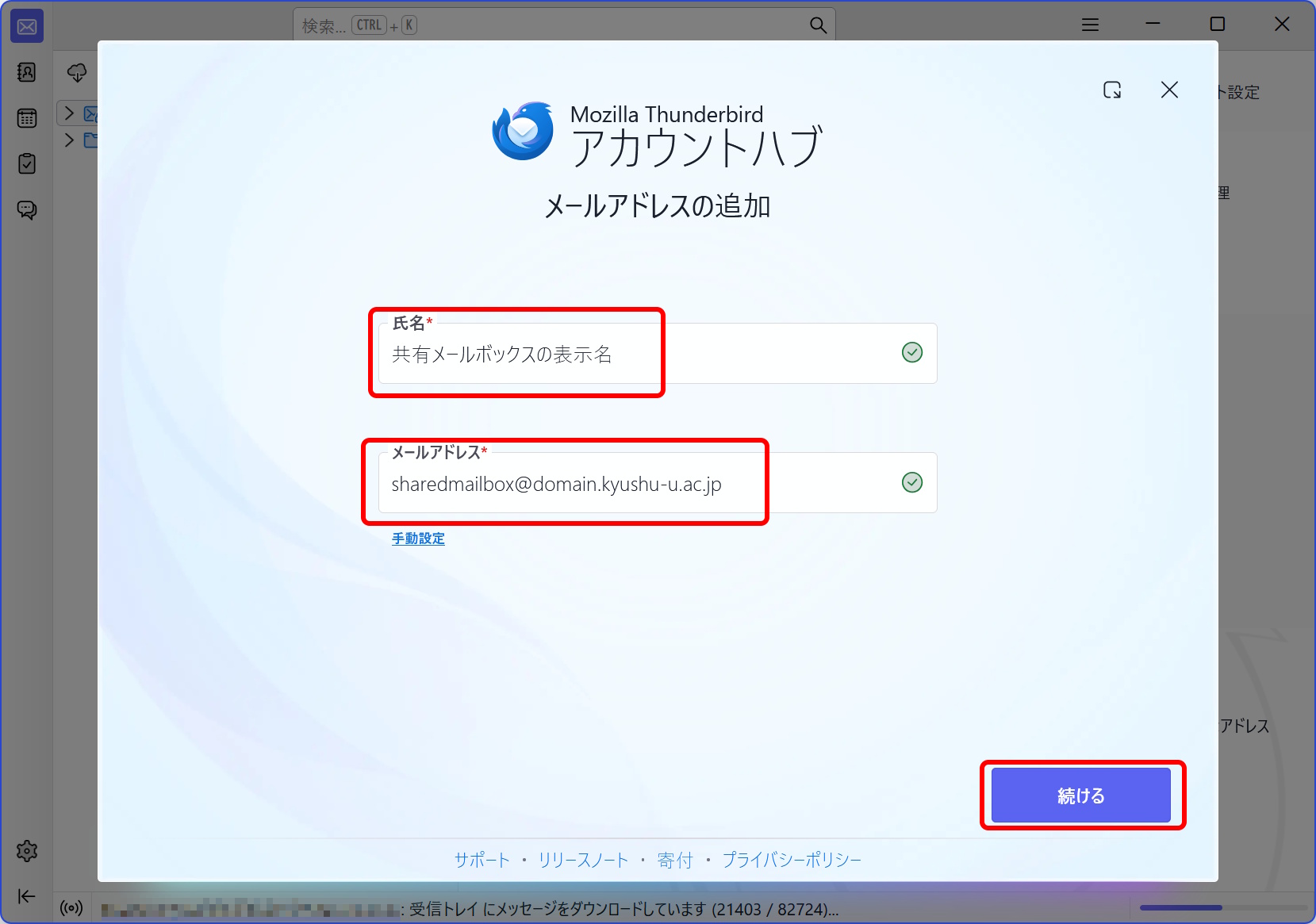
The Account Hub will appear. Enter any display name you prefer in the “Full name” field and the email address of the shared mailbox used by your organization in the “Email address” field, then click “Continue.” If you are prompted to sign in, sign in using your SSO-KID.
-
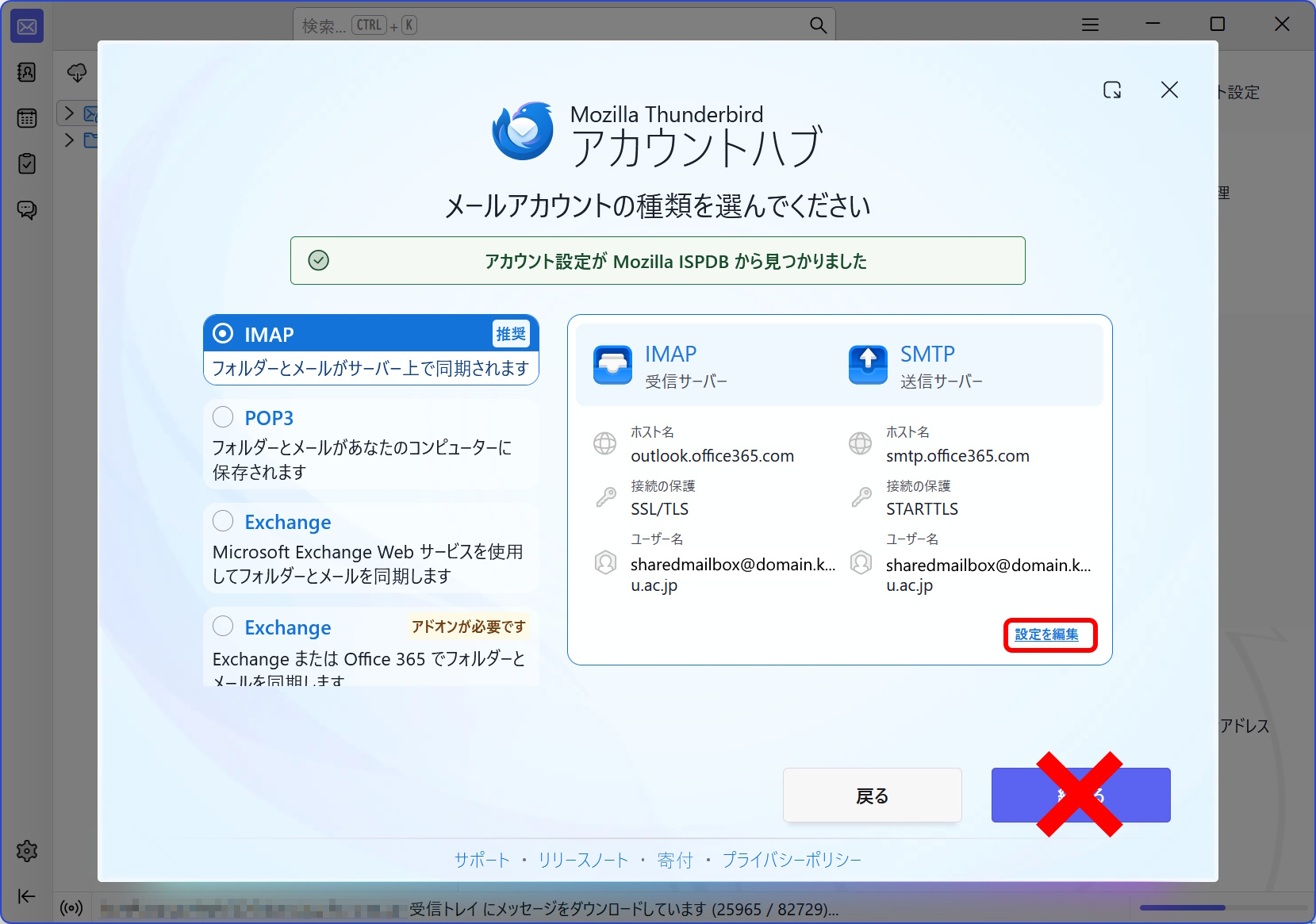
Make sure that “IMAP” is selected, then click “EDIT CONFIGURATION.” (Do not click “Continue” at this point.)
-
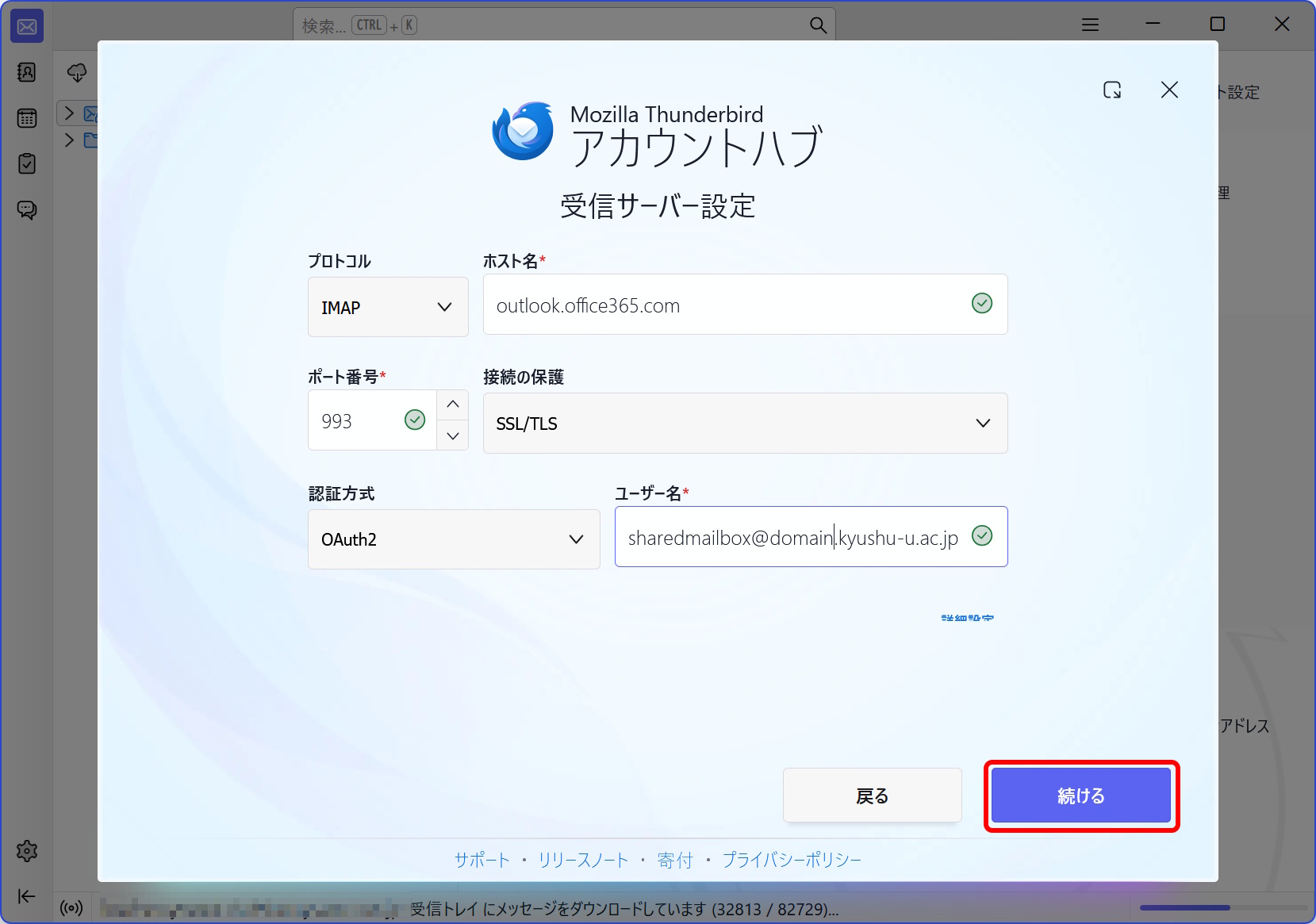
No changes are required to the “Incoming server settings,” so simply click “Continue."
-
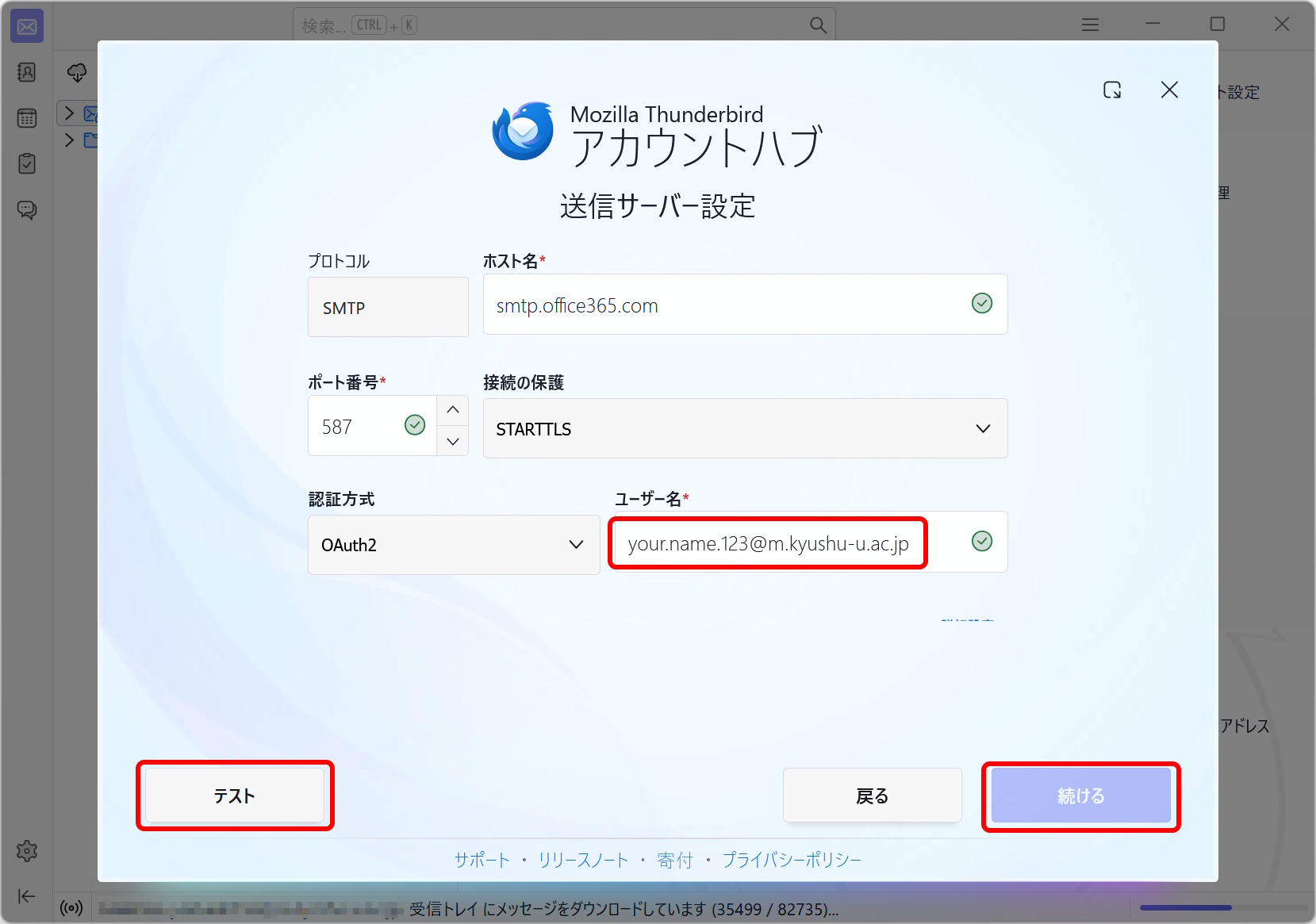
In the “Outgoing server settings,” change the “Username” to your Primary mail address. Then click “Test,” and after the test completes successfully, click “Continue."
-
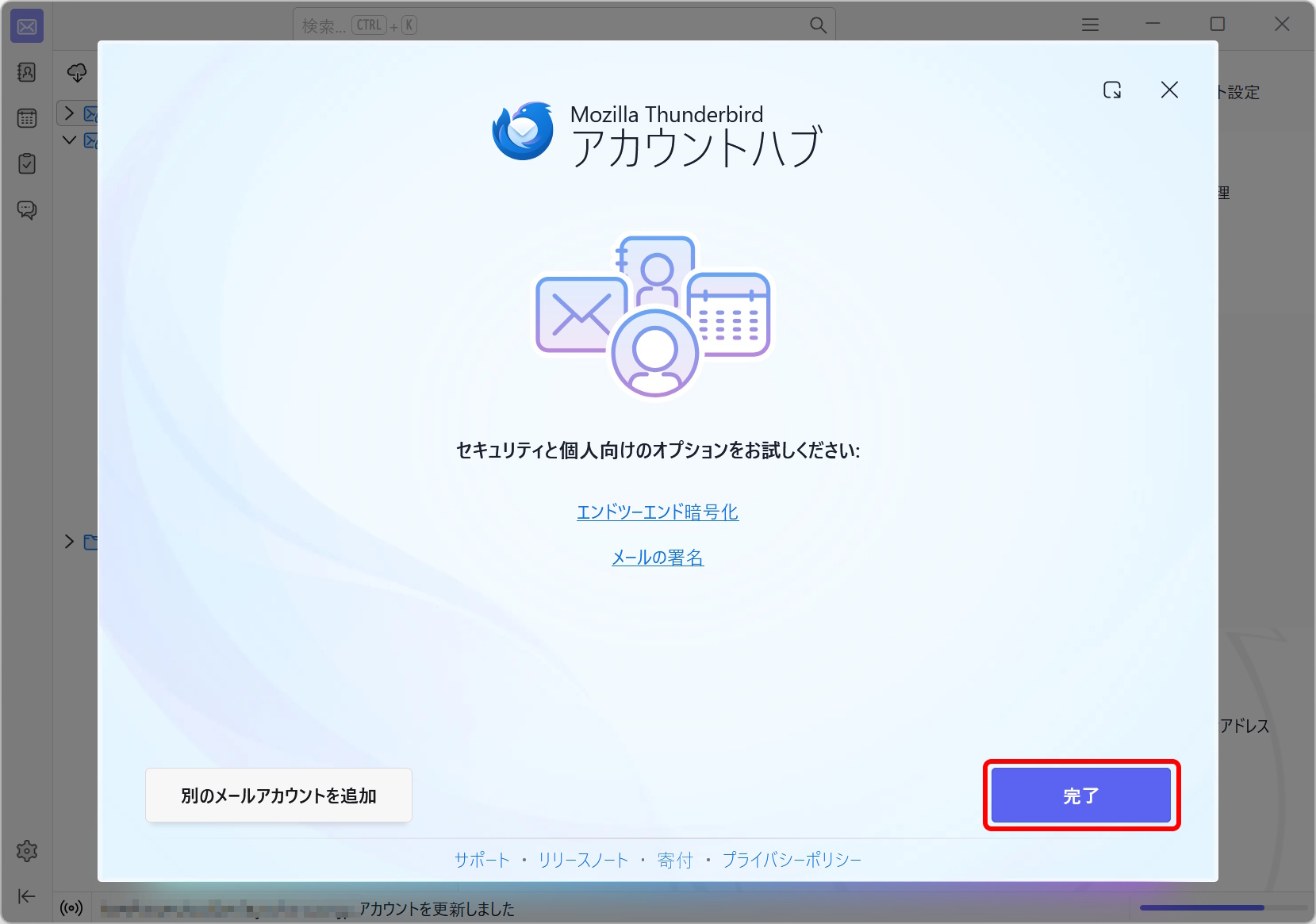
Click “Finish.” The setup is now complete.