Phone Number/SMS
This page explains how to register a phone number as your MFA information.
Registration Steps
-
Access https://mysignins.microsoft.com/security-info on your PC.
*If MFA is already registered, you may be prompted to enter a verification code or similar information. Please follow the on-screen instructions to proceed. -
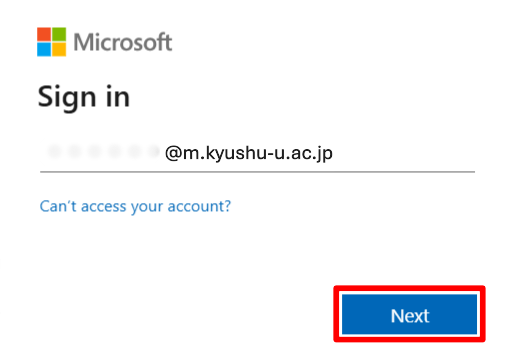
If the sign-in screen appears, enter your Kyushu University primary email address (…..@m.kyushu-u.ac.jp) and click “Next.”
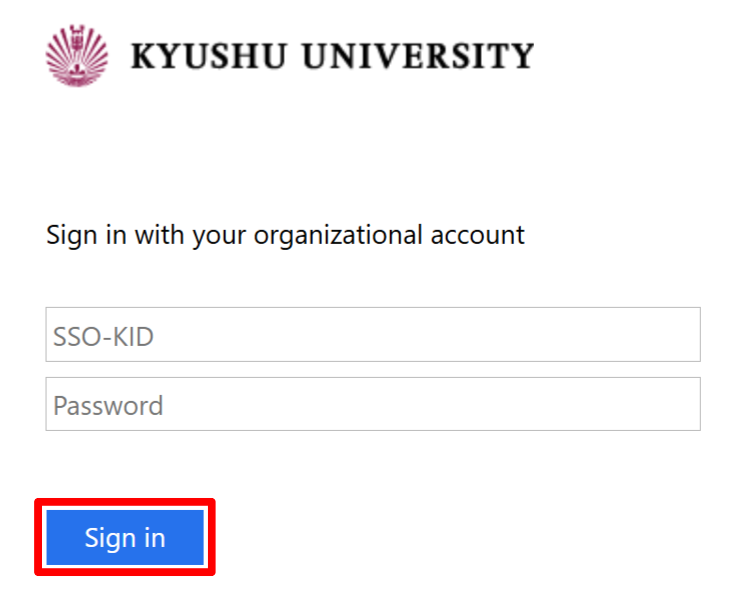
Then, enter your SSO-KID and password, and click “Sign in.”
-
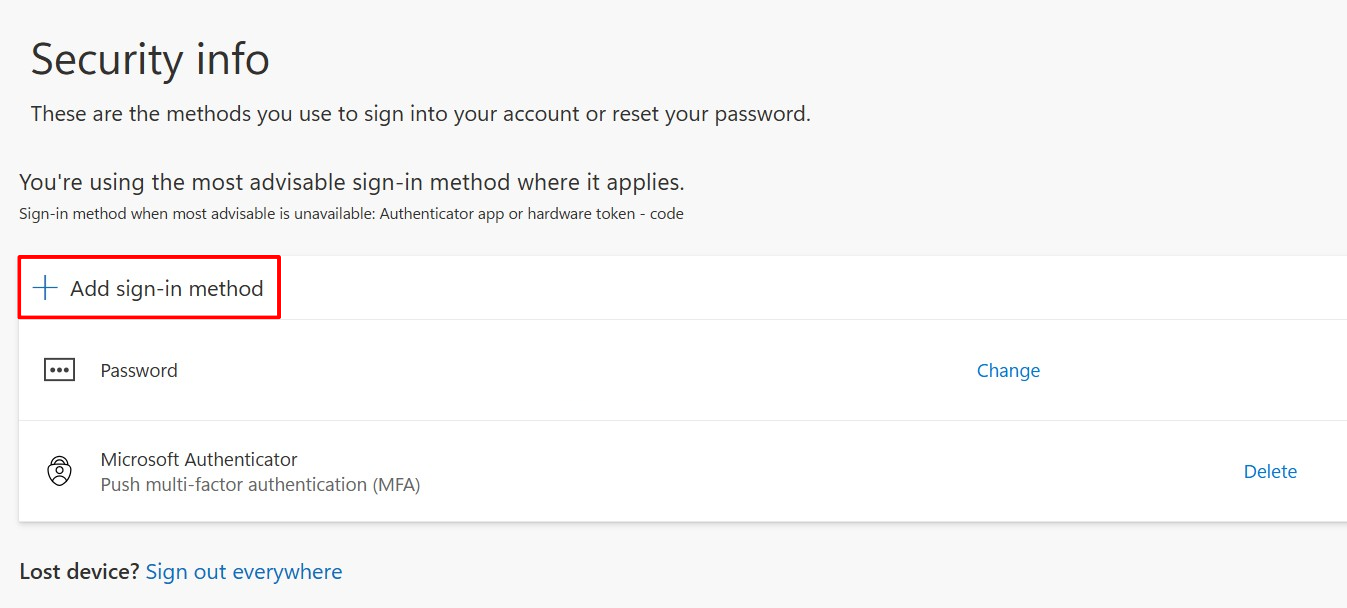
The “Security info” screen will be displayed.
Select “Add sign-in method”.
If "Keep your account secure" is displayed (click to expand)
1. Select **"Skip for now (X days until required)"**
2. The "Recent activity" screen will open. Select the menu icon (three horizontal lines) on the left side of the screen
3. Select **"Security info"**
4. Select **"Add sign-in method"**
-
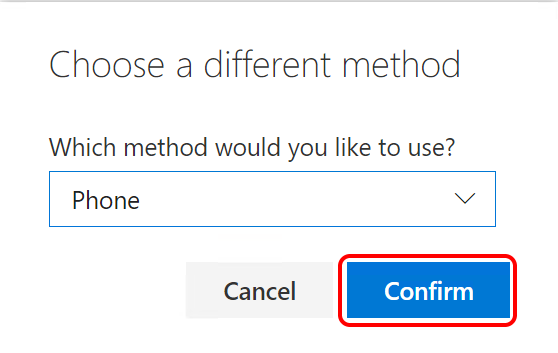
Choose the appropriate option for your phone type:
・Mobile/smartphone/Home landline → “Phone”
・Work landline → “Office phone”
-
When you select “Next”, an SMS will be sent or a phone call will be initiated. Please review the details in advance.
When selecting "SMS"(Click to expand)
1. Enter the "Country code" and "Phone number".
Please enter your phone number without the leading 0.
Example: 090-1234-5678 → 9012345678
2. Select "Send a code via SMS" and click "Next".
3. The following message will be displayed.
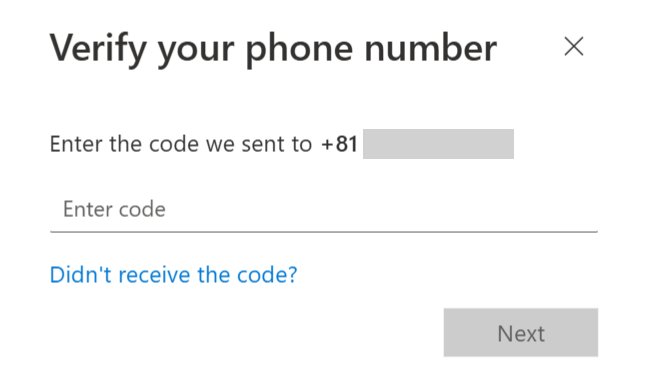
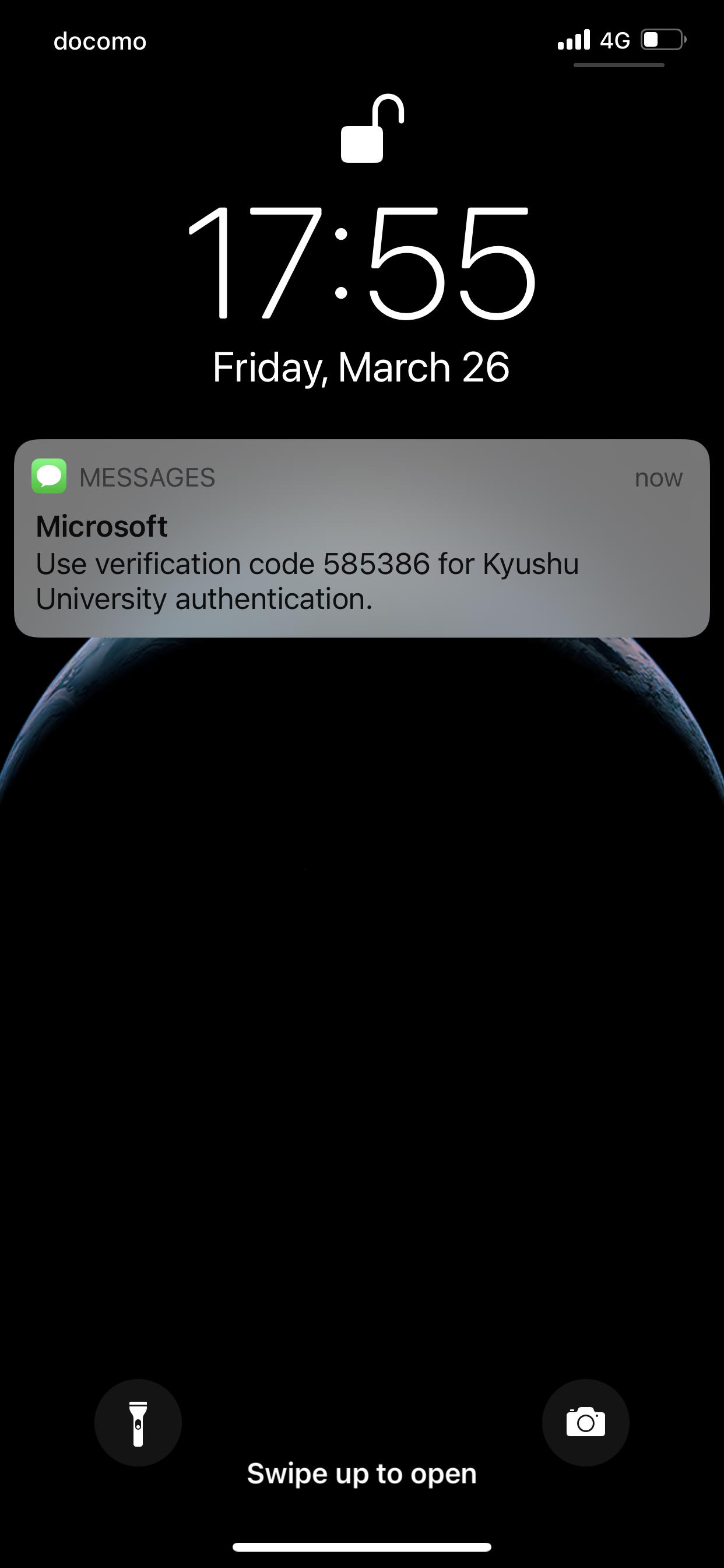
4. Check the verification code received on your mobile phone via SMS.
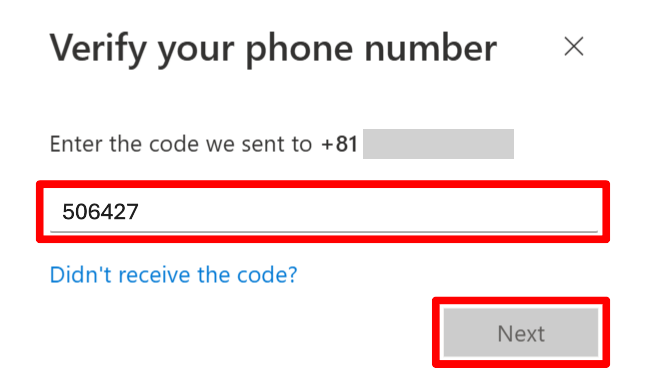
5. Enter the code you received and click "Next".

When selecting "Phone"(Click to expand)
- Enter the “Country code” and “Phone number”.
Please enter your phone number without the leading 0.
Example: 090-1234-5678 → 9012345678 - Select “Call” and click “Next”.
- A message will appear: “We will call
”. Answer the call and follow the voice instructions (you will be prompted to press “#”).
[Important] When using a workplace or landline phone
Before following the voice instructions, press the “PB (tone)” button and then press “#”.
- Enter the “Country code” and “Phone number”.
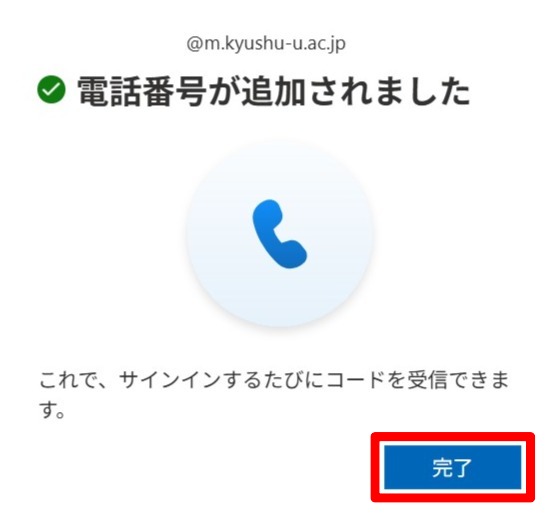
6. When the following screen is displayed, the registration is complete. Click "Finish".