Microsoft Authenticator (Recommended)
Scan the QR code displayed on your PC using your smartphone to set up MFA.
The PC is used only to assist with the setup process.
Procedure
■ On your PC
-
Go to the following URL:
https://mysignins.microsoft.com/security-info
Note: If you click the URL directly, the current page will be replaced.
To keep the current page open, please hold down the Shift key or Ctrl key while clicking the link to open it in a new window. -
Enter your university email address and select Next.
Then enter your SSO-KID and password, and select Sign in.
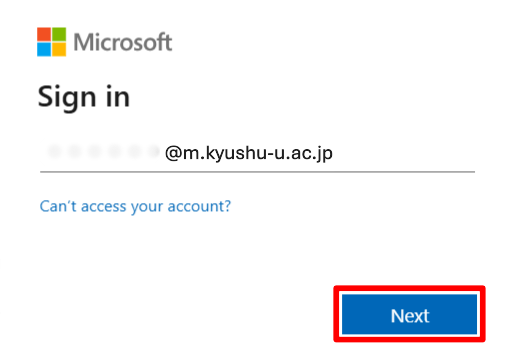
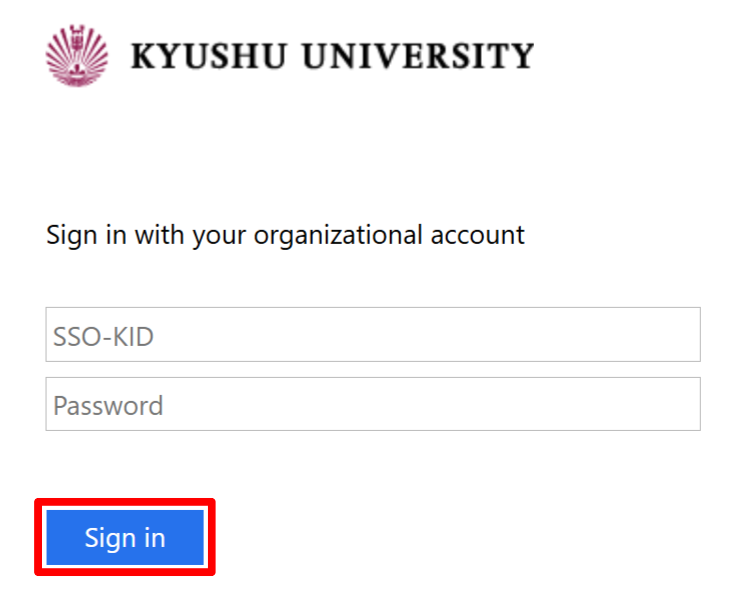
-
The procedure differs depending on what is displayed:
-
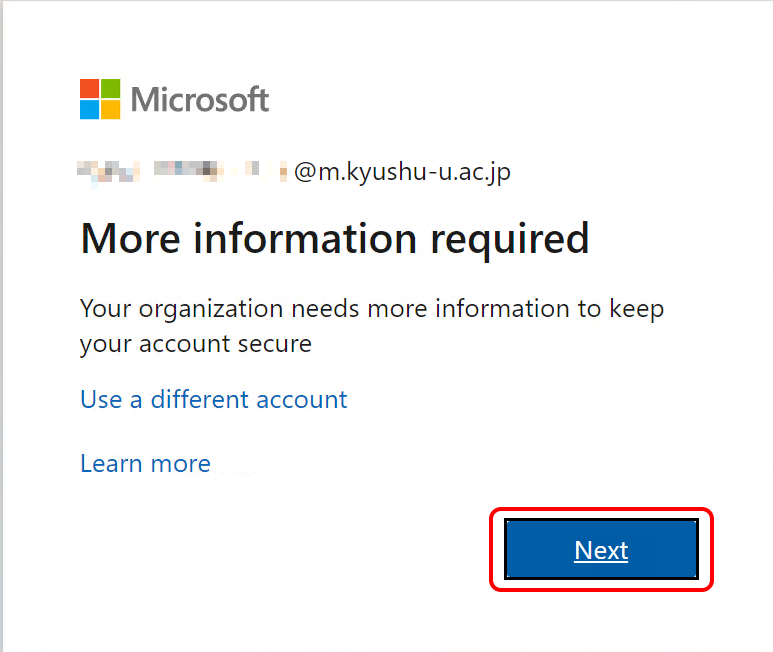
If the screen shows “Let’s keep your account secure”,
Click “Next”.
-
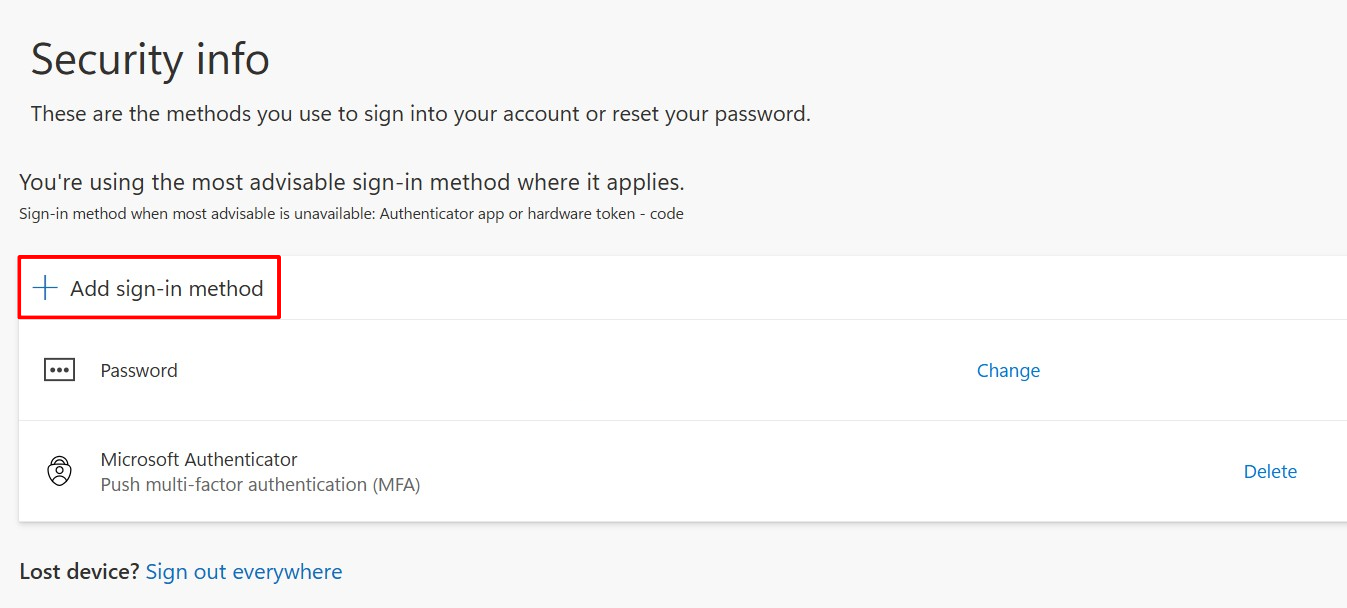
If the “Security info” screen appears,
Click “Add sign-in method”, then choose “Microsoft Authenticator”.
-
■ On your mobile device
-
Install Microsoft Authenticator.
If it is already installed, proceed to the next step.For iPhone (click to expand)
- Scan the QR code below to install the app.
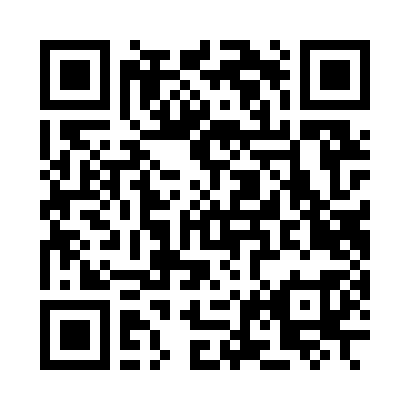
This QR code is for installing the app.
The QR code for account setup will be displayed in Step 9.
For Android (click to expand)
- Scan the QR code below to install the app.
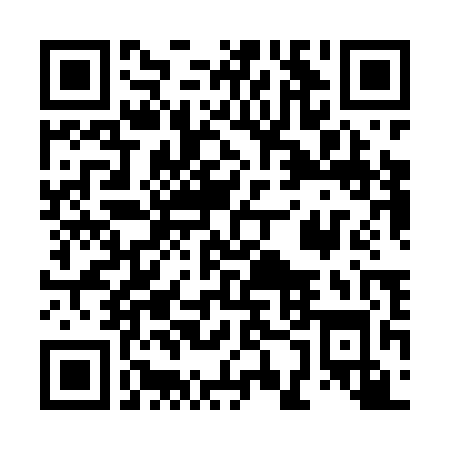
This QR code is for installing the app.
The QR code for account setup will be displayed in Step 9.
- Scan the QR code below to install the app.
-
Open the installed Microsoft Authenticator app.

-
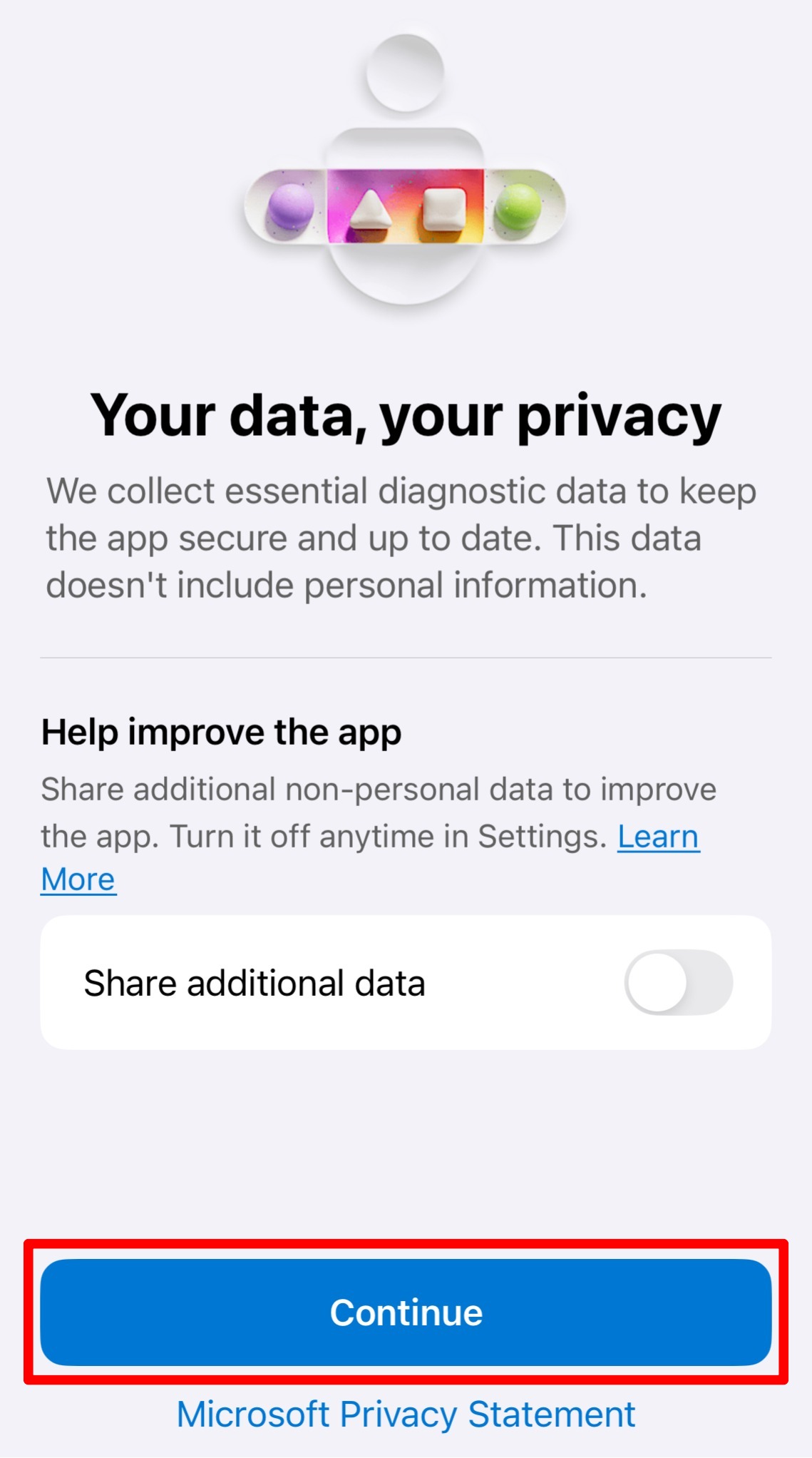
Review the information and tap Continue.
-
The procedure differs depending on what is displayed:
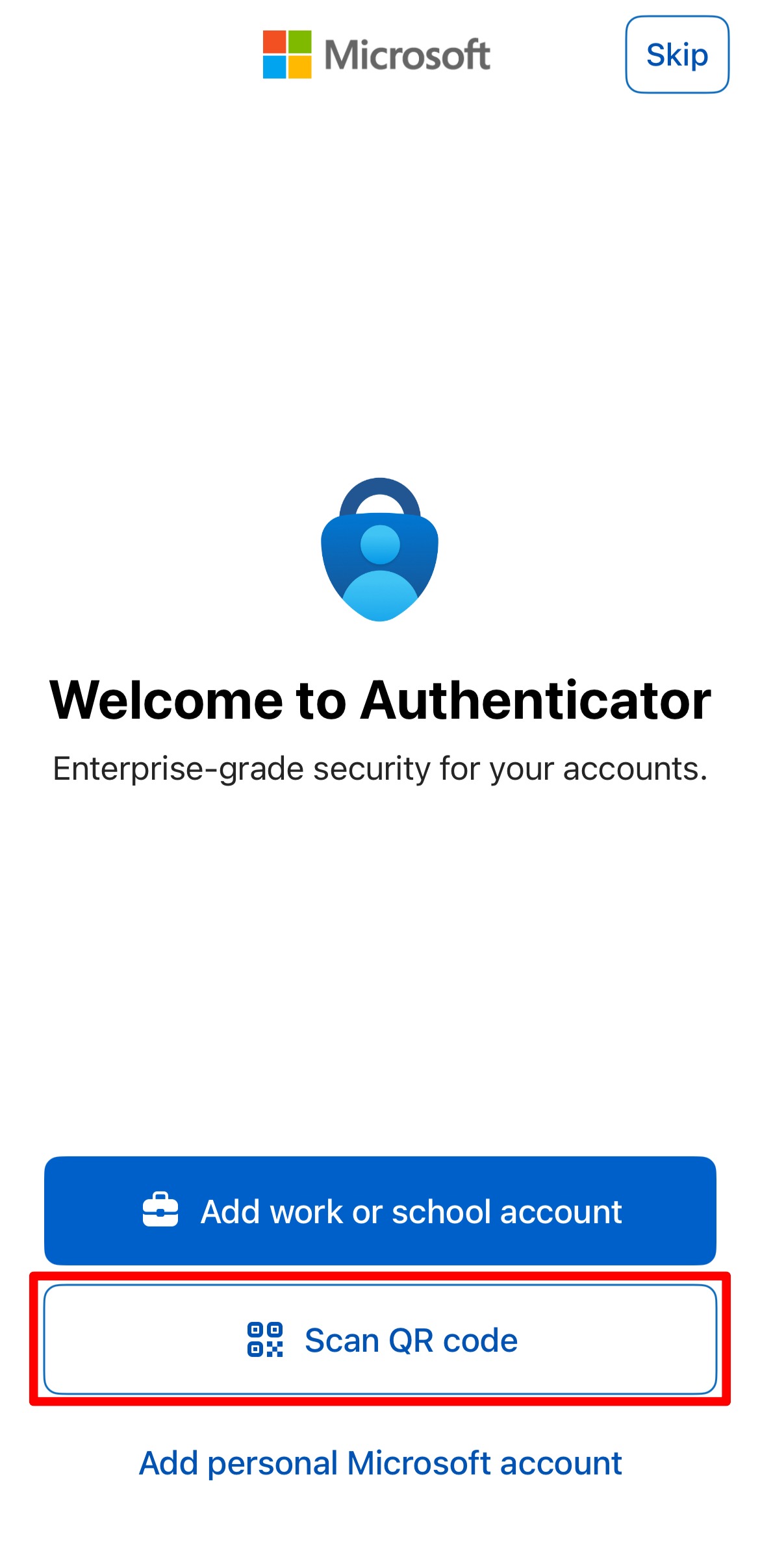
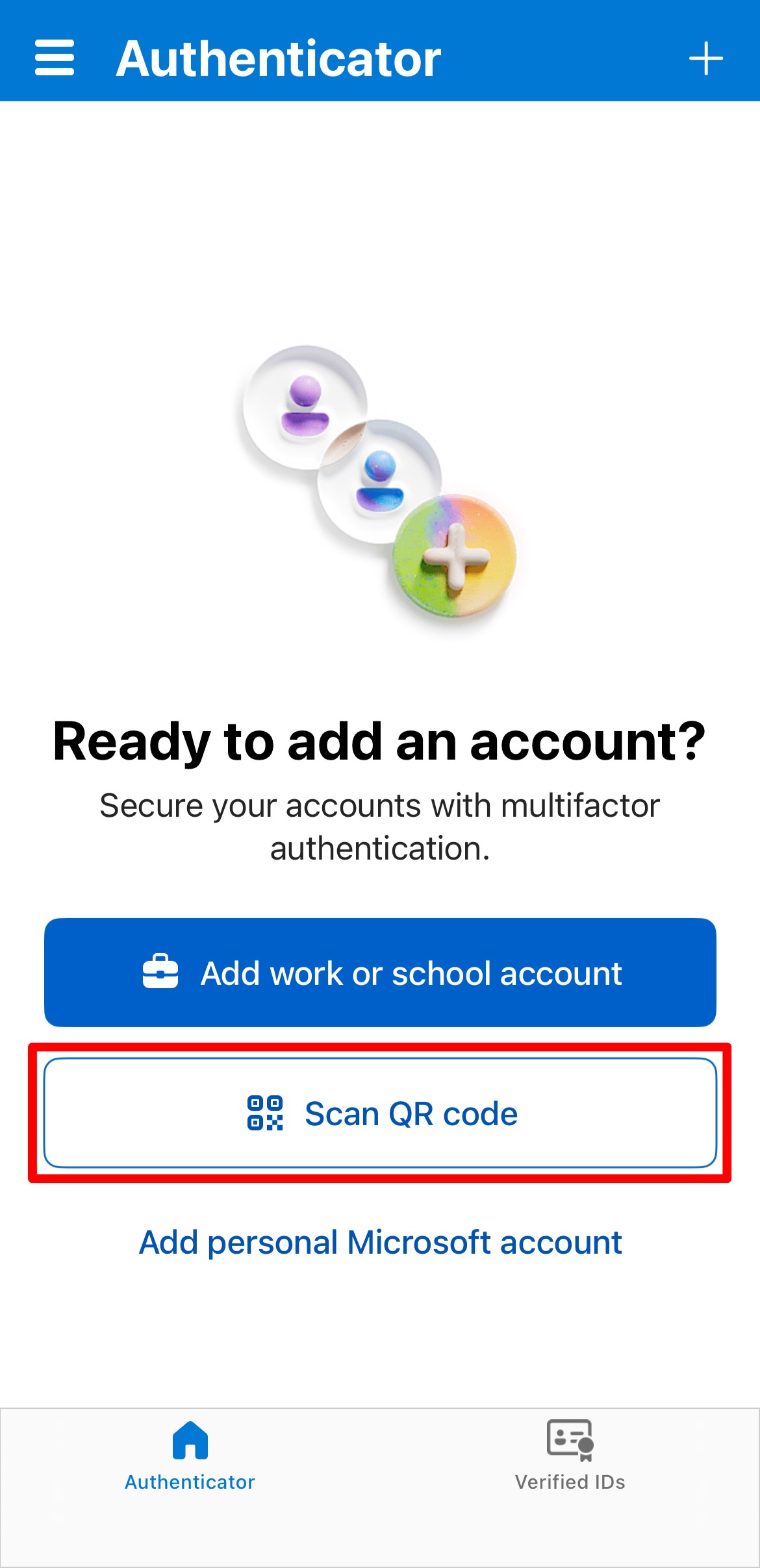
Pattern A
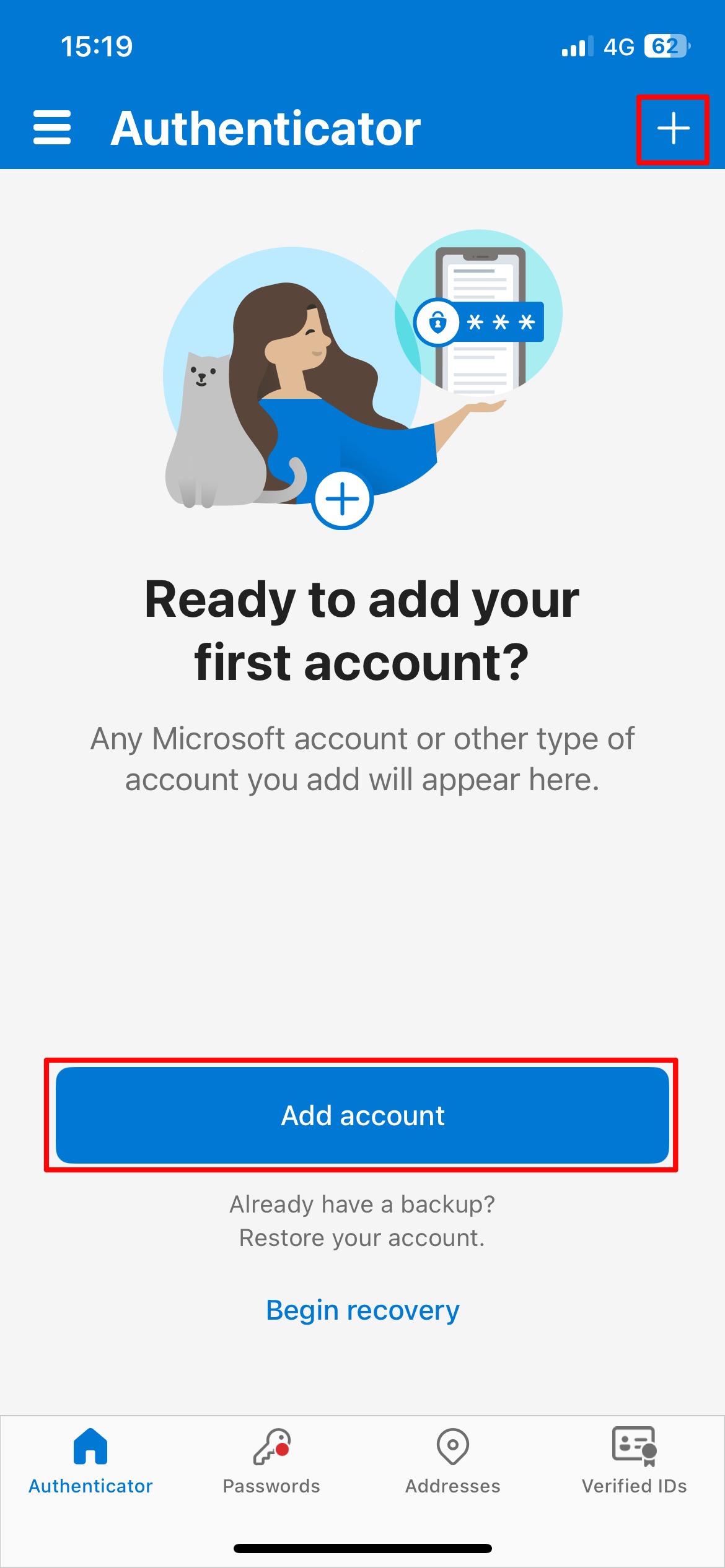
- Tap Scan QR code
Allow camera and notifications when prompted.
Note: The QR code to scan will be displayed in Step 9.
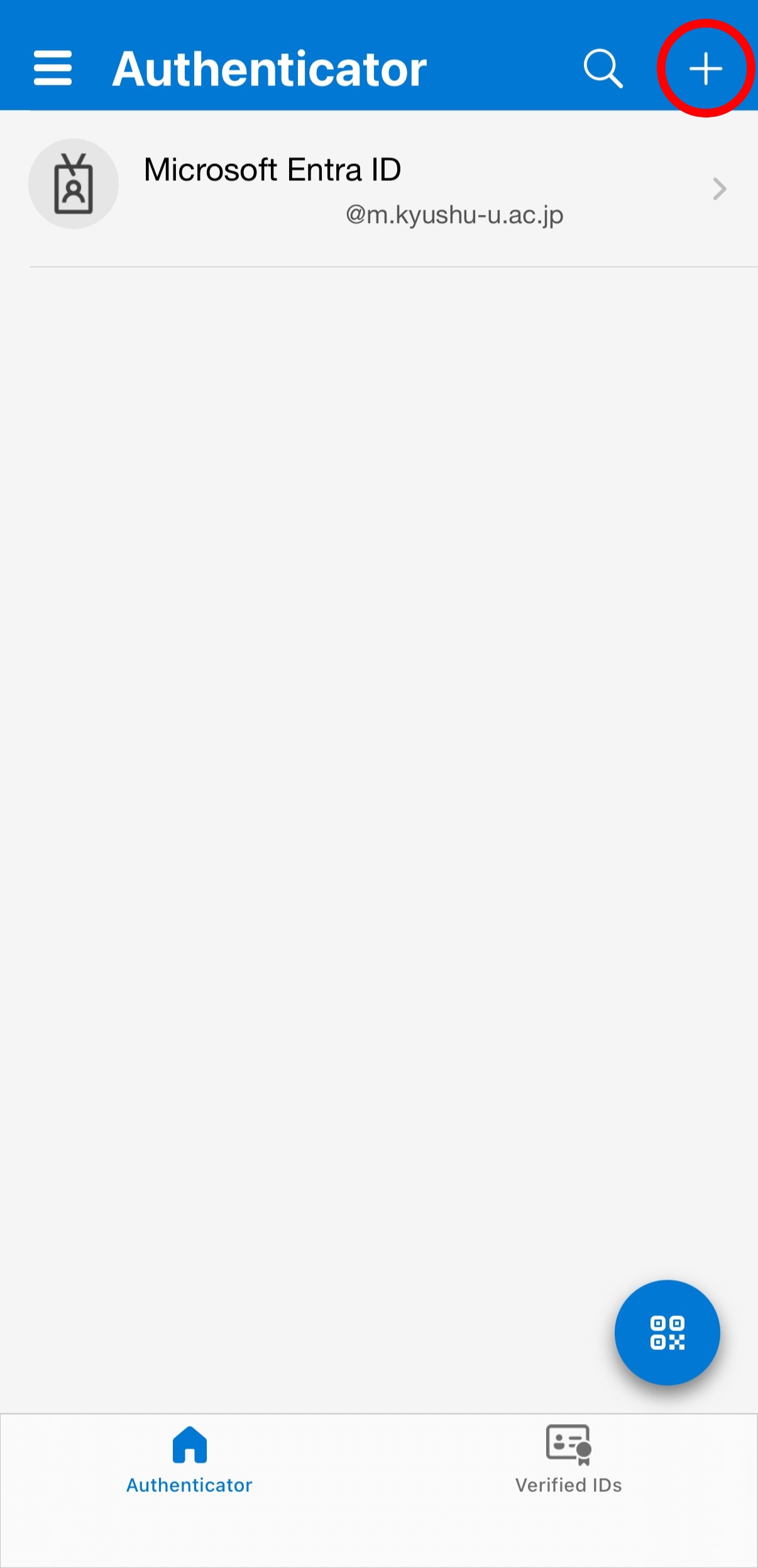
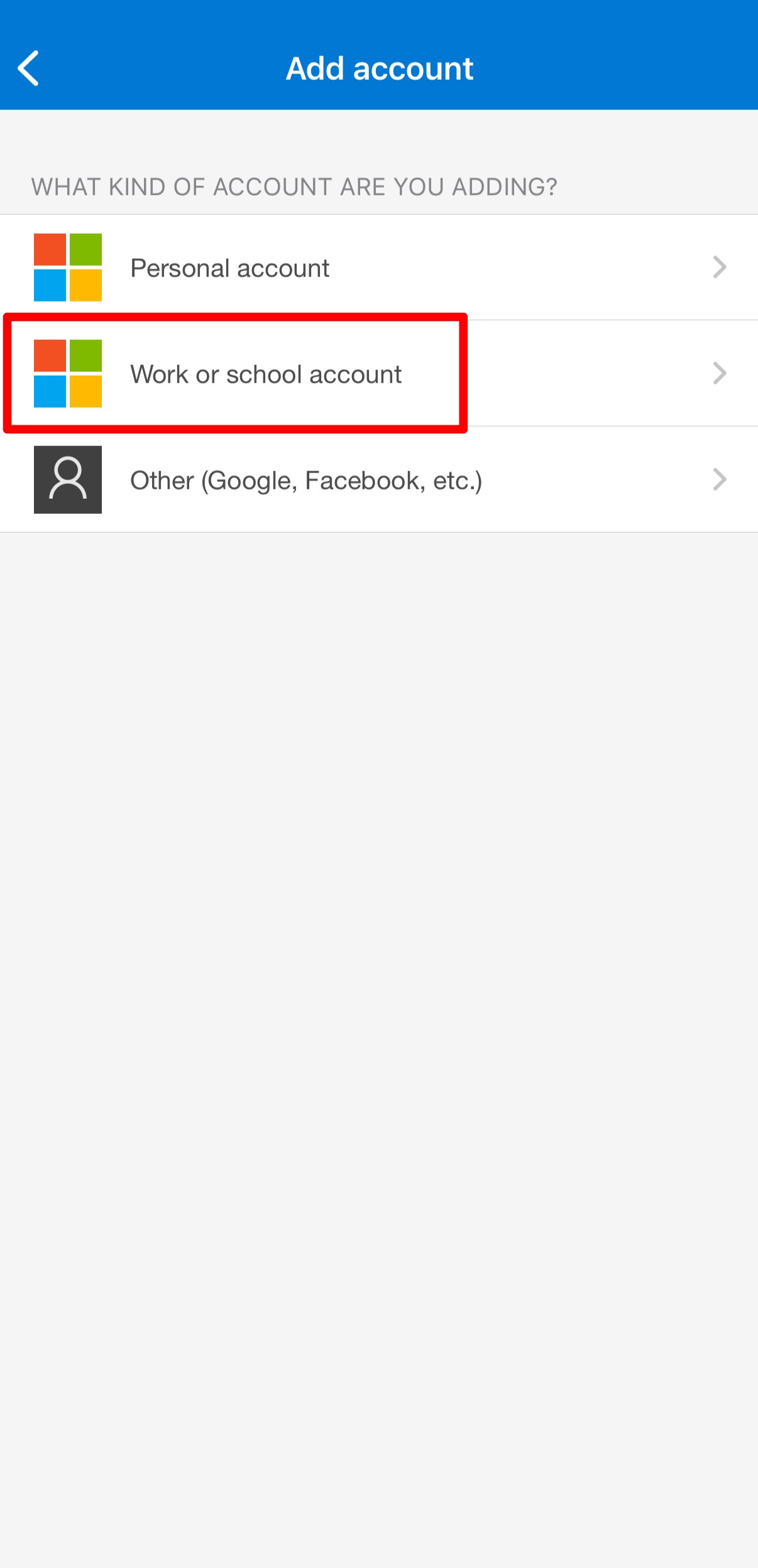
Pattern B
- Tap + (top right corner)
- Select Work or school account
- Tap Scan QR code
Note: The QR code to scan will be displayed in Step 9.

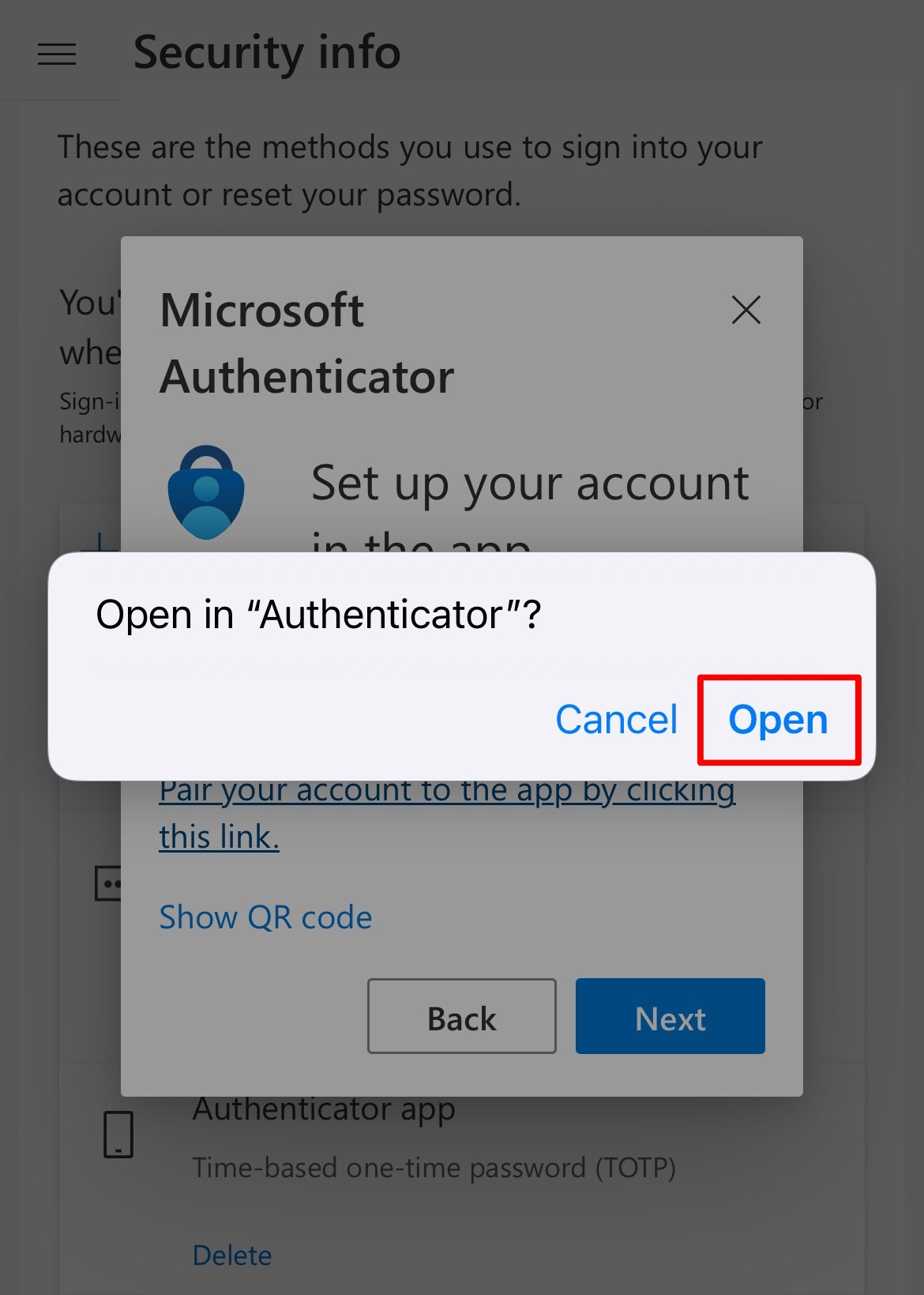
■ Back on your PC
-
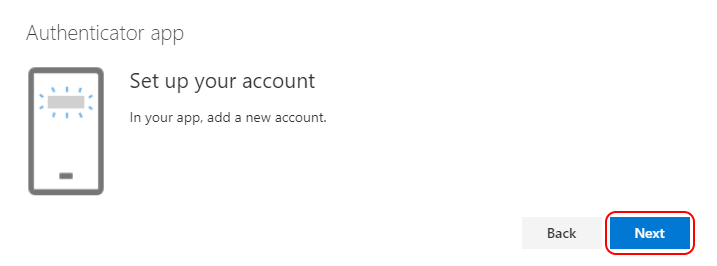
Click Next.
-
Click Next.
-
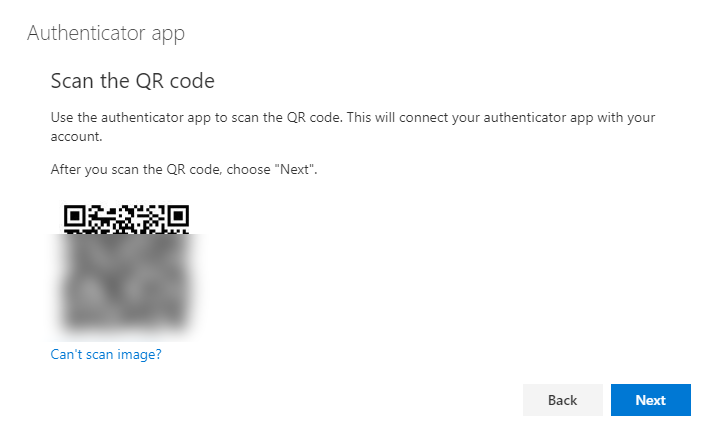
A QR code will be displayed.
Important: Do NOT click “Next” before scanning the QR code.
■ On your mobile device (Scan QR code)
-
Scan the QR code displayed on your PC.
-
If your university email address appears in Authenticator, the setup is successful.

■ Final confirmation (PC)
-
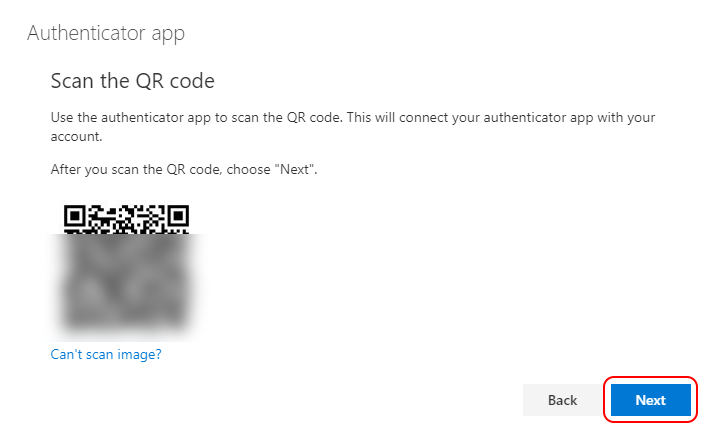
Click Next.
-
Verify the number displayed on the screen and enter it on your mobile device (approval step).
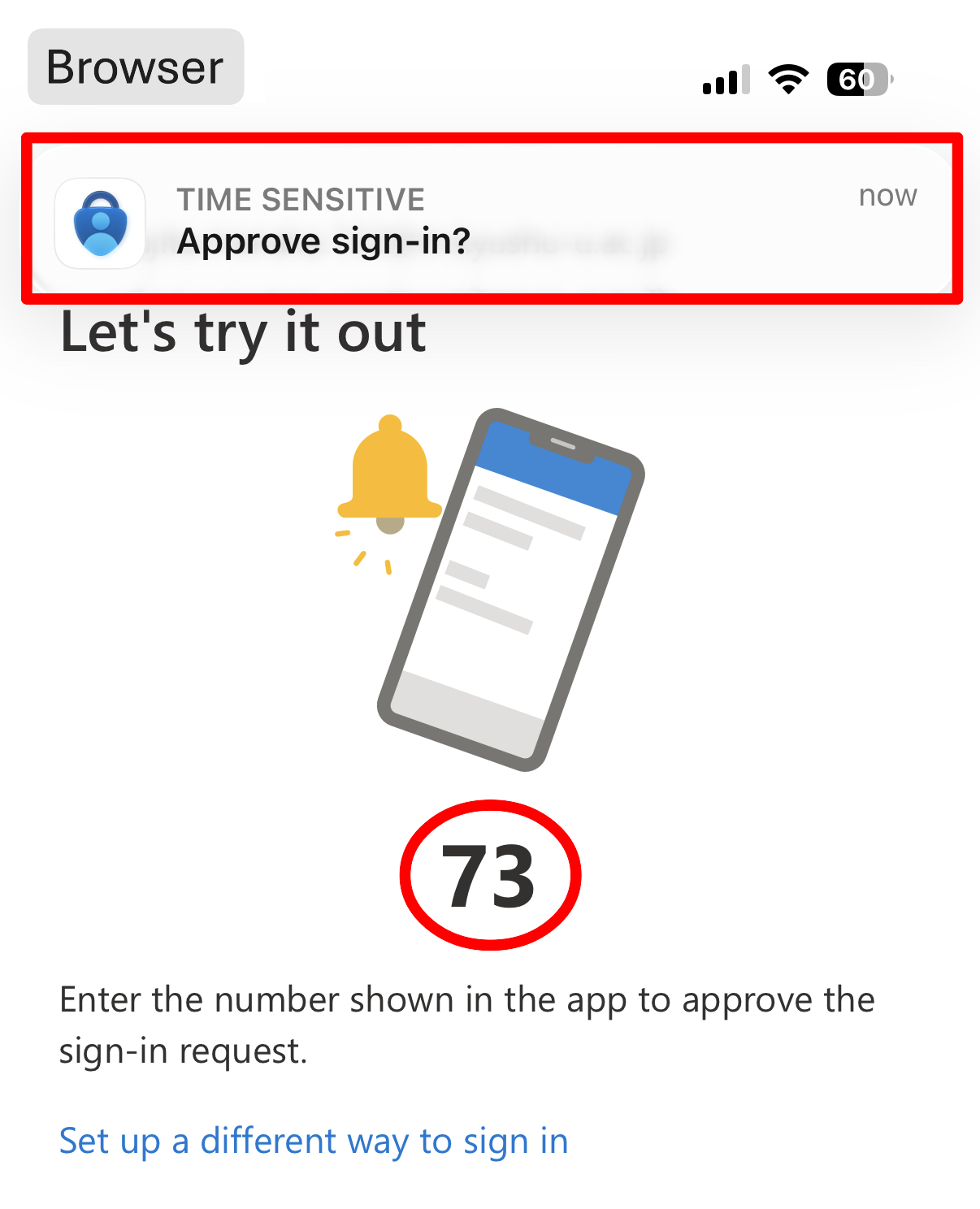
If no notification appears, open the Authenticator app manually.
-
After approval, click Done.
■ Completion check
- If Microsoft Authenticator is listed under “Security info”, the setup is complete.
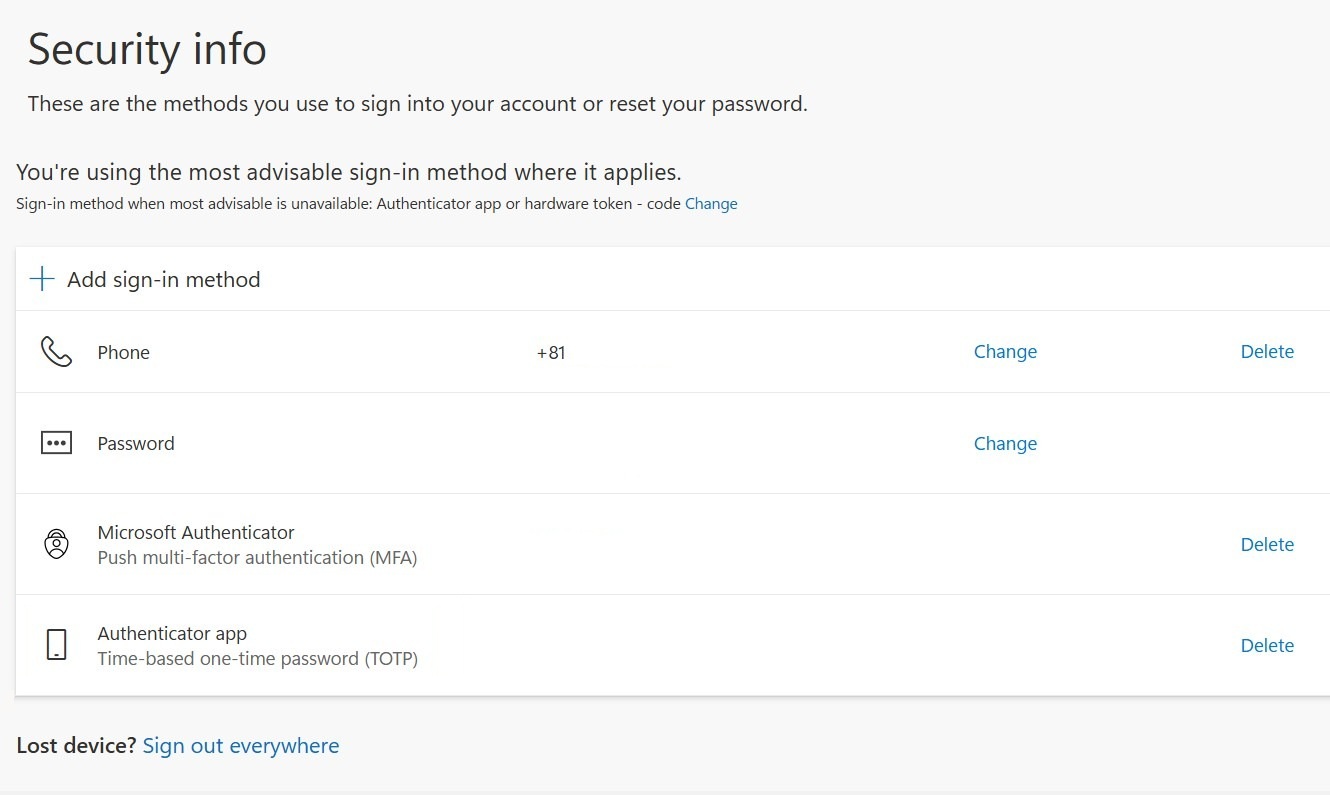
The setup is now complete.
If you would like to verify that MFA is working correctly, please check the following:
→ Verify MFA operation
Troubleshooting
■ If “Session timed out” is displayed
This occurs when there is no activity for a certain period.
- Select Sign in
- Follow the on-screen instructions to authenticate again