Microsoft Authenticator Setup Using Only a Smartphone
MFA will be set up using the Microsoft Authenticator app.
This procedure can be completed using only a smartphone.
Estimated time: 10–15 minutes
If you experience issues with the display or operation, please use the PC-assisted setup method. → Setup using a PC
Setup Instructions
- Install the dedicated app (Microsoft Authenticator) on your smartphone.
-
Open the installed Authenticator app.

-
On the first launch, proceed by selecting “Allow,” “Agree,” or “Continue” on all prompts.
- If prompted for notifications or camera access, select “Allow.”
- If prompted for notifications or camera access, select “Allow.”
-
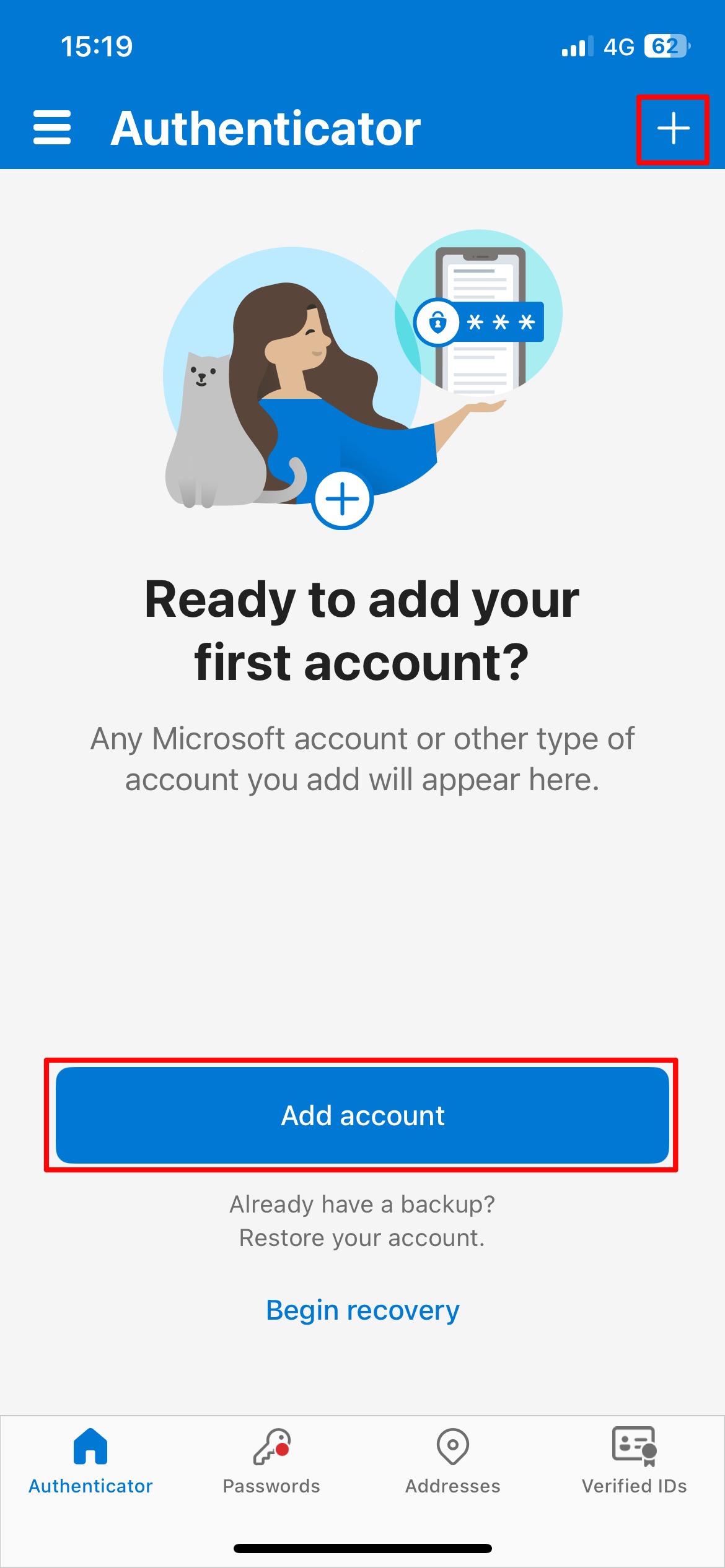
Add a Work or school account.
If you do not see “Work or school account,” select the “+” button. -
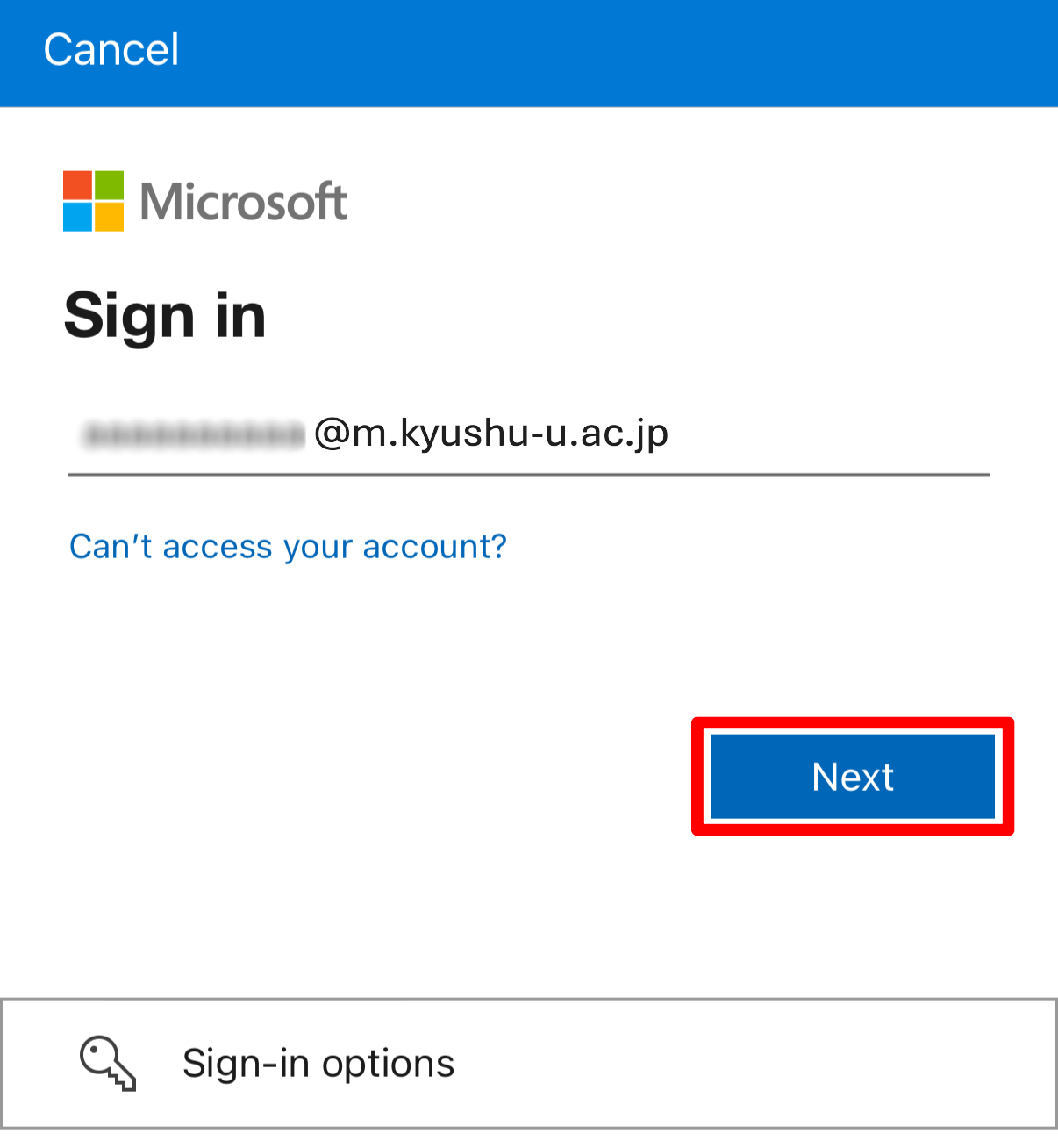
On the sign-in screen, enter your university email address and select “Next.”
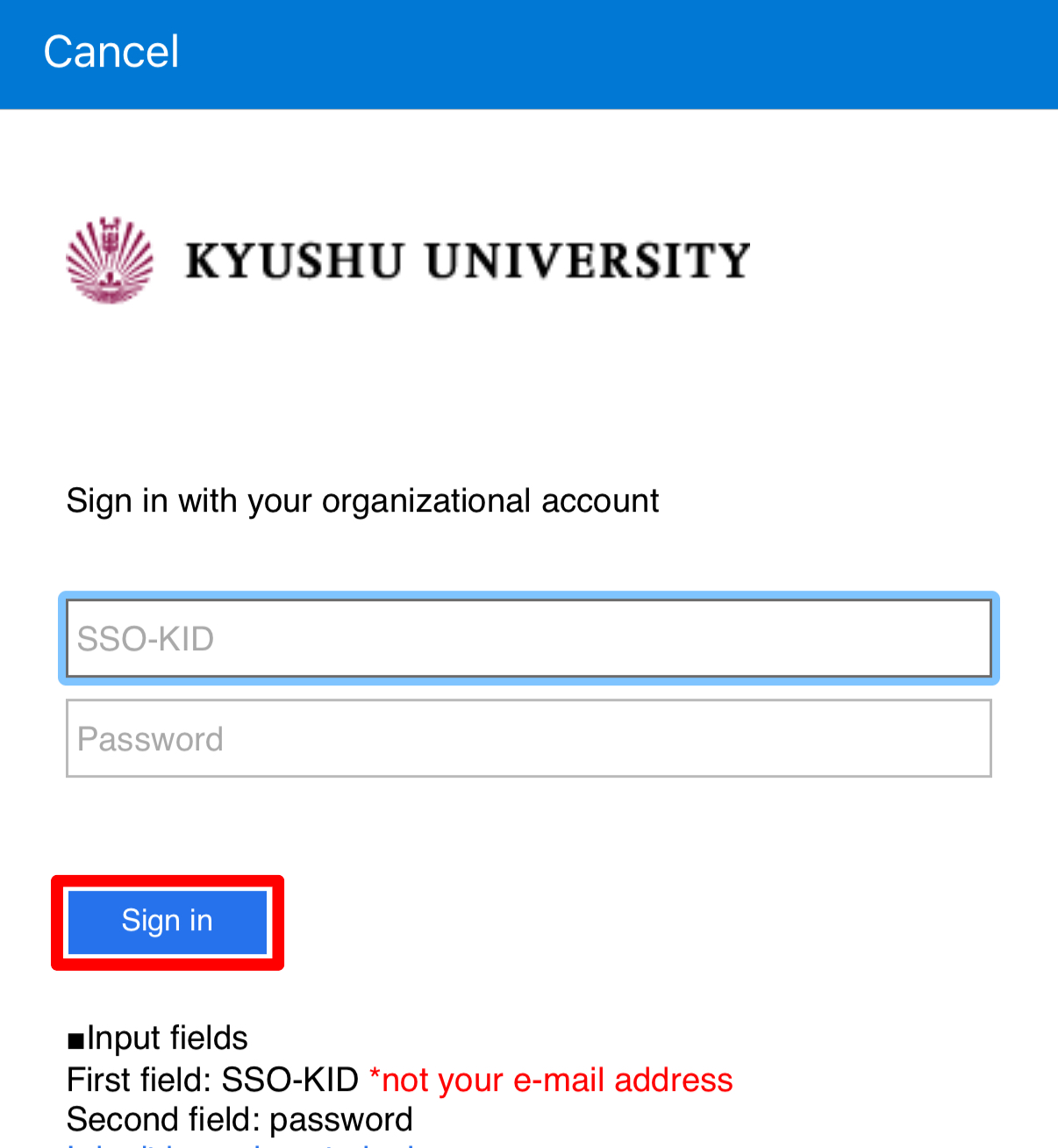
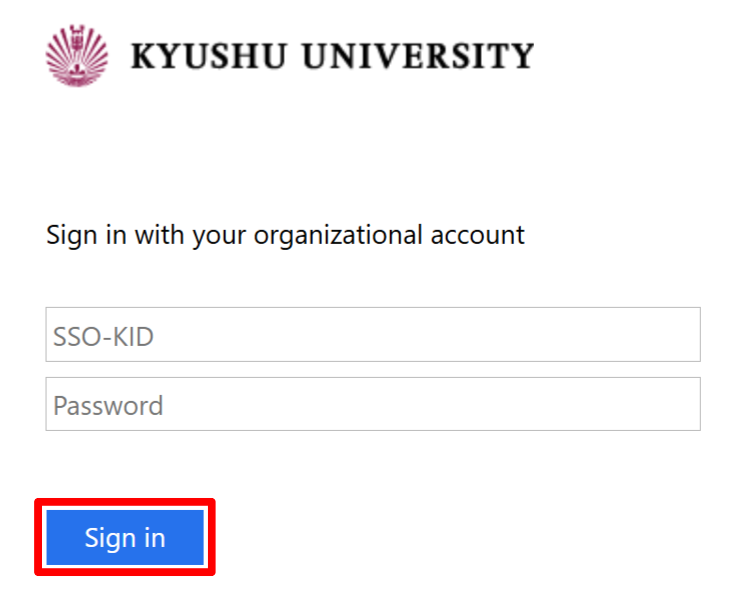
You will be redirected to the Kyushu University sign-in page. Enter your SSO-KID and password, then select “Sign in.”
-
Select “Open browser.”

If “Open browser” is not displayed(Click to expand)
-
If you have already registered other MFA methods, “Open browser” may not appear and identity verification will be requested instead. Follow the on-screen instructions to complete authentication.
-
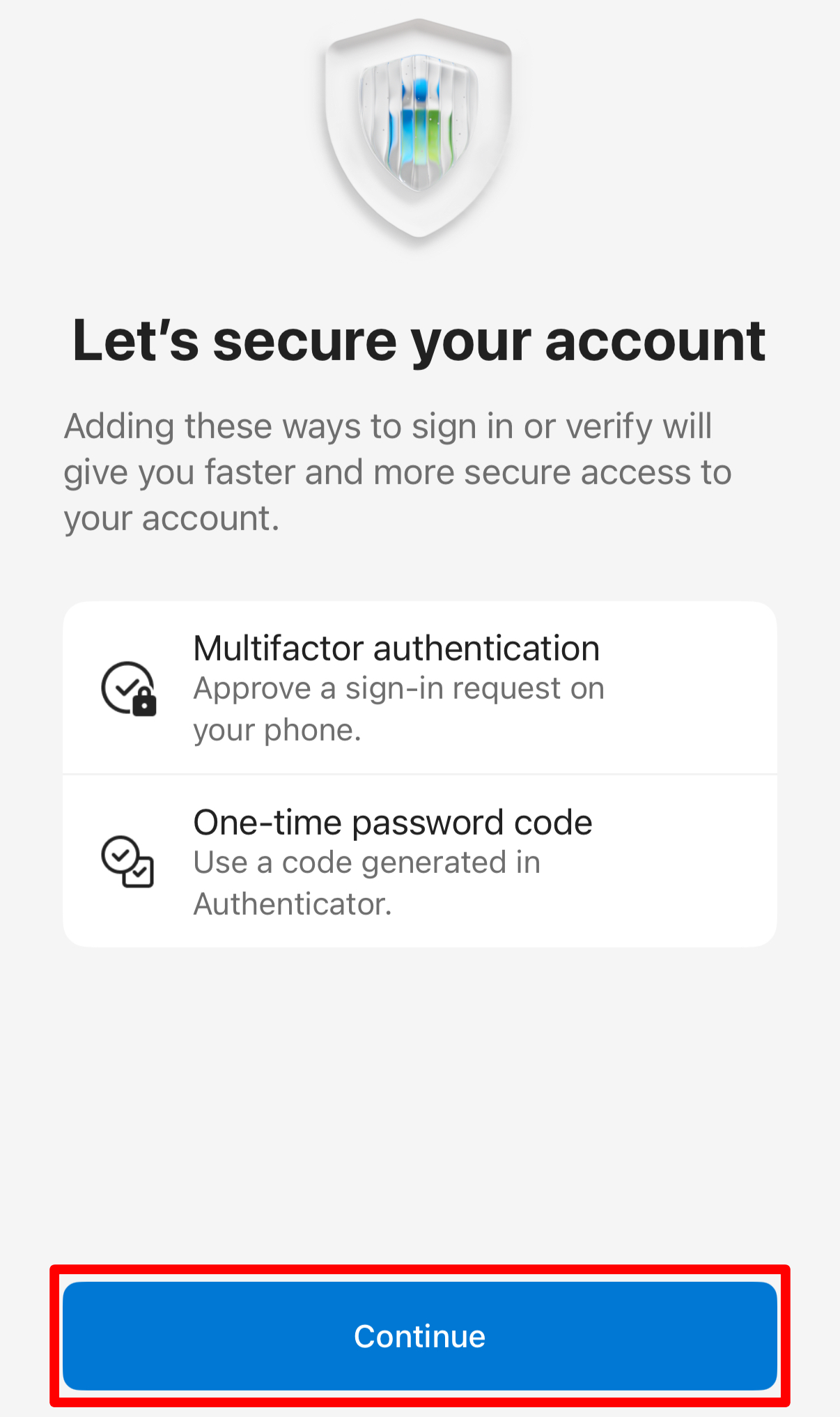
If “Secure your account” appears, select “Continue.”
-
Once the account has been added, select “Done.”
-
If your university email address appears in the app, setup is complete.
-
-
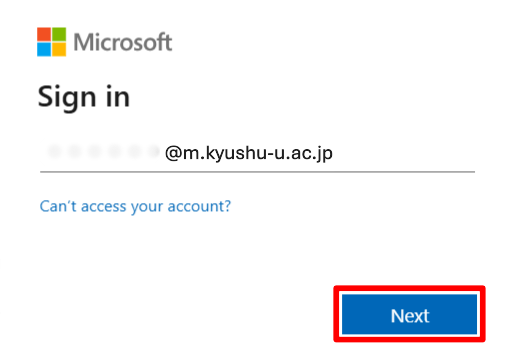
A browser will open and display the sign-in screen.
As before, enter your university email address and select “Next.”
Then enter your SSO-KID and password and select “Sign in.”
-
Select “Click this link to pair your account with the app.”
The Authenticator app will open and the account will be added.
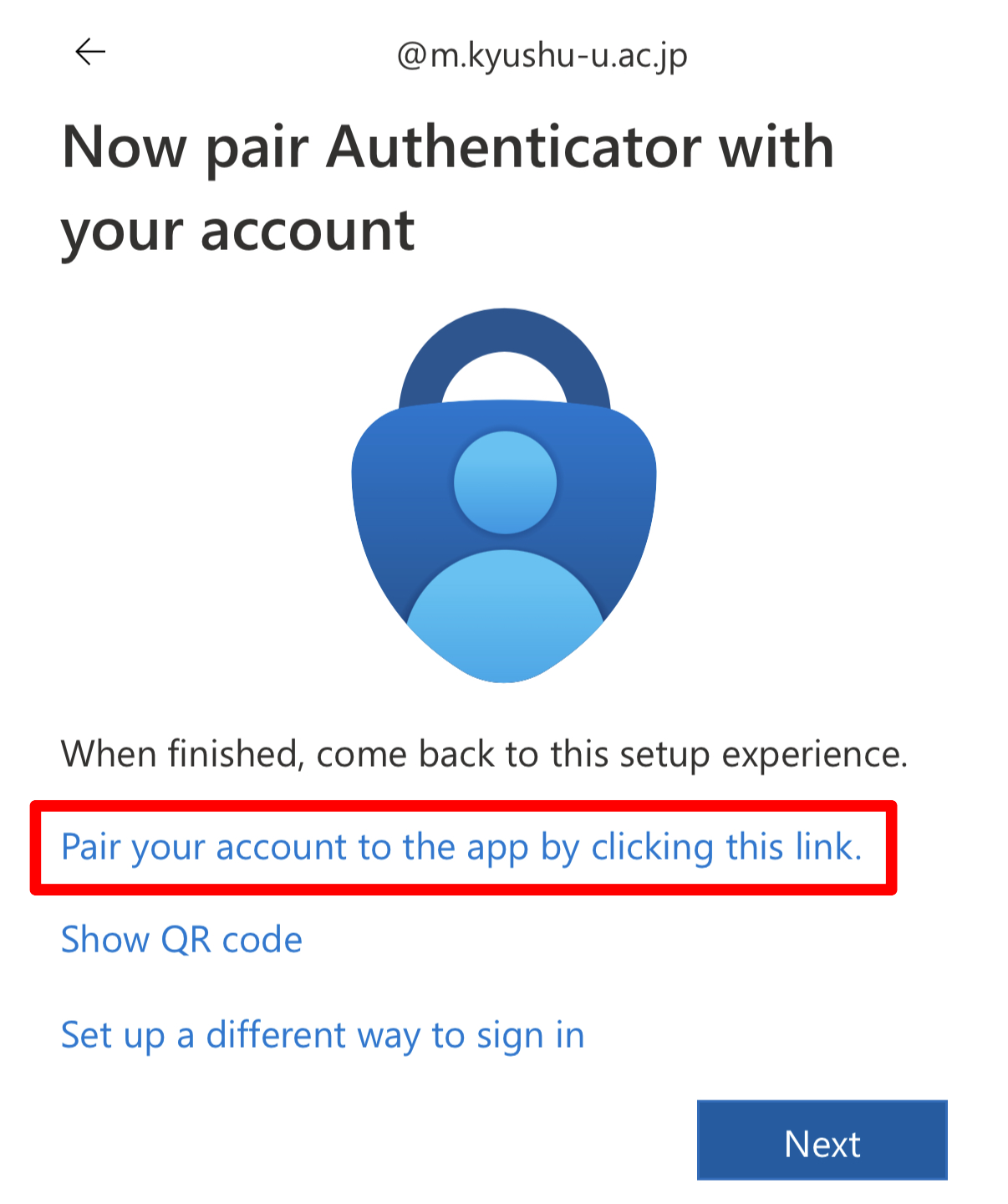
Once completed, select “Next.”If "Pair your account" is not displayed (click to expand)
When setting up using only a smartphone, the "Pair your account" option may not appear.
In this case, do not continue with the smartphone-only setup. Please use the PC-assisted setup instead.
1. Uninstall Microsoft Authenticator.
2. Follow the instructions below to complete the setup using both a PC and a smartphone.
Click here for setup instructions
-
A prompt to test authentication will appear. Check the number displayed.
Select the “Approve sign-in request?” notification to open the app.
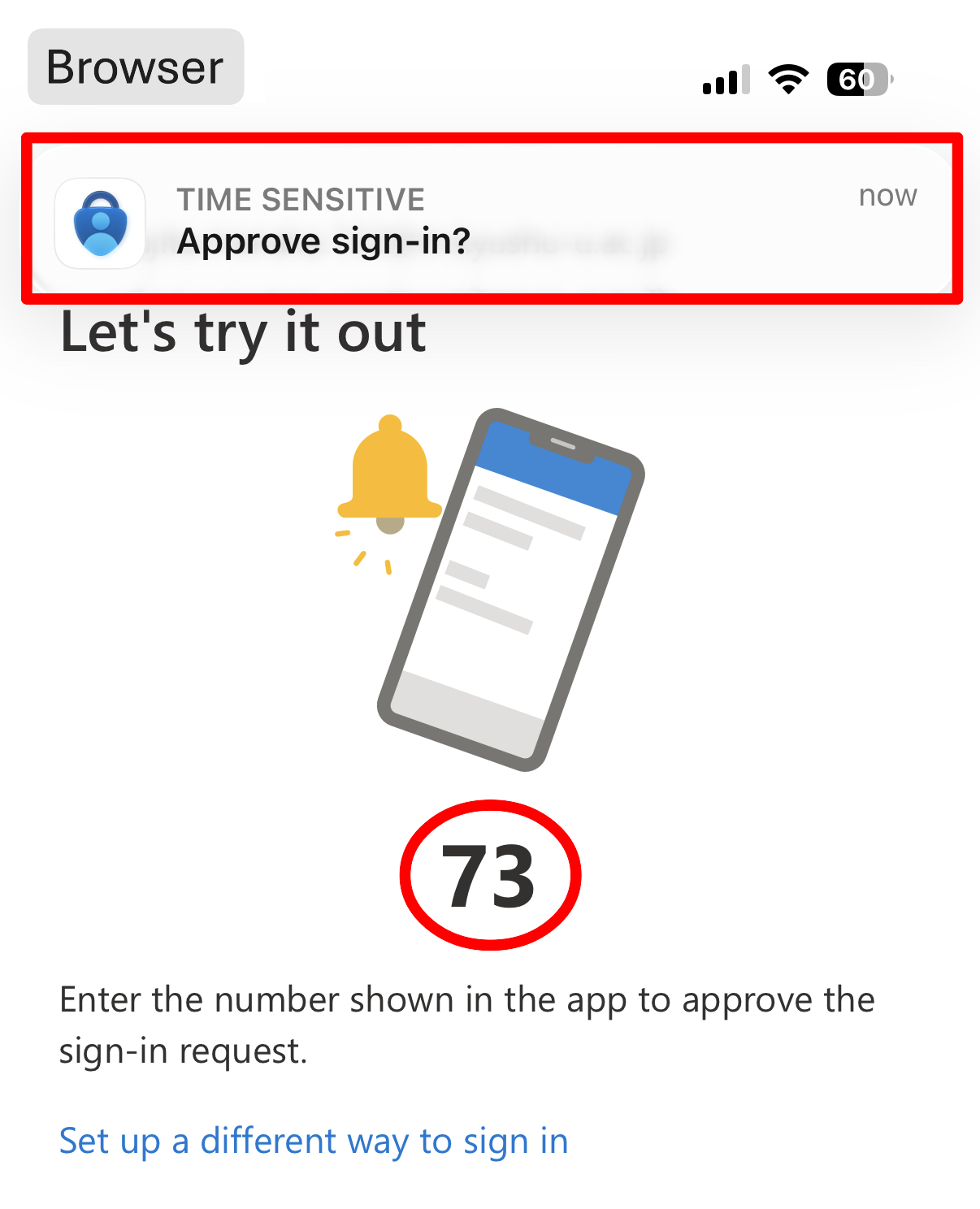
※ If the notification does not appear, return to the home screen and open the “Authenticator” app.
-
When the sign-in confirmation screen appears, enter the number shown in the browser and select “Yes.”
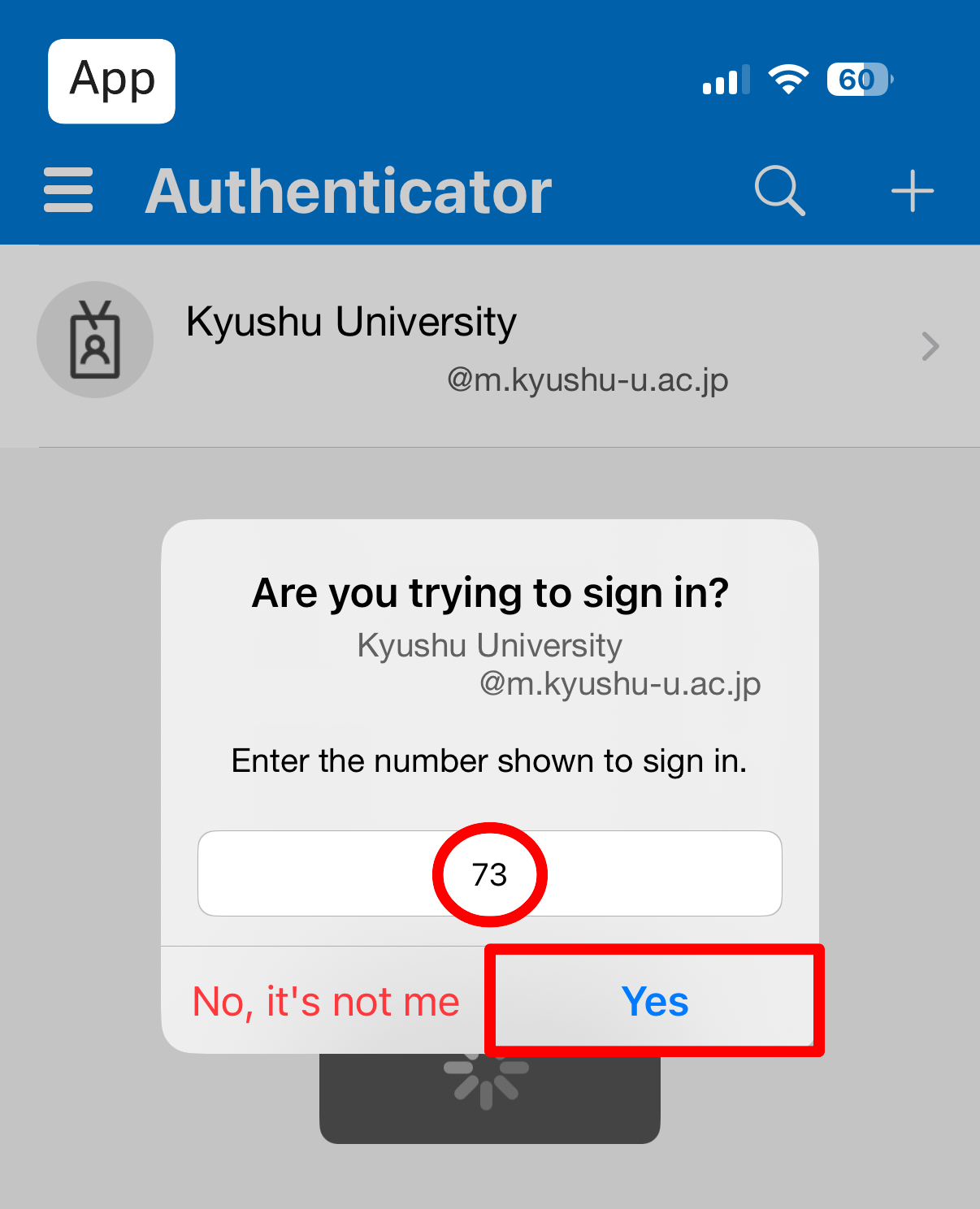
-
Return to the browser. A screen indicating successful approval will appear.
Select “Done.”
If “Session timed out” is displayed -
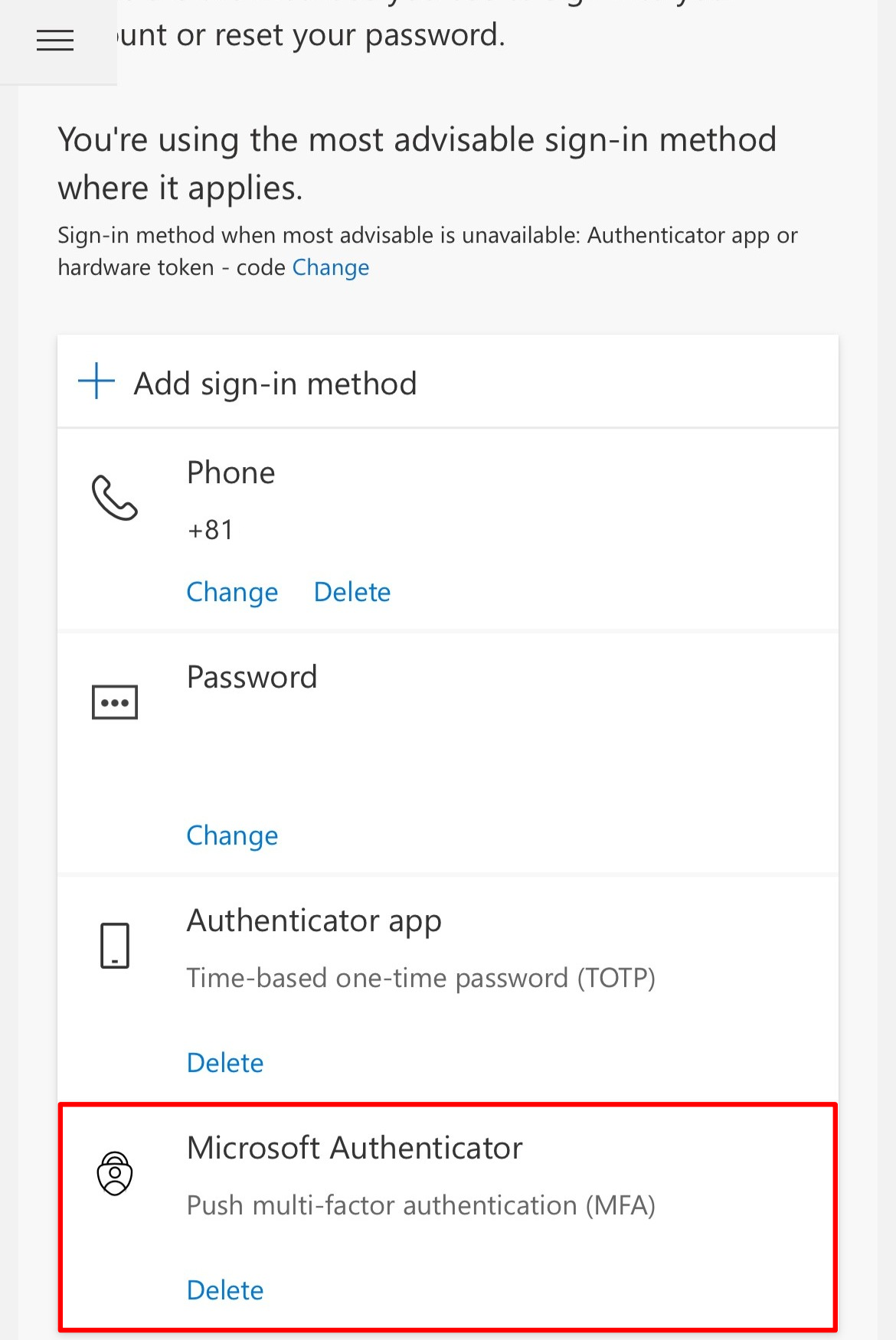
Setup is complete when “Microsoft Authenticator” appears in your Security info.
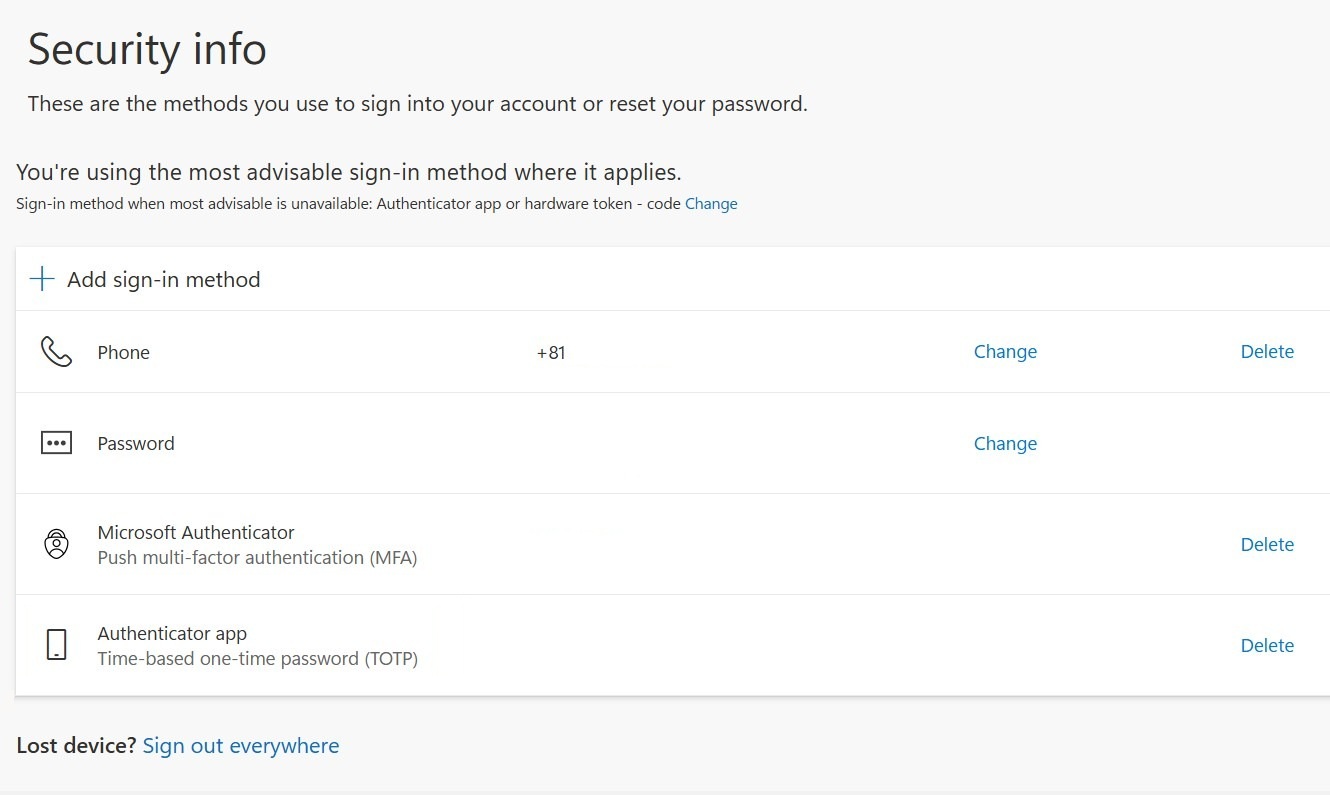
Setup is now complete. Well done.
If you want to confirm that everything is set up correctly:
→ MFA verification.
If “Session timed out” is displayed
- Select “Sign in”
- If prompted for authentication, follow the on-screen instructions
If you are unable to set up using a smartphone or do not have one
If you are unable to complete the setup on your smartphone or do not have access to one, please use one of the following methods:
→ Setup using a PC
→ Verification using a phone number
→ Other authentication methods